Video 2 video using Stable Diffusion guide - Part 1 (by ThinkDiffusion)

Introduction
In this guide, we'll be looking at creating animation videos from input videos, using Stable Diffusion and ControlNet. We will look at 3 workflows:
Mov2Mov
The simplest to use and gives ok resultsSD-CN Animation
Medium complexity but gives consistent results without too much flickeringTemporal Kit & Ebsynth
The most complex but gives you the most control
Workflow 1: Mov2Mov
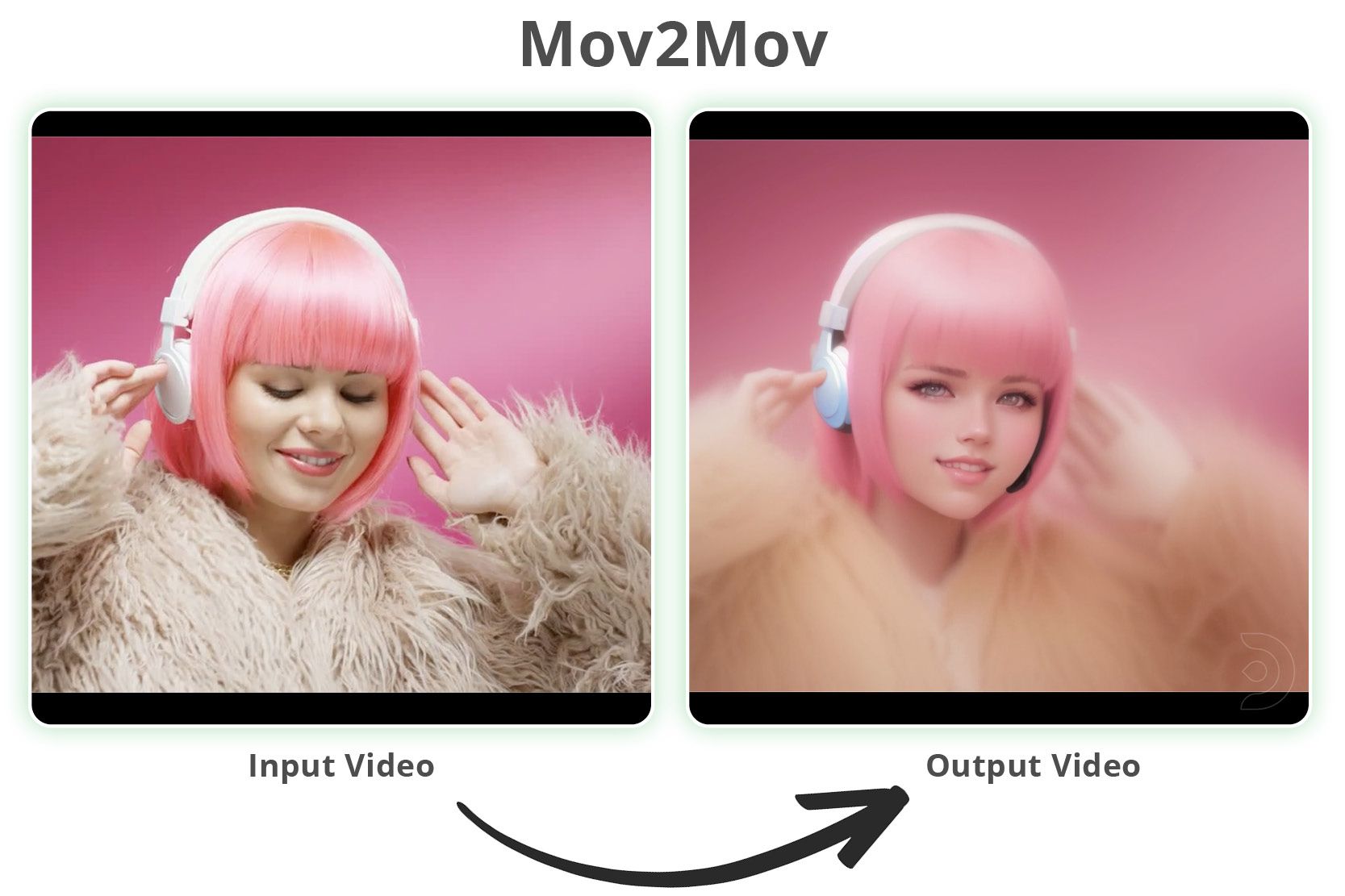
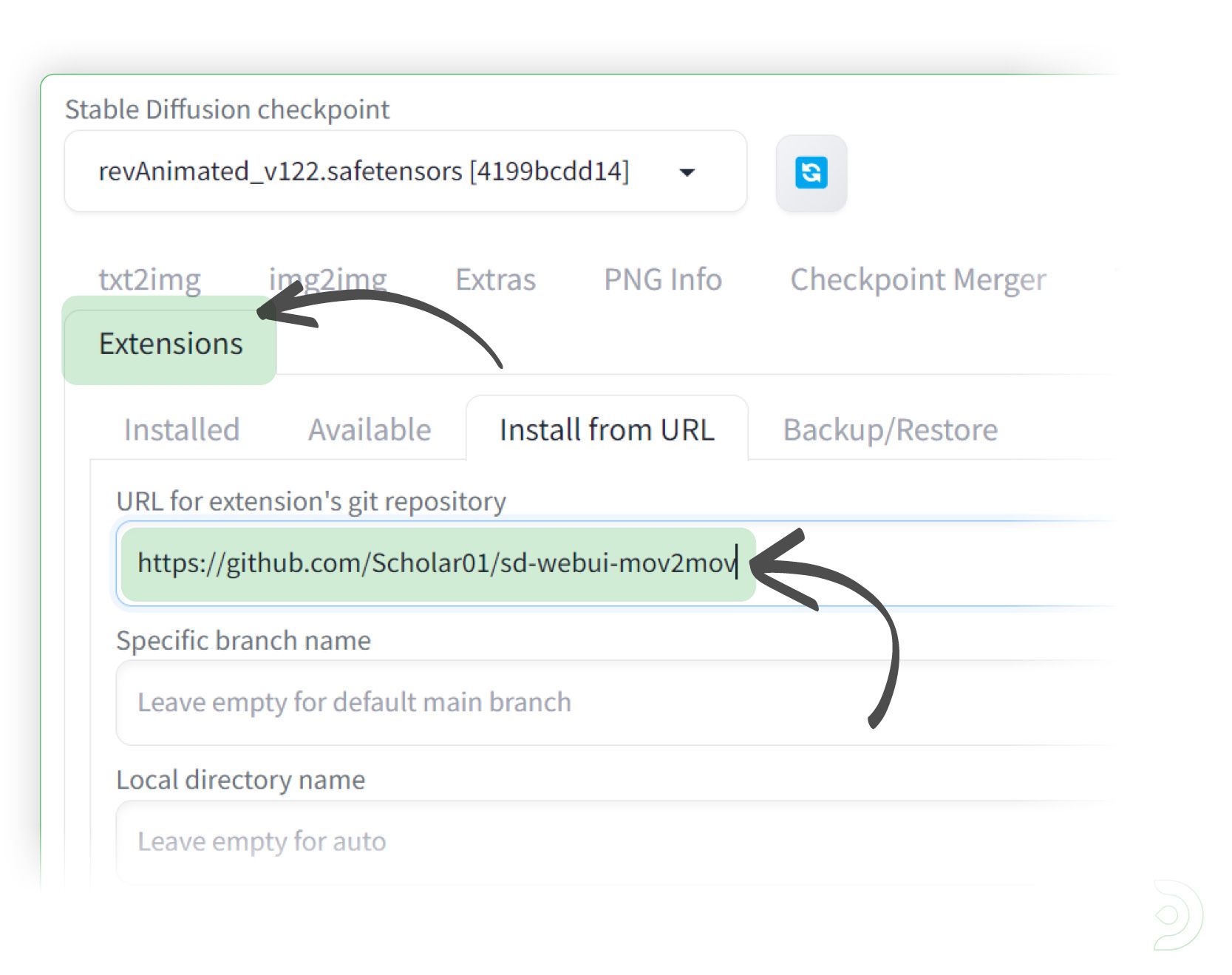
Firstly, you will need to add the Mov2Mov extension from the following url: https://github.com/Scholar01/sd-webui-mov2mov
Go into the extensions tab and paste the above url into the Install from URL tab within the extensions tab and click install
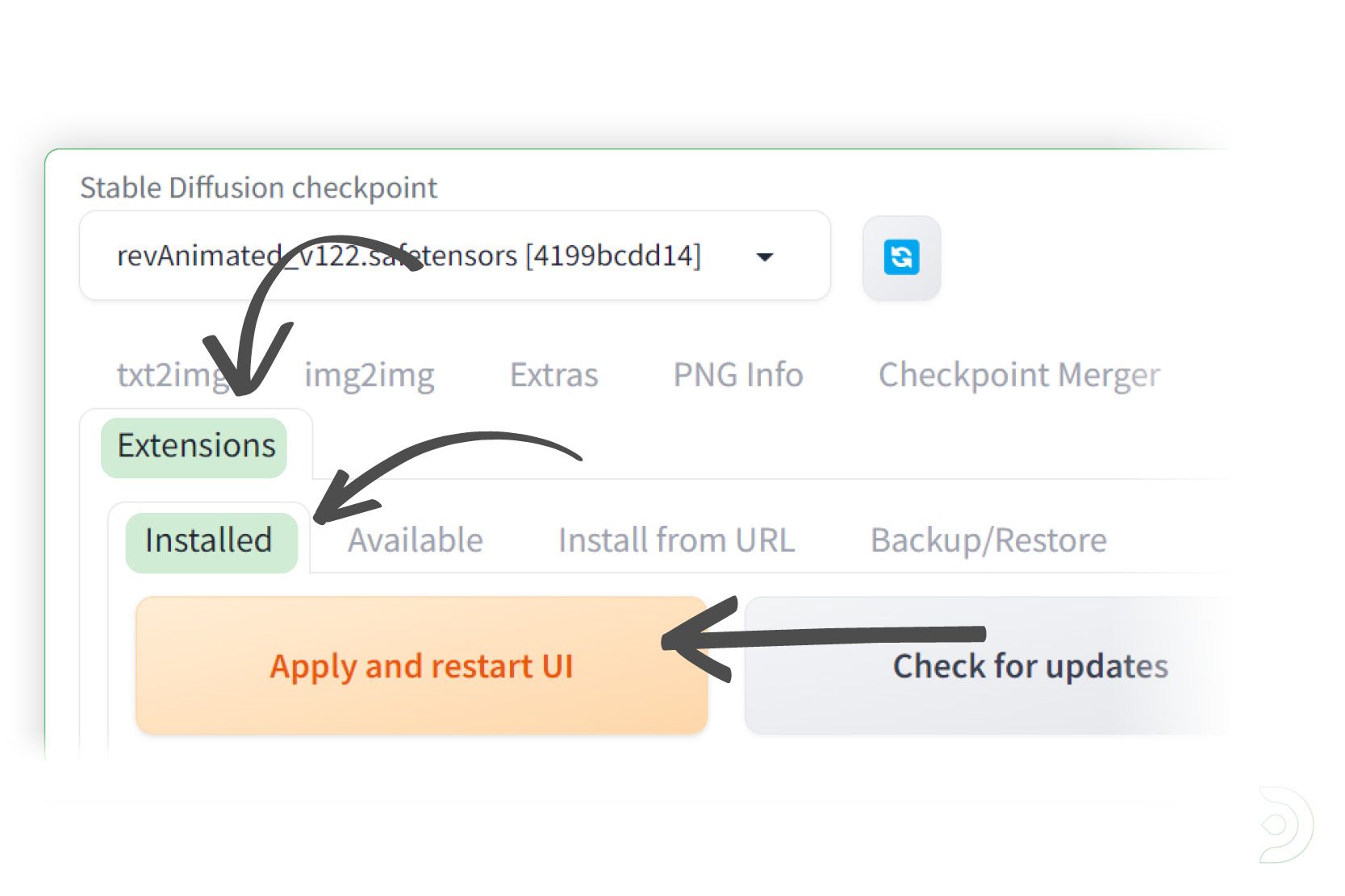
Go into the Installed tab within the Extensions tab and click Apply and restart UI
You should now see the Mov2Mov tab
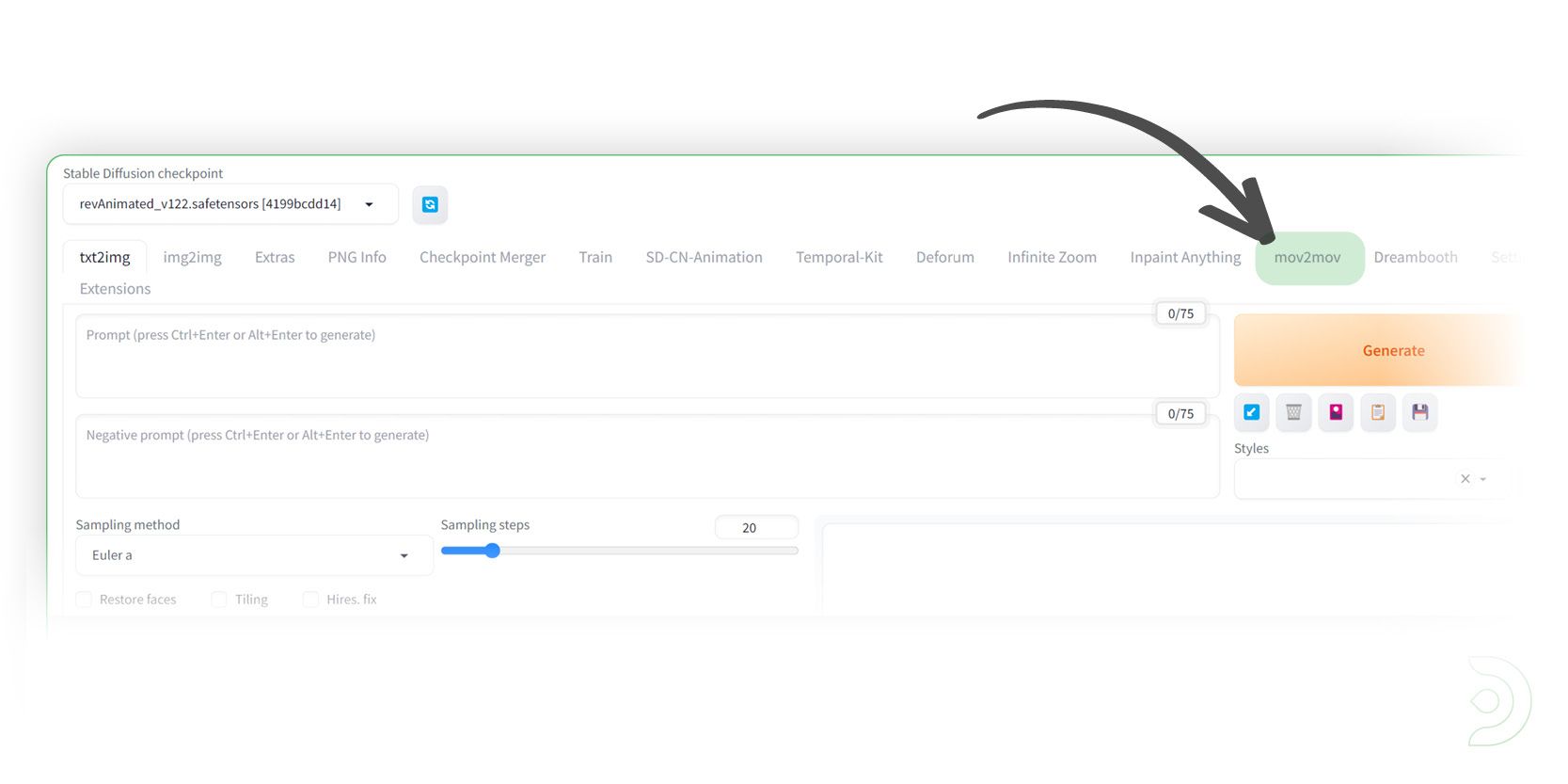
Please note that if the Mov2Mov tab does not show up, then I'd suggest you close down your instance of Stable Diffusion and re-launch the webui-user.bat file
Creating our Video
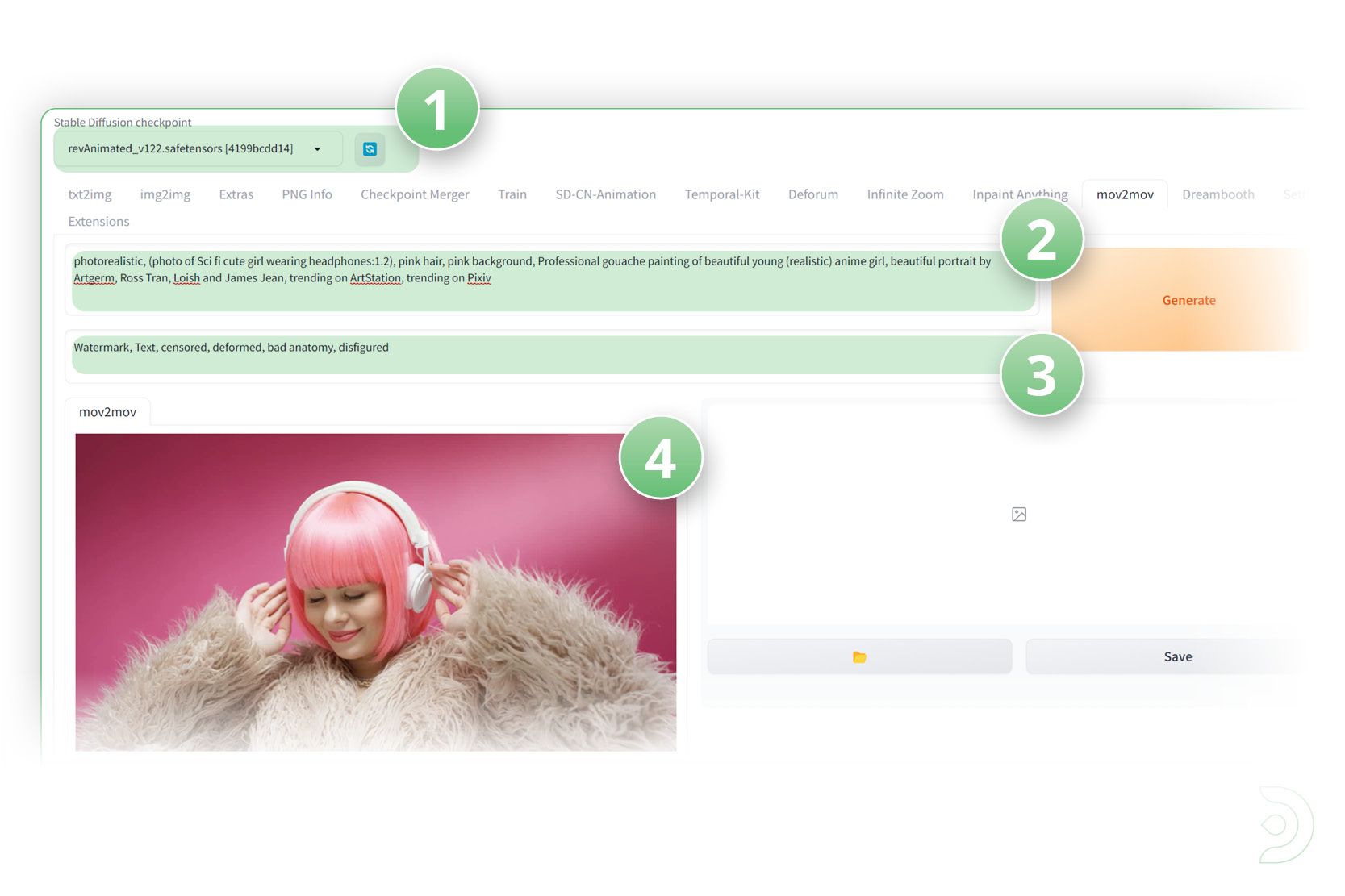
(1) Select revAnimated_v122 as the Stable Diffusion checkpoint
(2) Positive Prompt: photorealistic, (photo of Sci fi cute girl wearing headphones:1.2), pink hair, pink background, Professional gouache painting of beautiful young (realistic) anime girl, beautiful portrait by Artgerm, Ross Tran, Loish and James Jean, trending on ArtStation, trending on Pixiv
(3) Negative Prompt: Watermark, Text, censored, deformed, bad anatomy, disfigured
(4) Upload your input video
0:00
/0:17
1×
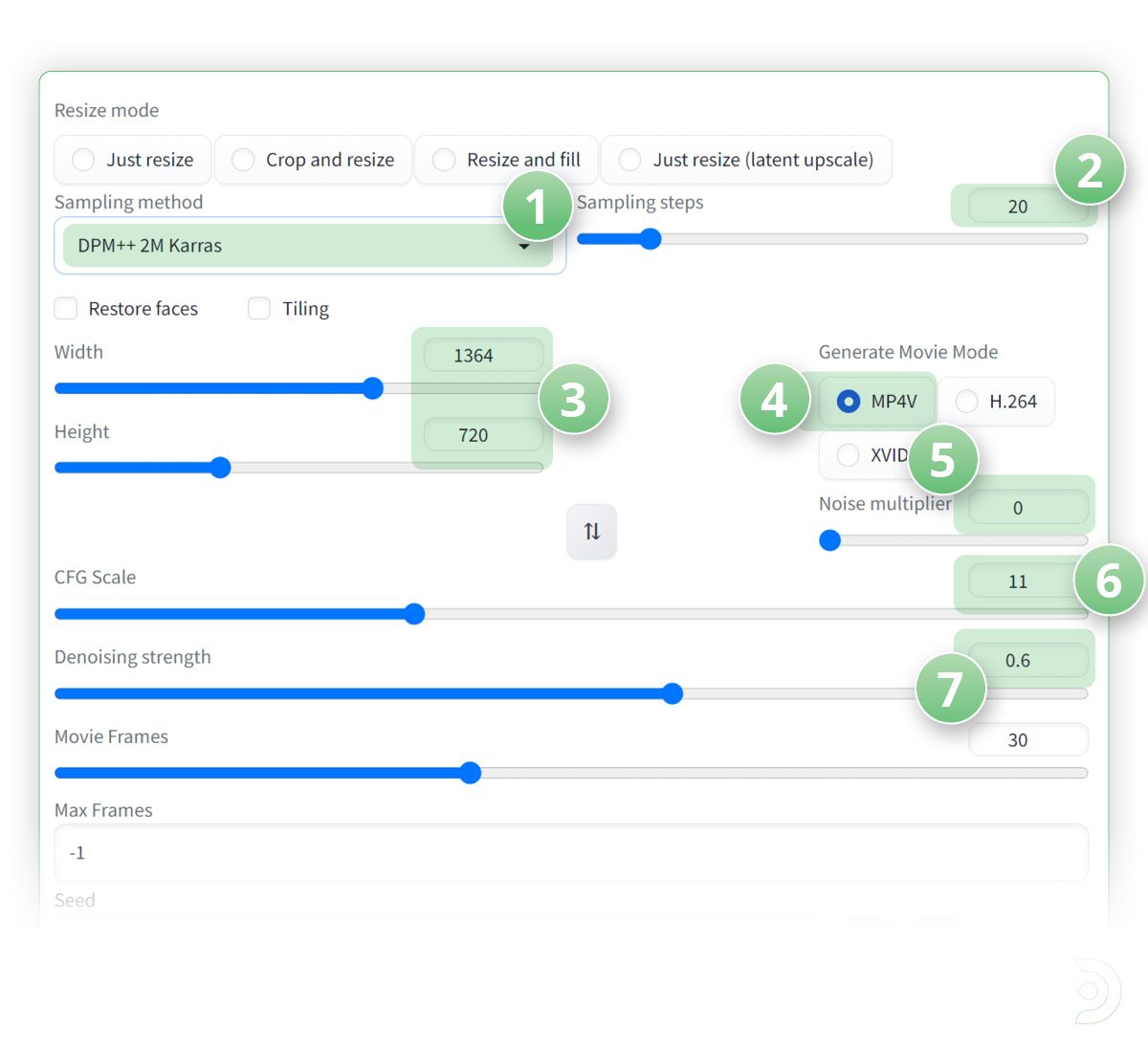
(1) Select the sampling method as DPM++ 2M Karras
(2) Set the sampling steps to 20
(3) I have set the width to 1364 and height to 720 as this matches the resolution of the input video
(4) Click on the the MP4V format
(5) We can leave the Noise multiplier to 0 to reduce flickering
(6) Set the CFG scale to 11
(7) and the Denoising strength to 0.6
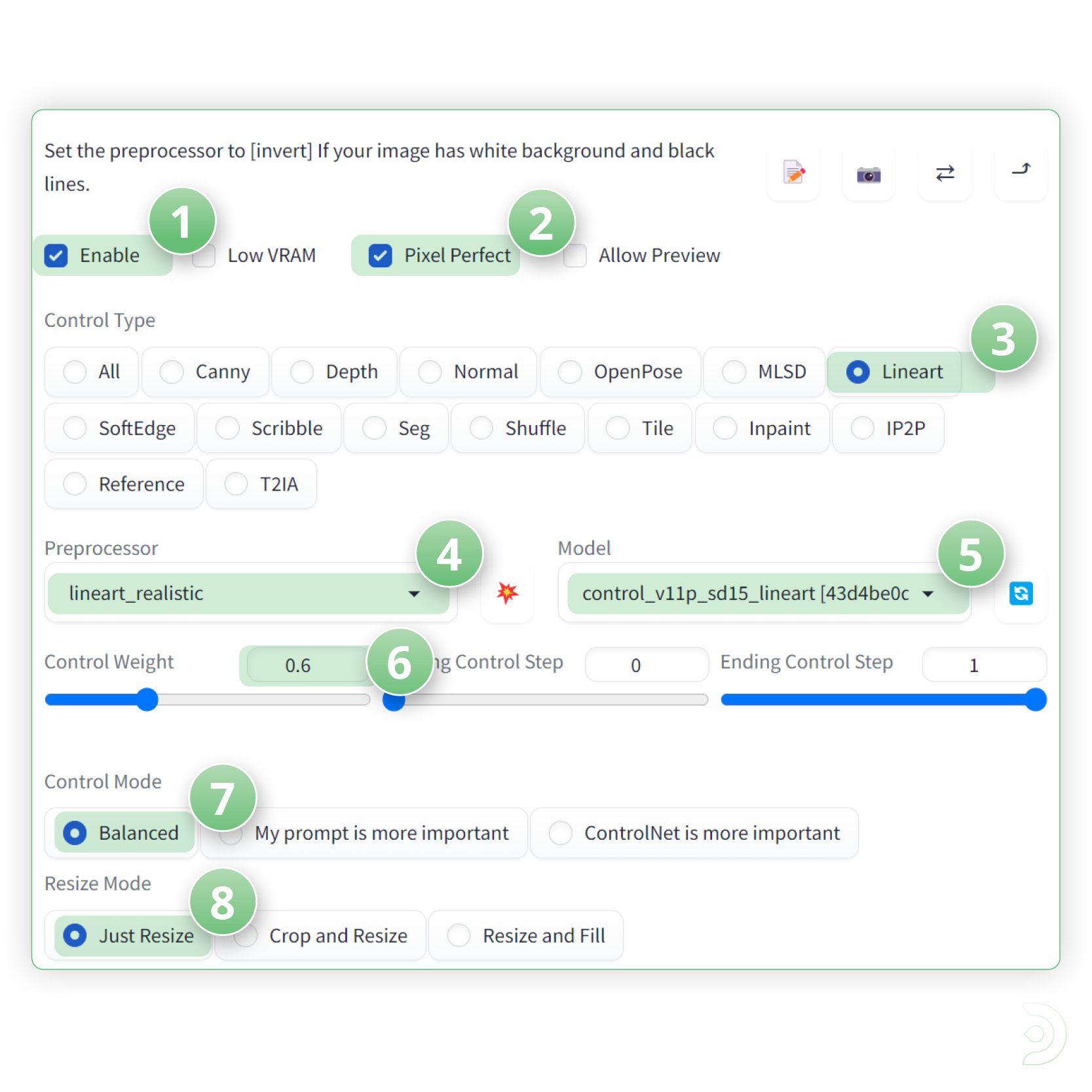
(1) Drop down ControlNet and click enable to ensure Control Net is activated
(2) and click Pixel Perfect ✅
(3) Select Lineart as the Control Type
(4) lineart_realistic as the pre-processor
(5) and control_v11p_sd15_lineart as the ControlNet model
(6) Set a control weight of 0.6
(7) a Control mode of balanced
(8) and a resize mode of Just resize
Click generate to see what we have created!
If you’re having issues with installation or slow hardware, you can try any of these workflows on a more powerful GPU in your browser with ThinkDiffusion.
Original article can be found here: https://learn.thinkdiffusion.com/video-2-video-using-stable-diffusion/