Quick & Easy Images. What is Fooocus?🤔

Fooocus offers a streamlined user interface for Stable Diffusion, designed to produce stunning images while remaining user-friendly. While it doesn't provide the advanced features found in interfaces like Automatic1111 or Comfy, it still excels as a powerful tool for many use cases.
1. Getting started
(1) Start by clicking launch app in the top right corner.

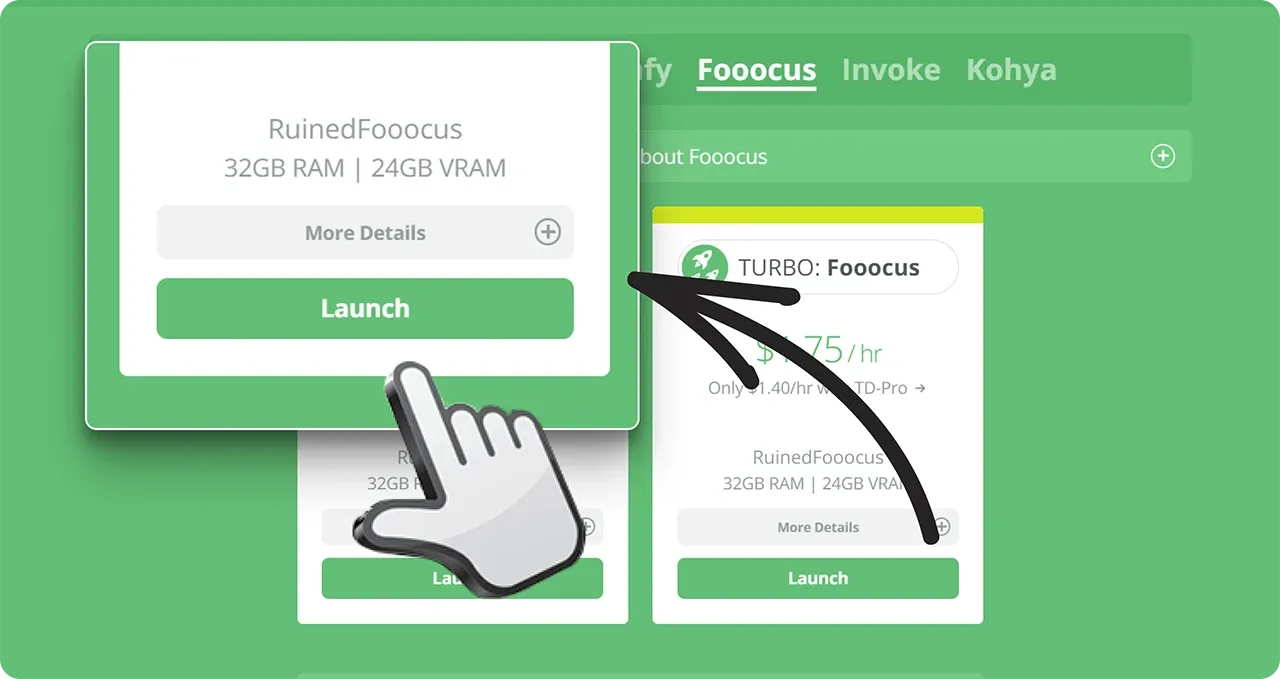
(2) Select Fooocus from the list of user interfaces.

(3) Click launch to start your machine.
2. Inside Fooocus
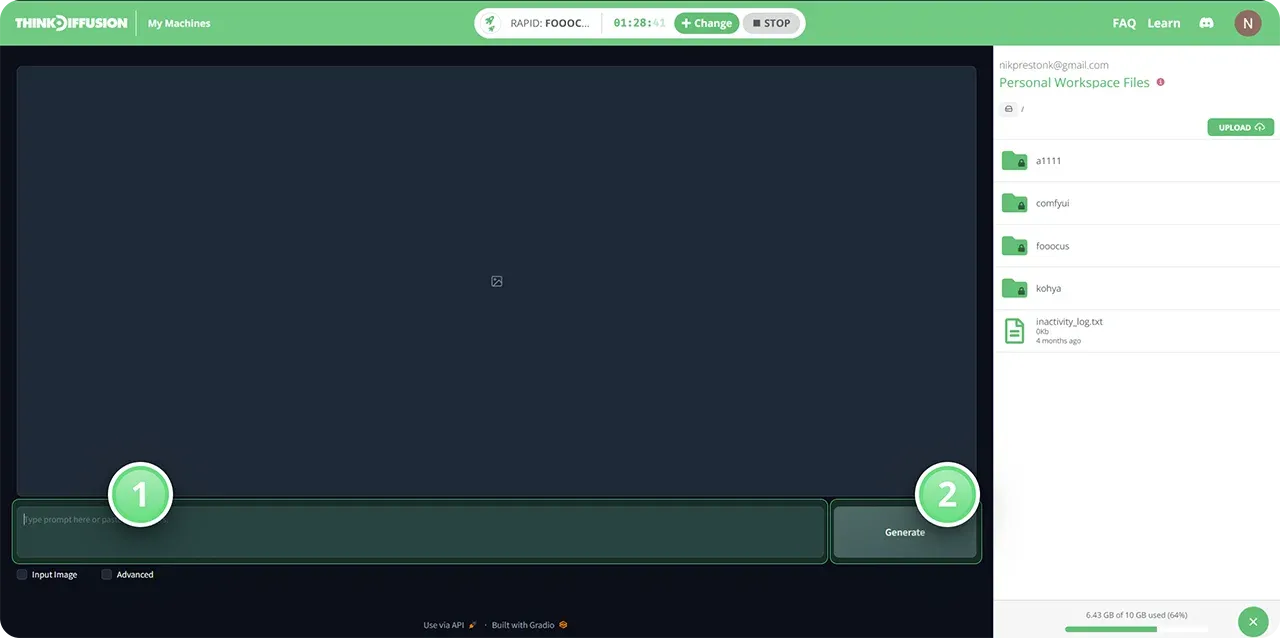
This is what you will see once you start Fooocus.
(1) Here's your prompt box where you can type what your image is going to look like.
(2) Press generate to start generating your image.
3. Advanced features
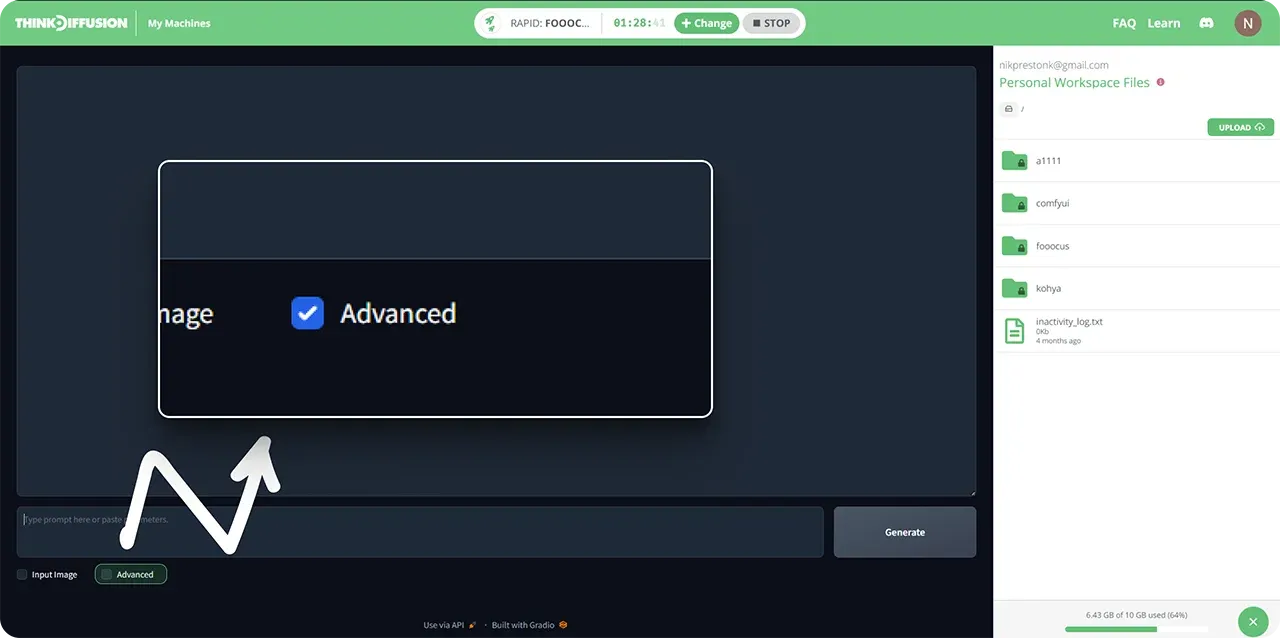
Select the advanced checkbox to enable advanced features.
The Settings Tab
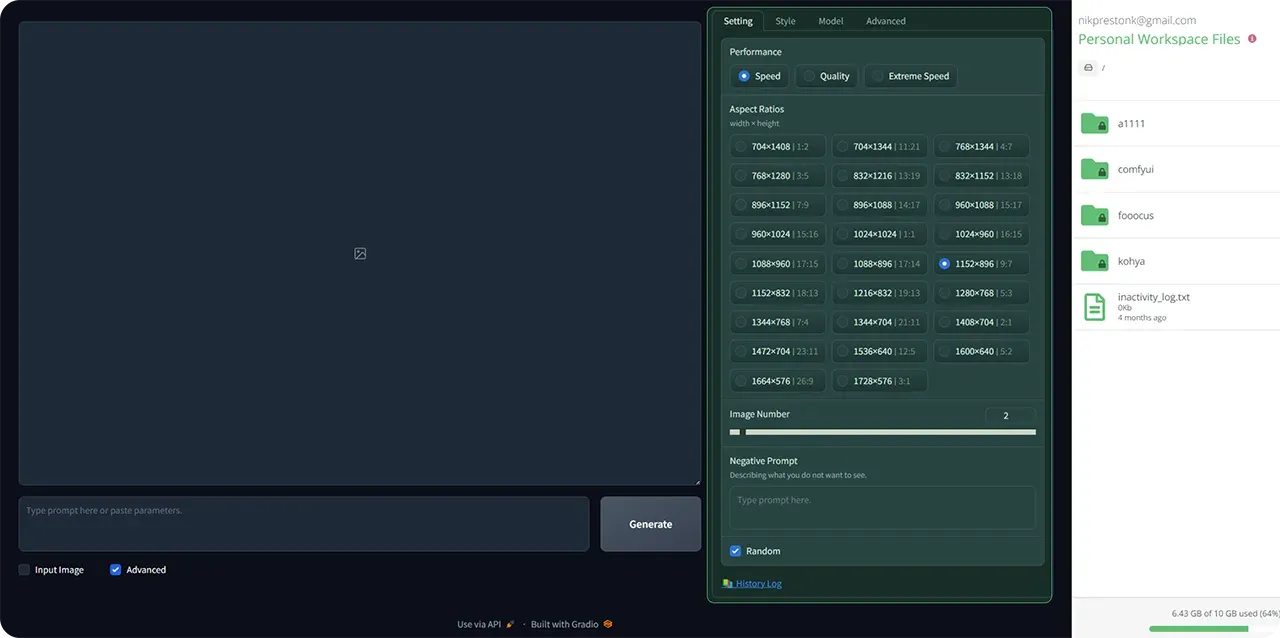
In the settings tab you can select performance, size of your image and how many images you want generated.
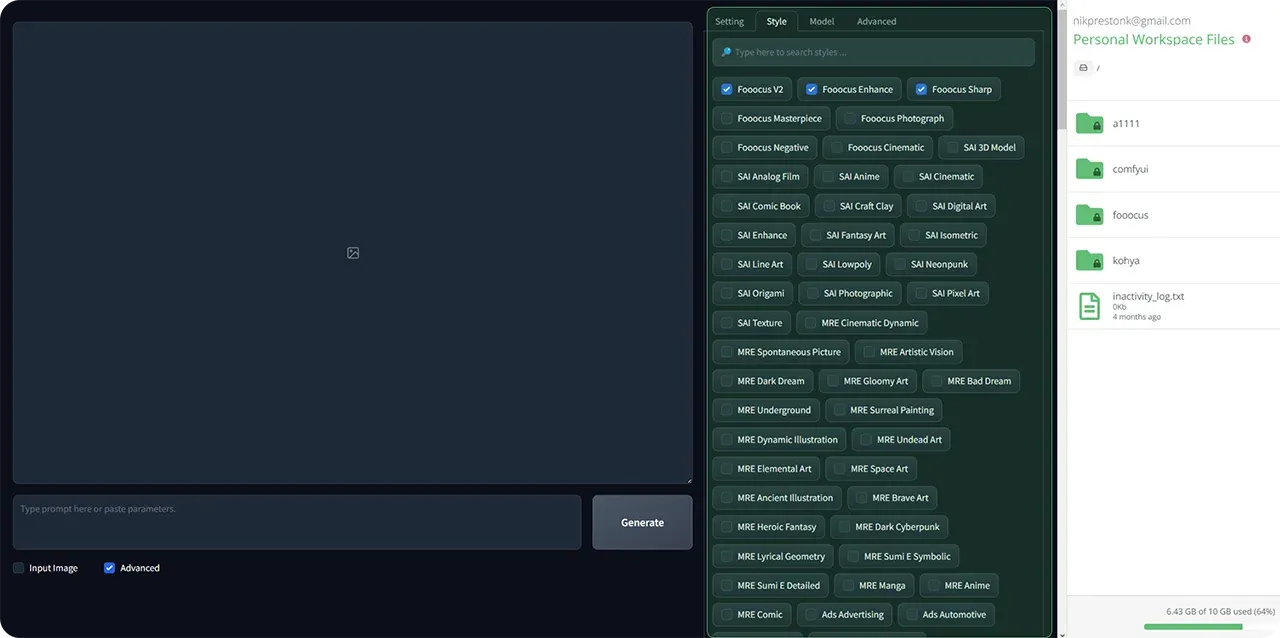
The Style Tab
In the style tab you can select an art style for your image. You can also type a style in the prompt box, but selecting one is easy and convenient.
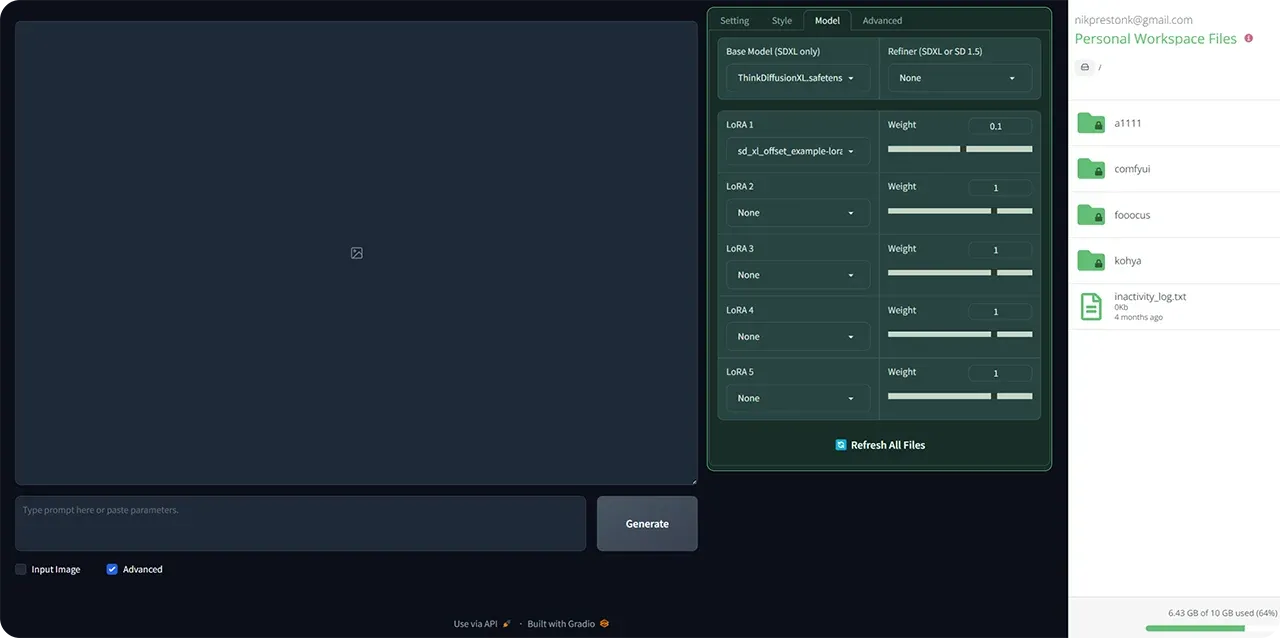
The Models tab
In the models tab you can select niche models to cater to different image styles and also loras, which will enhance your images in various ways. It could for example be adding a lora to make everything look like glass.
Input image
Check the Input image checkbox if you want to use advanced features like upscale, image prompt, inpaint, outpaint or describe.
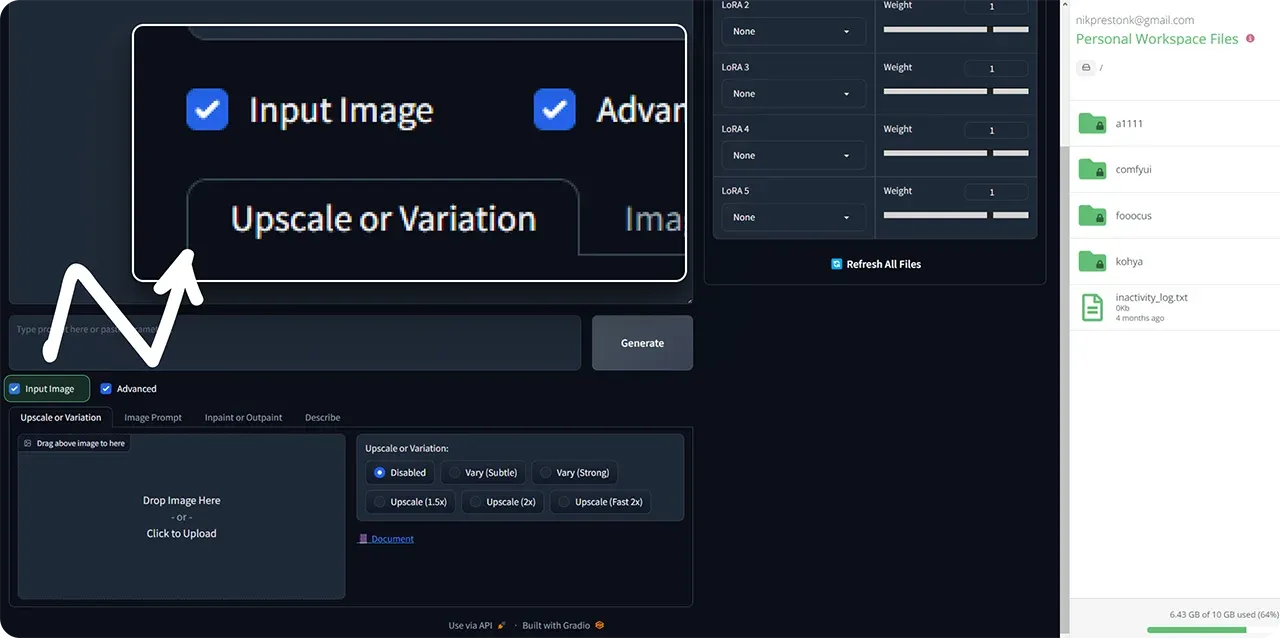
Drag your preferred image into the input image box and that will be used for your output. Using upscale will make your image larger, while image prompt will let you create images in a similar style. Try inpaint or outpaint to adjust details in your image or to expand the canvas.
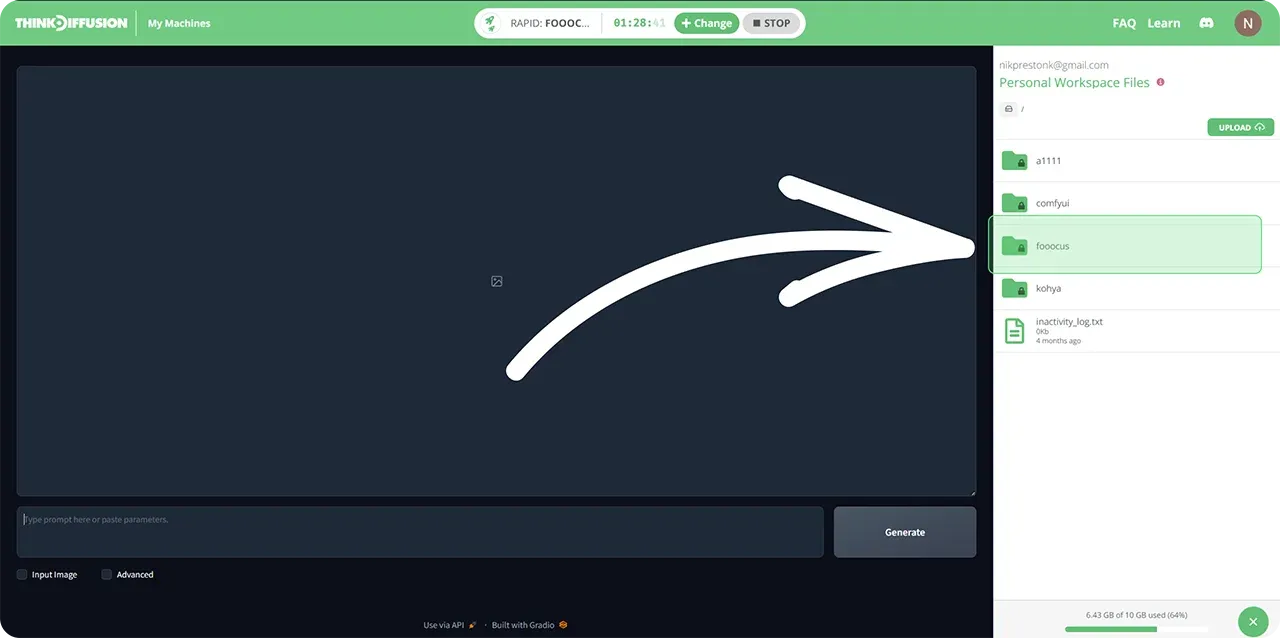
4. File browser
To find images you've generated previously, go into the right hand file browser and the folders /fooocus/outputs/
Good luck and go create some amazing art!
Original article can be found here: https://learn.thinkdiffusion.com/what-is-fooocus/