Installing Triton and Sage-Attention Flash-Attention and X-formers win

***I USE COMFYUI BUT YOU CAN USE THIS GUIDE FOR ANY PYTHON ENV***
I Notice some people might have debloated versions of windows that might prevent some of the steps from completing succesfully I recommend installing WezTerm on that case and use wezterm as a terminal for this installation if you experiment problems with other terminals like powershell
https://wezfurlong.org/wezterm/install/windows.html
winget install wez.wezterm Python
If you can create a micromamba environment for comfy from scratch I recommend this otherwise
with python 12.1 and install xformers
Install micromamba https://mamba.readthedocs.io/en/latest/installation/micromamba-installation.html#windows
micromamba install xtensor -c conda-forge***You can name it whatever I recomnd something short and descriptive like ai, gen or comfy***
micromamba create -n gen xtensor -c conda-forgemicromamba activate genmicromamba install -c conda-forge python=3.12.1;Then install xformers and when you get to the comfy requirements.txt use -r flag
GIT
Insall git from this site
CUDA
Make sure you have CUDA toolkit Installed
https://developer.nvidia.com/cuda-12-4-0-download-archive
Make sure there is an environment variable set on the system path for the CUDA toolkit delete any previous versions and restart the computer
XFORMERS
If you want Xformers you can install it prior everything else because
it will download pytorch and will mess the whole setup if you do it after the other attention mechanisms
12.4 (I would go with 12.4 compile flash attention coss there are no wheels for 12.1)
pip install -U xformers torch torchvision torchaudio --index-url https://download.pytorch.org/whl/cu124 for 12.4 versionif you need other versions check
but at the moment of writting it needs this (RECOMMENDED, linux & win) Install latest stable with pip: Requires PyTorch 2.5.1
https://github.com/facebookresearch/xformers?tab=readme-ov-file
https://pytorch.org/get-started/locally/
MSVisualSTUDIO
Head to this site and download BuildTools
https://visualstudio.microsoft.com/downloads/?q=build+tools
Chose the Community free dpwnload
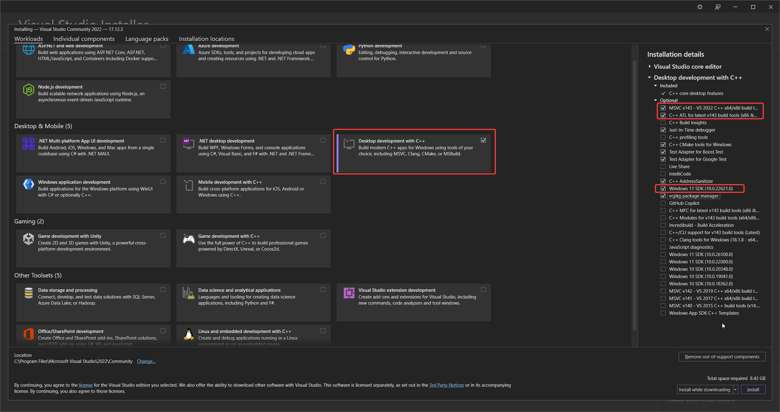
run the installer and select desktop development with C++
make sure to select the
Windows 11 SDK (10.0.22621.0) or newer best but even previous will work
MSVC v143 ー VS 2022 (++ X64 / X86 build
C ++ ATLforlatestv143 since this are headers and libraries you must addedn too
C ++ CMake
SYSTEM ENVIRONMENTS
Open Windows Settings
Search for "Edit system environment variables" or "Environment Variables"
Click on "Environment Variables" button in the System Properties window
You can then edit either User variables (top section) or System variables (bottom section)
To add a new variable, click "New"
To modify an existing variable like PATH, select it and click "Edit"
Gatchas
Check you don't have other older CUDA toolkits on the path
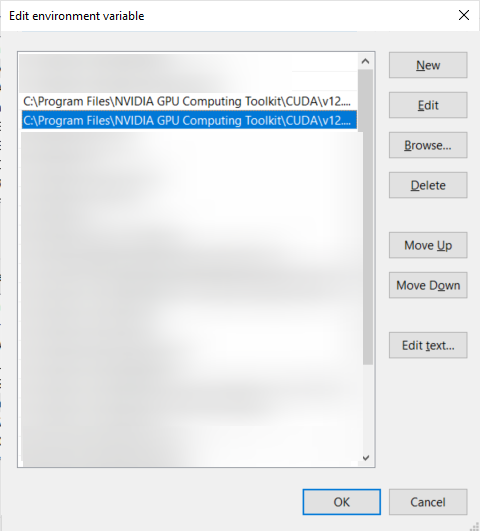
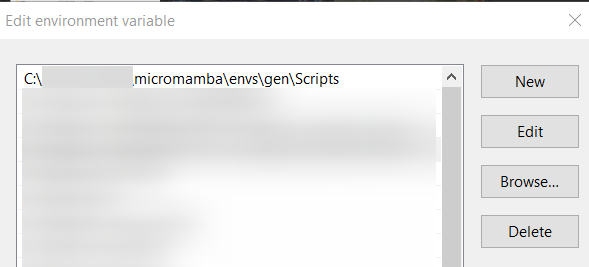
Check Make sure your comfy python env is added to system path add the python.exe by adding the Scripts folder
make sure git is on path $env:Path += ";C:\Program Files\Git\cmd"
Add the sytem environment variables path
C:\Program Files (x86)\Microsoft Visual\VC\T001s\MSVC\14.41.3412Ø\bin\Hostx64\x64without this Triton won't work
You can also activate ComfyUI's env and run
"C:\Program Files (x86)\Microsoft Visual Studio\2022\BuildTools\VC\Auxiliary\Build\vcvars64.bat"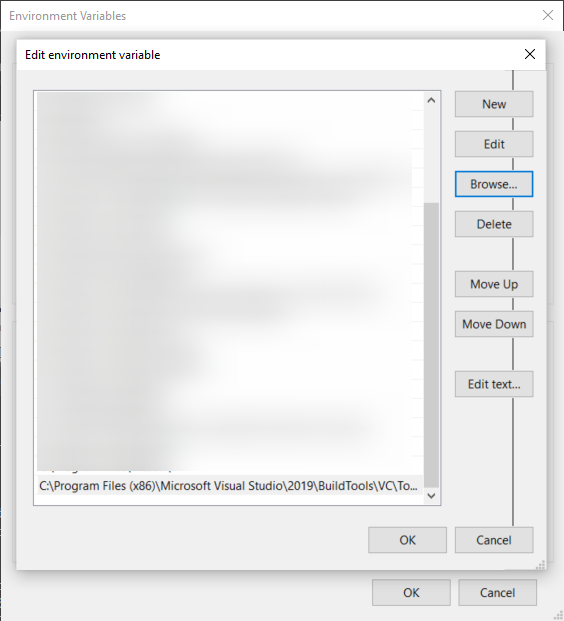
VCRunTime
Donwload https://aka.ms/vs/17/release/vc_redist.x64.exe
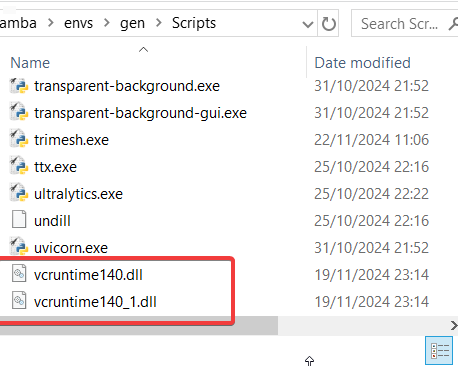
and manually copy vcruntime140.dll and vcruntime140_1.dll to the same folder as your python.exe in your scripts folder of your ComfyUI python env venv/Scripts
I didn't even download this I just found the same dll files from my premiere pro installation and draged them to the folder your will say venv instead gen or the name you gave to your environment
TRITON
Now let's install the precompiled wheels for windows
Then go find the wheel for your env
Find your python version wheels here:
https://github.com/woct0rdho/triton-windows/releases
Currently at the time of writting this guide the latest comfy is using python 12
triton-3.1.0-cp312-cp312-win_amd64.whlIf that doesn't work well, use the old one
triton-3.0.0-cp312-cp312-win_amd64.whl (I used this one)to install it activate the venv place the wheel at the root of comfyui so you don't have to give the location other whise give the location
pip install triton-3.0.0-cp312-cp312-win_amd64.whlif you have embeded place it inside the python_embeded folder
C:\ComfyUI_windows_portable\python_embeded> ./python.exe -s -m pip install triton-3.0.0-cp312-cp312-win_amd64.whldownload the sage attention script place it onto your ComfyUI/custom_nodes/ folder
https://gist.github.com/blepping/fbb92a23bc9697976cc0555a0af3d9af
Now you can activate the Comfy evironment
pip install sageattention
FLASH-ATTENTION2
Now you also should be able to install flash attention 2 if you like
check if you have flash-attn & ninja already
ninja --version if you don't have it do
pip install ninjaYou Don't?
Move to the location you wish to use to install flash attention 2
This can be temporal we only need to get flash-attn on the environment for comfy
METHOD 1
git clone https://github.com/Dao-AILab/flash-attentioncd flash-attention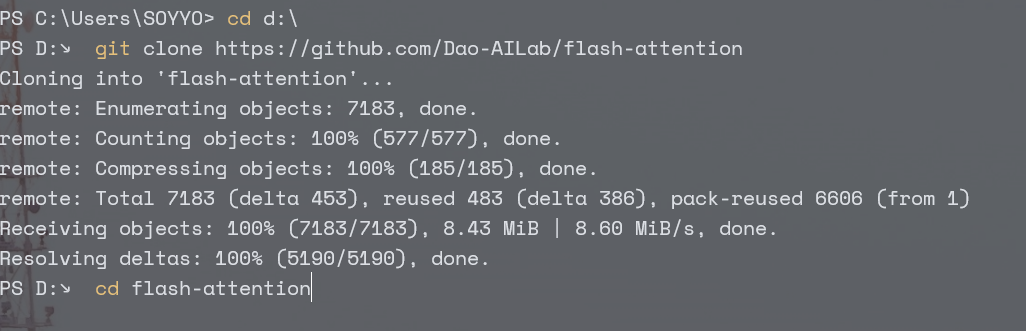
Activate comfyUI env
to compile it you can now use
set MAX_JOBS=4pip install flash-attn --no-build-isolationwait like an hour to install
pip list check you have it installed
Test (This test can be lengthly as it checks different patterns of attention and batches etc..)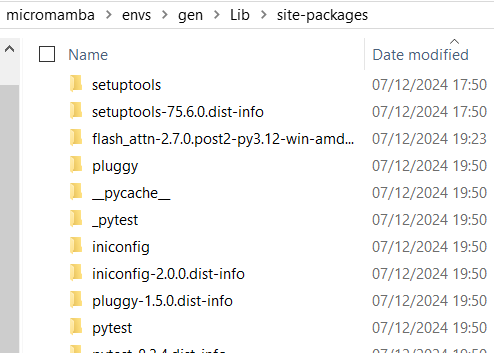
pip install pytestpytest tests/test_flash_attn.py
METHOD 2
PLEASE READ
*** Any precompiled wheels are risky do this at your own risk I compiled mine with method1 and I don't recommend this method ***
git clone https://github.com/Dao-AILab/flash-attentioncd flash-attentiongit checkout -b v2.7.0.post2 v2.7.0.post2
Download the bat into the flash attention folder
https://huggingface.co/lldacing/flash-attention-windows-wheel/tree/main
edit the bat so ninja 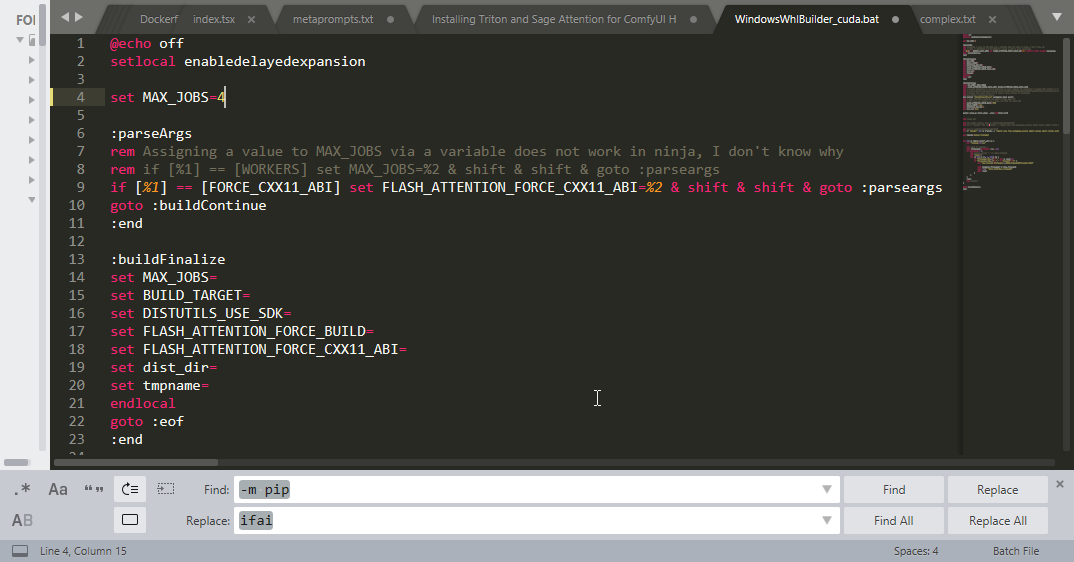 can run jobs in parallel
set MAX_JOBS=4 is safe I use 8 but I have 124GB of RAM
check your CUDA toolkit, CUDA version, and python version
download the wheel for your version
pip list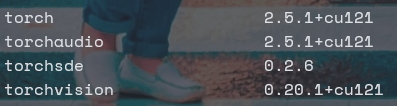
place both the files inside the flash-attention folder
and make sure you are in the folder
cd flash-attentionActivate ComfyUI environment
execute the bat
./WindowsWhlBuilder_cuda.bat