Unleashing Creativity: How Hunyuan Redefines Video Generation by ThinkDiffusion

It’s incredible to see how rapidly the video-creation landscape is evolving. Imagine this: with just a few clicks, you can transform your existing clips into fresh, captivating videos—how exciting is that? Whether you’re brand-new to the craft or a seasoned pro, Hunyuan is here to ignite your creative spark. In this guide, we’ll explore how this groundbreaking custom node is changing the game, making it simpler than ever to tell your story through video. So fasten your seatbelt and get ready to discover how Hunyuan can elevate your video projects to a whole new level!
How to run HunYuan in ComfyUI
Installation guide
ThinkDiffusion-StableDiffusion-ComfyUI-Hunyuan
ThinkDiffusion-StableDiffusion-ComfyUI-Hunyuan.json
⚠️
This guide is optimized for ThinkDiffusion users.
For local installs, there are additional steps required that are beyond the scope of this resource.
Custom Node
If there are red nodes in the workflow, it means that the workflow lacks the certain required nodes. Install the custom nodes in order for the workflow to work.
Go to ComfyUI Manager > Click Install Missing Custom Nodes
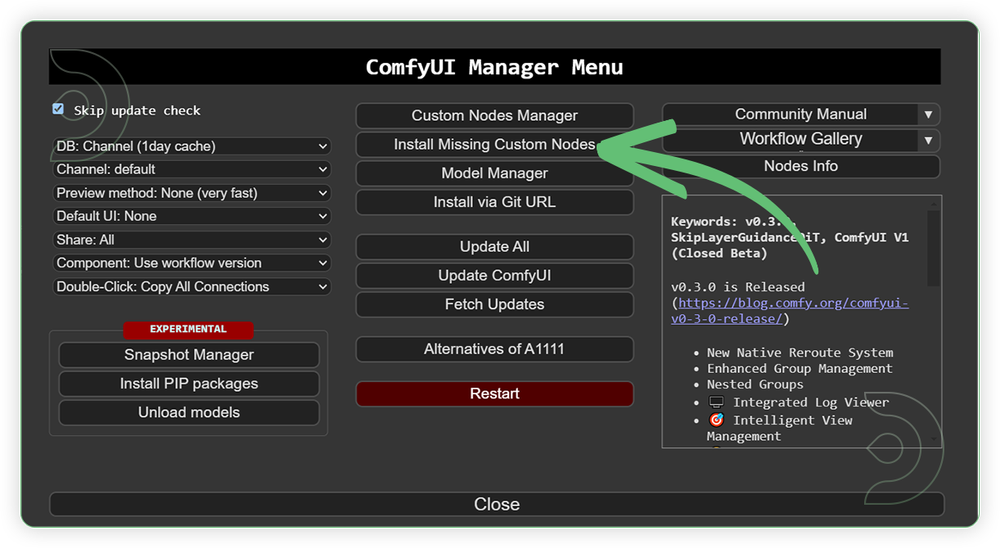
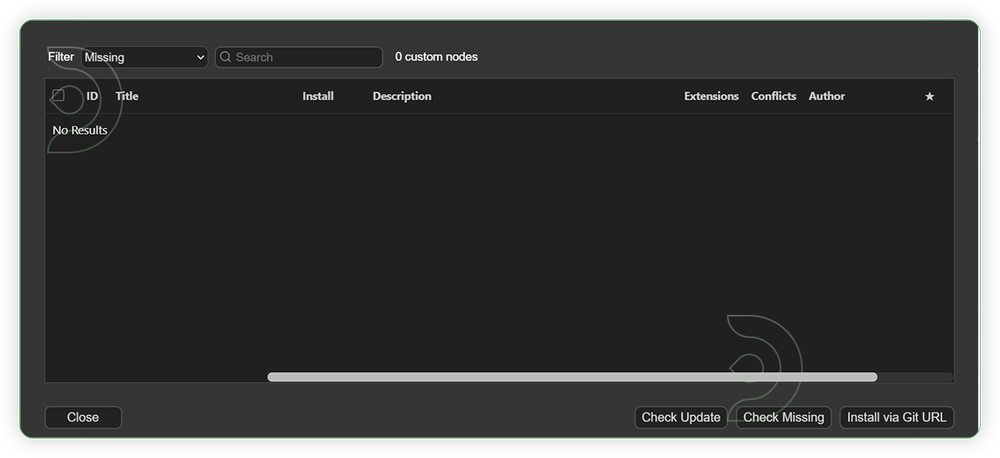
Check the list below if there's a list of custom nodes that needs to be installed and click the install.
Models
Download the recommended models (see list below) using the ComfyUI manager and go to Install models. Refresh or restart the machine after the files have downloaded.
Go to ComfyUI Manager > Click Model Manager
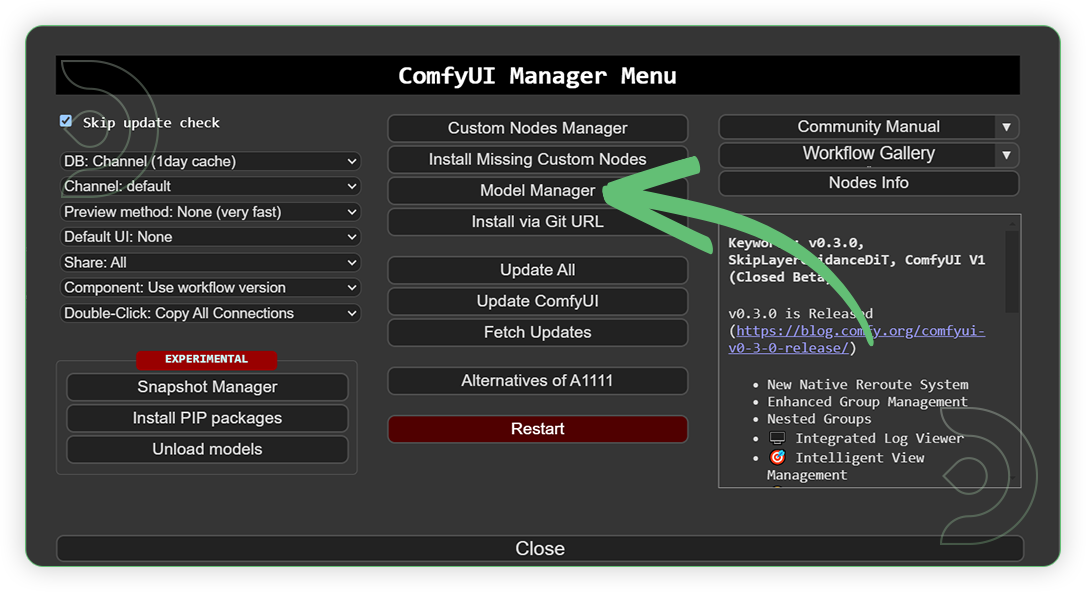
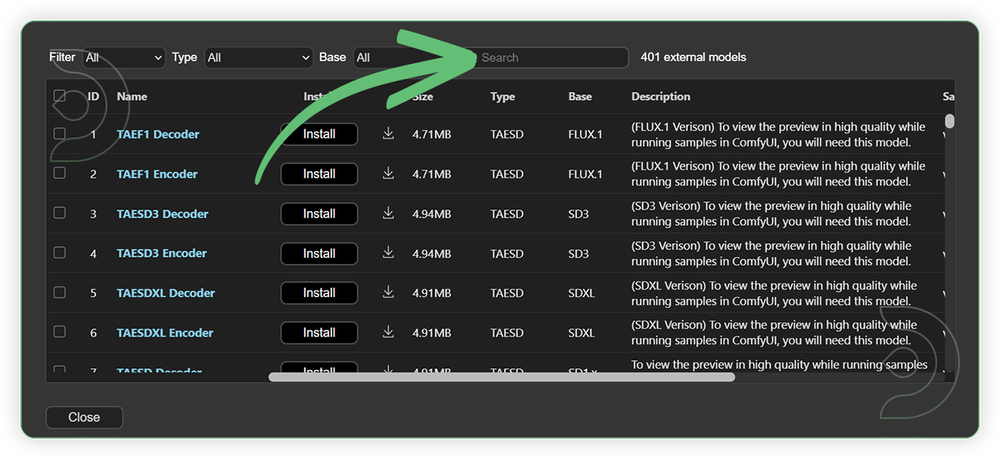
When you find the exact model that you're looking for, click install and make sure to press refresh when you are finished.
Model Path Source
Use the model path source if you prefer to install the models using model's link address and paste into ThinkDiffusion MyFiles using upload URL.
Model NameModel Link AddressThinkDiffusion Upload Directoryllava-llama-3-8b-text-encoder-tokenizer
Auto Download with Node
Auto Upload with Node
clip-vit-large-patch14
Auto Download with Node
Auto Upload with Node
hunyuna_video_720_cfgdistill_fp8_e4m3fn.safetensors
📋 Copy Path
...comfyui/models/diffusion_models/
hunyuan_video_vae_bf16.safetensors
📋 Copy Path
...comfyui/models/vae/
Step-by-step guide for Hunyuan in ComfyUI
StepsRecommended Nodes1. Load a Video
Load a video that contains a main subject such as an object, person or animal.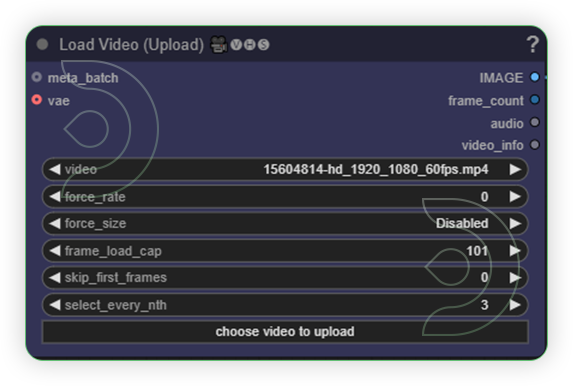 2. Set the Size
You can set with 1280 x 720 resolution. Hunyuan supports resolution up to 720p. Disable the keep proportion in order for the Image Resize will take effect.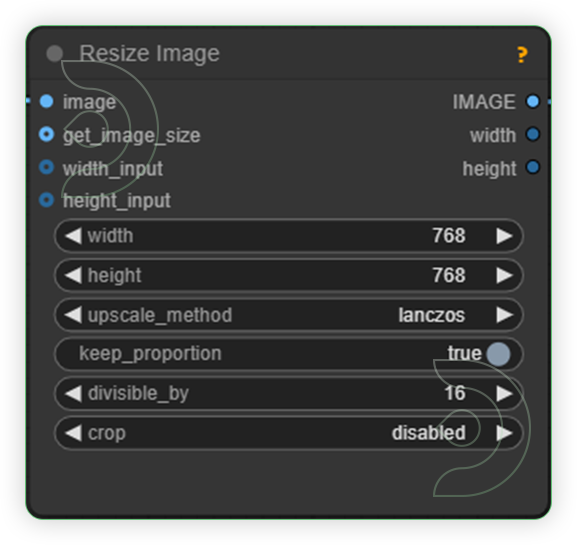 3. Set the Models
Should follow the recommended models as shown in the image. Otherwise, the video generation will not work.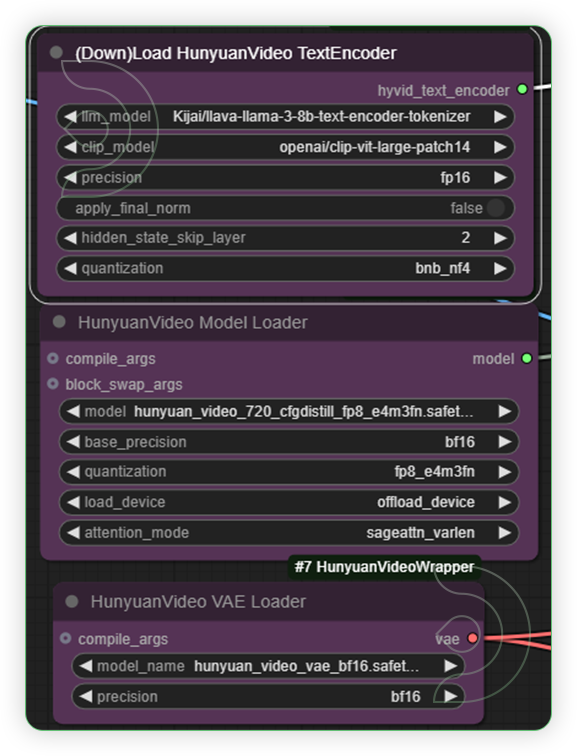 4. Write a Prompt
Write a prompt what you want to be on the subject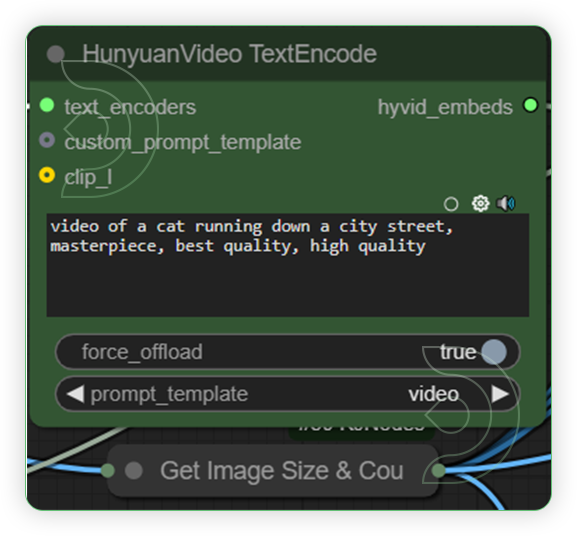 5. Set the Generation Settings
Generation results may vary. You can tweak the denoise strength and the sweet spot around 0.60 to 0.75.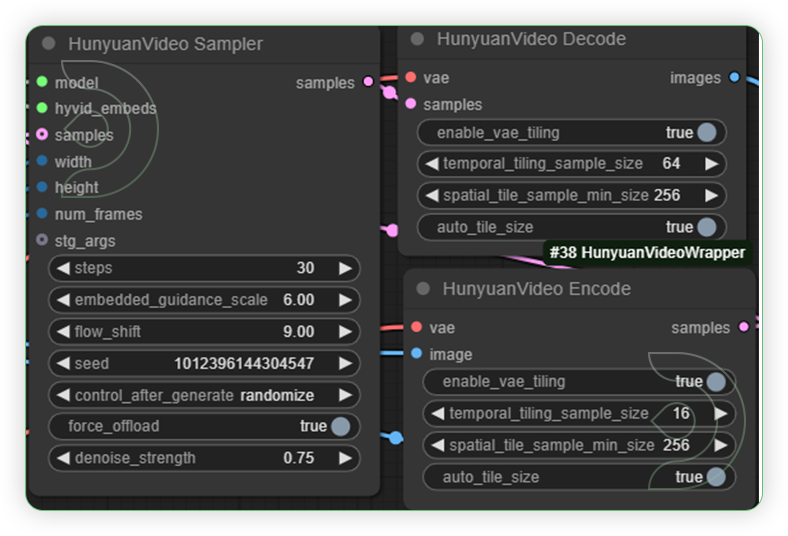 6. Check the Video Output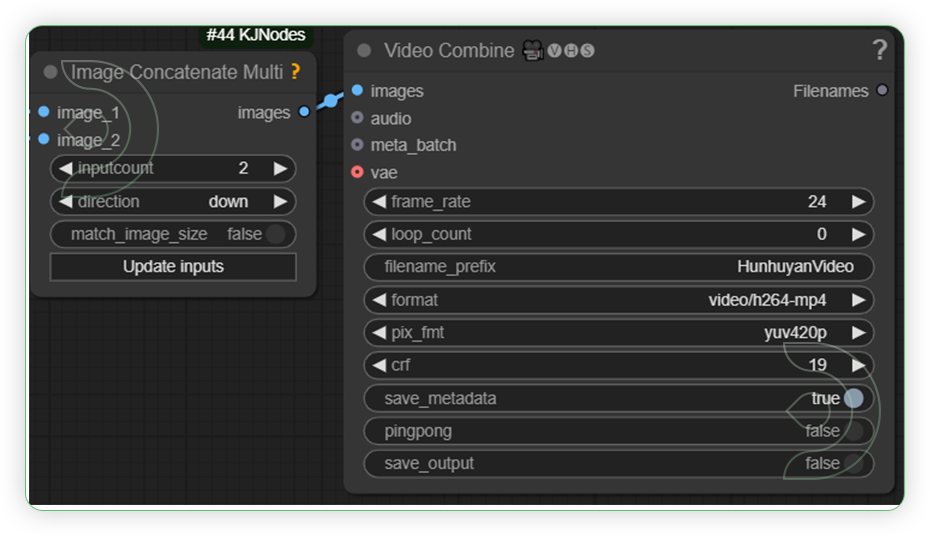
💡
If you experienced error video_length-1 must be a multiple of 4, got 34 or similar to video-length issue, choose another input video with a decent duration or not a video made from generation.
💡
If you experienced a Can't import SageAttention: No module named 'sageattention', try to use the Beta Version.
💡
If generated video displays a black screen only, switch the attention mode settings of HunyuanVideo Model Loader to sageattn_varlen.
Find the original article here: https://learn.thinkdiffusion.com/unleashing-creativity-how-hunyuan-redefines-video-generation/