



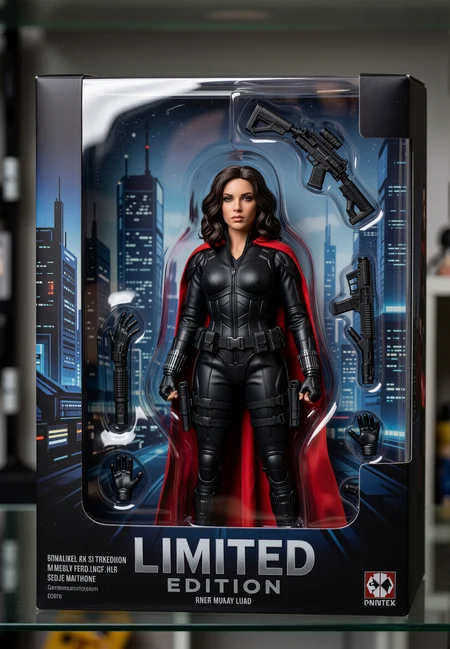



🎨 Qwen Image 2512 + SAM3 Face Inpainting Workflow
> Generate stunning portraits with automatic face detail enhancement — using single prompts or batch scheduling.
## ✨ What This Workflow Does
This ComfyUI workflow combines Qwen Image 2512 (a powerful text-to-image model) with SAM3 Smart Inpainter to:
1. 🖼️ Generate high-quality images from text prompts
2. 👤 Automatically find and enhance faces (man + woman) using AI segmentation
3. 🔁 Support single prompt OR batch prompt scheduling for creative variations
4. ⚡ Speed up generation with CacheDiT acceleration
5. 🎯 Use advanced sampling for better results
Perfect for: character portraits, fashion shoots, story illustration, face refinement, and creative batch generation.
## ✨ What's New in V1.1
### 🔁 Auto-Reset Counter (No More Manual Reset!)
- Replaced the old PrimitiveInt node with my new AutoResetInt node
- ✅ Automatically resets to 0 after each generation
- ✅ Also resets if you cancel a generation
- ✅ Want to run multiple batches? Just wait for the first image to finish — the counter resets itself!
- 🎯 No more forgetting to reset — just click "Queue" and go
### ⚙️ Model Format Switch
- Added a simple toggle to choose your model format:
- GGUF — for lower VRAM / quantized setups
- FP8 / BF16 — for full quality on powerful GPUs
- 🎯 Pick what works best for your hardware — no need to edit the workflow
## 📦 Required Custom Nodes
Install these in your ComfyUI/custom_nodes/ folder:
| Node Pack | Purpose | Link |
|-----------|---------|------|
| RES4LYF | Advanced sampler with better quality control | https://github.com/ClownsharkBatwing/RES4LYF |
| SAM3_SmartInpainter | Auto-detect & inpaint faces using SAM3 | https://github.com/majidfida/SAM3_SmartInpainter |
| ComfyUI-CacheDiT | Speed up Qwen Image generation | https://github.com/Jasonzzt/ComfyUI-CacheDiT |
| comfyui_auto_prompt_schedule | Run multiple prompts in one batch | https://github.com/ReinerBforartists/comfyui_auto_prompt_schedule |
### Also Required:
- ComfyUI-Easy-Sam3 or ComfyUI-RMBG (provides the sam3 Python package for SAM3_SmartInpainter)
- Qwen Image model files: qwen_image_vae.safetensors, qwen_2.5_vl_7b_fp8_scaled.safetensors, and your chosen checkpoint (e.g., Qwen-Overcooked_fp8_V2.safetensors)
- SAM3 model: Download sam3.pt from https://huggingface.co/Majidfida/Sam3/tree/main → place in ComfyUI/models/sam3/
## 🔧 How to Use
### Step 1: Install & Setup
1. Clone all required node packs into custom_nodes/
2. Install Python requirements (see each repo's README)
3. Download models and place them in correct folders
4. Restart ComfyUI
### Step 2: Load the Workflow
1. Drag the .json file into ComfyUI
2. Wait for nodes to load (missing nodes will show red)
### Step 3: Choose Your Mode
#### 🎯 Single Prompt Mode (Default)
- Set the toggle true=Single Prompt | false=Batch Prompts → true
- Edit the prompt in the ⚡Single Prompt⚡ node
- Click Queue Prompt
#### 🔄 Batch Prompt Mode
- Set the toggle → false
- Edit prompts in the Input Prompts for Schedule node (format: "0": "prompt text", "30": "next prompt", ...)
- Set max_frames in PromptSchedule node to control how many to generate
- Click Queue Prompt — it will auto-run through your list
### Step 4: Face Inpainting (Automatic)
The workflow automatically:
1. Finds the woman's face → enhances it with prompt: "woman, exquisite detailed face..."
2. Finds the man's face → enhances it with prompt: "man with dark beard, exquisite detailed face..."
3. Blends both back into the main image
💡 Tip: To inpaint different subjects, chain more SAM_SmartInpainter nodes and change the prompt field (e.g., "hat", "eyes", "scarf").
### Step 5: Adjust Key Settings
| Parameter | Recommended | What It Does |
|-----------|-------------|--------------|
| min_mask_area | 0.001 | Allows tiny faces to be detected |
| crop_padding | 32–128 | Extra space around face for better inpainting |
| inpaint_resolution | 1280 | Higher = more detail in repainted face |
| denoise | 0.3–0.5 | Lower = subtle changes, higher = more creative |
| steps | 6 | Qwen Image works well with low steps |
| cfg | 1.0 | Keep low for Qwen Image |
---
## 💡 Pro Tips
🔹 Small or distant faces not detected?
→ Lower min_mask_area to 0.0005 and text_threshold to 0.25
🔹 Inpainting looks blurry?
→ Raise inpaint_resolution to 1280 or 1536
🔹 Edges look harsh?
→ Use blend_mode: feather and increase mask_blur
🔹 Want to inpaint more than faces?
→ Change the SAM prompt to "hat", "logo", "hands" — it will find and repaint that area
🔹 Batch generation too slow?
→ Enable CacheDiT and use fp8 models for faster runs
## ⚠️ Important Notes
🔸 This workflow is designed for Qwen Image 2512 — other models may need parameter adjustments
🔸 I do not monitor this post — I may not reply to comments or issues. This is shared for the community to use and improve.
🔸 Always test with one image first before running large batches
---
## 🙏 Credits
- Qwen Image 2512 — Alibaba Cloud / Qwen Team
- SAM3 Model — Meta AI Research / Majidfida (HuggingFace)
- RES4LYF — @ClownsharkBatwing
- SAM3_SmartInpainter — @majidfida
- CacheDiT — @Jasonzzt
- Auto Prompt Schedule — @ReinerBforartists
> 🎨 Simple rule: Start with single prompt → get it perfect → then try batch mode for variations.
> If faces aren't found → lower min_mask_area. If results look soft → raise inpaint_resolution.
Happy creating! ✨👫🖼️
Description
## ✨ What's New in V1.1
### 🔁 Auto-Reset Counter (No More Manual Reset!)
- Replaced the old PrimitiveInt node with my new AutoResetInt node
- ✅ Automatically resets to 0 after each generation
- ✅ Also resets if you cancel a generation
- ✅ Want to run multiple batches? Just wait for the first image to finish — the counter resets itself!
- 🎯 No more forgetting to reset — just click "Queue" and go
### ⚙️ Model Format Switch
- Added a simple toggle to choose your model format:
- GGUF — for lower VRAM / quantized setups
- FP8 / BF16 — for full quality on powerful GPUs
- 🎯 Pick what works best for your hardware — no need to edit the workflow
---
## 🧩 What This Workflow Does
1. 🖼️ Generate high-quality images from text using Qwen Image 2512
2. 👤 Automatically find faces using SAM3 AI
3. 🎨 Repaint only the face area for extra detail
4. 🔁 Support single prompts OR batch prompt scheduling
5. ⚡ Speed up with CacheDiT acceleration
Perfect for: couple portraits, character art, face refinement, fashion shoots, and creative batch generation.
---
## 📦 What You Need to Install
### Required Custom Nodes:
| Node | Purpose | Link |
|------|---------|------|
| AutoResetInt | Auto-resetting counter (NEW!) | https://github.com/majidfida/AutoResetInt |
| SAM3_SmartInpainter | Auto face detection + inpainting | https://github.com/majidfida/SAM3_SmartInpainter |
| RES4LYF | Advanced sampler for better quality | https://github.com/ClownsharkBatwing/RES4LYF |
| CacheDiT | Speed up Qwen Image generation | https://github.com/Jasonzzt/ComfyUI-CacheDiT |
| Auto Prompt Schedule | Run multiple prompts in one batch | https://github.com/ReinerBforartists/comfyui_auto_prompt_schedule |
### Also Required:
- ComfyUI-Easy-Sam3 or ComfyUI-RMBG (provides the sam3 Python package)
- Qwen Image models: qwen_image_vae.safetensors, qwen_2.5_vl_7b_fp8_scaled.safetensors, and your chosen checkpoint
- SAM3 model: Download sam3.pt from https://huggingface.co/Majidfida/Sam3/tree/main → place in ComfyUI/models/sam3/
---
## 🔧 How to Use (Super Simple)
### Step 1: Install & Setup
1. Clone all required nodes into ComfyUI/custom_nodes/
2. Install Python requirements (see each repo's README)
3. Download models and place them in the correct folders
4. Restart ComfyUI
### Step 2: Load the Workflow
- Drag the .json file into ComfyUI
- Wait for nodes to load (missing nodes will show red)
### Step 3: Pick Your Settings
| Setting | What to Do |
|---------|------------|
| Model Format Switch | Choose GGUF (low VRAM) or FP8/BF16 (high quality) |
| Prompt Mode Toggle | true = single prompt, false = batch prompts |
| SAM Prompt | Type what to enhance: "woman face", "man beard", etc. |
| min_mask_area | Lower to 0.001 if faces are small or far away |
| inpaint_resolution | Keep at 1280 for sharp face detail |
### Step 4: Generate!
- Click Queue Prompt
- Watch the magic happen ✨
- For batch mode: edit prompts in the schedule node and set max_frames
---
## 💡 Pro Tips
🔹 Small faces not detected?
→ Lower min_mask_area to 0.0005 and text_threshold to 0.25
🔹 Inpainted face looks blurry?
→ Raise inpaint_resolution to 1280 or 1536
🔹 Edges look harsh?
→ Use blend_mode: feather and increase mask_blur
🔹 Want to inpaint more than faces?
→ Change the SAM prompt to "hat", "eyes", "hands" — it will find and repaint that area
🔹 Running multiple batches?
→ Just wait for the first image to finish — AutoResetInt resets itself automatically!
---
## ⚠️ Important Notes
🔸 SAM3 only — This workflow has only been tested with sam3.pt
🔸 I do not monitor this post — I may not reply to comments or issues. This is shared for the community to use and improve.
🔸 Always test with one image first before running large batches
🔸 GGUF vs FP8: GGUF uses less VRAM but may have slightly lower quality. FP8/BF16 gives best results if your GPU can handle it.
---
## 🙏 Credits
- Qwen Image 2512 — Alibaba Cloud / Qwen Team
- SAM3 Model — Meta AI Research / Majidfida (HuggingFace)
- AutoResetInt — @majidfida
- SAM3_SmartInpainter — @majidfida
- RES4LYF — @ClownsharkBatwing
- CacheDiT — @Jasonzzt
- Auto Prompt Schedule — @ReinerBforartists
---
> 🎯 Simple rule: Start with one prompt → get settings perfect → then try batch mode.
> If faces aren't found → lower min_mask_area. If results look soft → raise inpaint_resolution.
Happy creating! 🖼️✨👫