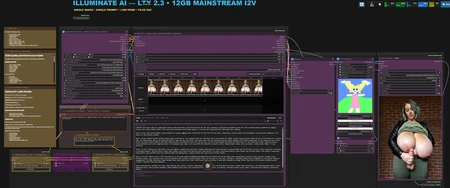
NEW — ILLUMINATE AI LTX 2.3 AUTONOMOUS VISION DIRECTOR v1.2
COMPLETE CIVITAI PACKAGE — WORKFLOW, CUSTOM NODES AND INSTALLATION
ILLUMINATE AI v1.2 is a major quality and prompting update for the LTX 2.3 Autonomous Vision Director.
The workflow analyzes the supplied reference image, understands the visible starting situation, creates a physically achievable chronological scene, writes the complete LTX 2.3 production prompt and validates it against the original image before video generation begins.
The final validated prompt is displayed directly inside the workflow before it is sent to LTXDirector.
NEW IN v1.2
Improved Image Quality
The complete render and refinement path has been reworked for noticeably cleaner output.
Improvements include:
cleaner hair structure during movement
finer skin, fabric and facial detail
reduced coarse and blocky motion textures
improved moving-edge quality
stronger Stage 2 detail reconstruction
native FP16 output without the previous downscale and bicubic enlargement chain
Current quality configuration:
Stage 1: 8 steps
Stage 1 CFG: 1.25
Spatial latent upscale: enabled
Stage 2: 4 steps
Stage 2 sigma endpoint: 0.40
Native FP16 output: 1.00
no third sampler required
More Accurate Autonomous Prompting
The autonomous Prompt Director has been expanded and refined.
It now handles:
duration-aware scene planning
more accurate participant and anatomy tracking
improved position and action recognition
better hand, limb and contact ownership
persistent anatomy consistency during occlusion
improved multi-participant continuity
primary and secondary action validation
more stable movement planning
stronger protection against morphing, anatomy loss and role changes
The system remains image-guided and preserves the original scene whenever a complex transition cannot be completed safely.
FOUR PROMPT MODES
Manual Prompt
Uses your own finished prompt without an Ollama request.
Standard Vision
Qwen analyzes the reference image and creates a compatible cinematic or character-animation prompt.
Adult Assisted
Uses the reference image together with a short written idea and expands it into a complete chronological scene.
Adult Full Auto
Creates the complete scene automatically from the reference image, selected duration and visible starting situation.
Adult modes require confirmed adult and consenting participants.
INCLUDED VERSIONS
STANDARD — RECOMMENDED
The main release version.
Use this version first for the best balance of:
image quality
motion quality
anatomy consistency
render time
workflow stability
ANTIGHOST — EXPERIMENTAL
An additional experimental version with optional temporal Anti-Ghost processing.
This version is included for testing and comparison. It may improve ghosting or duplicated motion in some scenes, but it will not necessarily improve every video.
The Anti-Ghost processing is disabled by default and can be activated for individual tests.
IMPORTANT — NEW CUSTOM NODES ARE REQUIRED
The updated ComfyUI-ILLUMINATE-AI-LTX node pack included with v1.2 is mandatory.
The newest workflow will not work correctly with an older ILLUMINATE node pack.
The installation method has not changed.
Installation
Close ComfyUI completely.
Delete the existing folder:
ComfyUI\custom_nodes\ComfyUI-ILLUMINATE-AI-LTXAlso remove the old standalone cleanup package if it is still installed:
ComfyUI\custom_nodes\ComfyUI-Illuminate-Ollama-CleanupCopy the included folder:
02_CUSTOM_NODES\ComfyUI-ILLUMINATE-AI-LTXinto:
ComfyUI\custom_nodes\The final path must be:
ComfyUI\custom_nodes\ComfyUI-ILLUMINATE-AI-LTX\__init__.pyDo not create an additional nested folder.
Load the included workflow and use:
ComfyUI Manager → Install Missing Custom NodesRestart ComfyUI completely.
Load the new v1.2 workflow JSON.
A browser refresh with Ctrl + F5 is recommended after updating the Custom Nodes.
OLLAMA AND QWEN
The autonomous Vision modes use:
fredrezones55/Qwen3.5-Uncensored-HauhauCS-Aggressive:9bInstall Ollama and run:
ollama pull fredrezones55/Qwen3.5-Uncensored-HauhauCS-Aggressive:9bOllama must remain running whenever Standard Vision, Adult Assisted or Adult Full Auto is used.
Manual Prompt mode does not require Ollama.
REQUIRED BAT FLAGS
The included system check expects:
--fp8_e4m3fn-text-enc --fast-diskExample:
.\python_embeded\python.exe -s ComfyUI\main.py --windows-standalone-build --fp8_e4m3fn-text-enc --fast-diskA ready-made BAT example is included in the package.
FIRST TEST
For the first successful generation:
load the same starting image into the LTXDirector and the Vision Reference Image node
use the STANDARD version first
leave optional LoRAs disabled
keep Anti-Ghost disabled
generate at 24 FPS
enable RIFE only after the normal 24 FPS output works
review the final generated prompt before LTX generation begins
PACKAGE CONTENT
The download includes:
v1.2 STANDARD workflow
v1.2 experimental ANTIGHOST workflow
updated mandatory ILLUMINATE Custom Nodes
Windows Portable BAT examples
Ollama/Qwen installation BAT
English installation guide
German quick-start guide
model and node checklist
troubleshooting information
release notes
Models are not included in the ZIP.
Please read 00_READ_ME_FIRST.txt and the included installation guide before the first run.
Description
ILLUMINATE AI – LTX 2.3 Mainstream I2V Workflow
A carefully fine-tuned LTX 2.3 Image-to-Video workflow optimized for around 12 GB of VRAM.
This version is focused on efficiency, stability, motion consistency, subject preservation, and reduced morphing while keeping generation fast and practical for mainstream GPUs.
The workflow uses a two-pass setup to improve motion quality and maintain cleaner, more reliable results without excessive hardware demands. It is designed for one input image and one complete prompt to generate a continuous shot.
Optimized for balanced 480p generation, lower memory usage, strong prompt understanding, and dependable image-to-video performance.
Organized, ready to use, and built for users who want stable LTX 2.3 I2V results on lower-VRAM hardware.
Custom Nodes Notice
This workflow uses third-party custom nodes, including LTX-related nodes from Dasiwa and additional LTX workflow components such as LTX Director. Please make sure all required custom nodes are installed before running the workflow.
Credits go to the original developers and node creators whose work made this workflow possible.
Version Changes
Added optional RIFE frame interpolation from 24 FPS to 48 FPS
Added a separate interpolated 48 FPS video output
Original 24 FPS output remains fully available
Audio stays synchronized when using the 48 FPS output
Interpolation is disabled by default
Added clear setup notes for correct 24 → 48 FPS usage
Added Low VRAM-friendly RIFE settings:
Source FPS: 24
Target FPS: 48
Scale: 1.0
Batch Size: 12
FP16: Enabled
Added separate filename prefixes for 24 FPS and 48 FPS outputs
Improved output organization and final workflow clarity
Important:
Enable both the RIFE interpolation node and the 48 FPS Video Combine node when using interpolation.
The interpolated Video Combine must remain set to 48 FPS. Using 24 FPS with the interpolated frames will double the video duration and cause audio desynchronization.
Interpolation improves motion smoothness but does not repair existing morphing, motion smearing or unstable anatomy.
FAQ
Comments (25)
Great work on this workflow very easy to use barely have to tweak anything!
problaly the best LTX workflow ive tried so far!
Running the 12gb Vram gives me very quick results, and even on a 24gb card i can run the 32gb version albeit slower.
took me a moment to figure out the I2V in the director node, but it's pretty cool. I struggle with the prompts, and i notice there are other workflows that have prompt enhancers or even auto prompting- if there any chance you can make a workflow with this feature?
What setting do you recommend to get the most out of a 24gb card?
thanks for the great work!
@Ar_Fu Thank you very much for the detailed feedback! I’m really glad that both versions are working well for you, especially that the 12 GB edition delivers fast results and that the Enthusiast edition can still run on a 24 GB card.
A prompt-enhancement option is definitely something I’m considering. ComfyUI already offers LTX-specific text-generation tools, so I could integrate an optional enhancer that expands a simple idea into a more structured prompt for motion, camera behavior, lighting, subject consistency, and audio. I would keep it fully bypassable, since automatic prompting can sometimes change the user’s original intention or add unwanted camera movement.
For a 24 GB GPU, I recommend using the Enthusiast edition as a quality mode with these adjustments:
Keep the memory-efficient attention and feed-forward chunking enabled.
Use approximately 576p–640p for demanding scenes, or try 720p for shorter and simpler shots.
Keep Stage 1 at 10–12 steps.
Use Stage 2 at 4–5 steps with an endpoint around 0.18–0.20.
Disable audio generation when it is not needed.
Leave optional detail or refinement passes disabled until the main generation is confirmed stable.
Use the full VAE when it fits; switch to tiled decoding only if you encounter an out-of-memory error.
Another good option is to start with the Mainstream edition and increase its resolution gradually. This is usually faster and gives more VRAM headroom, while the Enthusiast edition provides the highest quality when the scene fits comfortably.
Thanks again for testing the workflow and sharing your experience!
@Ar_Fu About prompt enhancers / auto prompting: yes, that is something I’m considering for a future update. I want to keep it optional, since manual prompting gives the most control, but I agree it could make the workflow easier for users who prefer a simpler input method. Thanks again for testing and for the great feedback!
@IlluminateAI keeping an eye on you for more update! :D
Keep up the amazing work!
the low vram works perfect but the high vram gives me just an error with : Cannot read properties of undefined (reading 'output')
I already reinstalled all nodes and the low vram works.
I got a rtx 5090, ryzen 9 9900x and 64gb ram.
no node shows an error and i installed all requirements.
@nico843 I’ve applied an update to address this; I hope that has resolved the issue. If it’s still happening, just let me know.
@nico843 And it would be best to provide the exact error message from ComfyUI so I know exactly where to look.
I'm getting this:
RuntimeError: sageattention is not new enough version or could not determine CUDA architecture, cannot apply LTX2 Memory Efficient Sage Attention Patch.
@anotheranon2 That error comes from the optional LTX2 Memory Efficient Sage Attention Patch, not from LTX 2.3 itself.
The patch cannot correctly detect either your installed SageAttention build or your GPU’s CUDA architecture. This is currently especially common with RTX 50-series/Blackwell cards, and there is also a recent compatibility issue between the KJNodes patch and newer SageAttention builds.
For now, the safest solution is:
Find the node named LTX2 Memory Efficient Sage Attention Patch
Right-click it
Set it to Bypass
Run the workflow again
The workflow will still work normally without that node. You may only lose some memory efficiency or rendering speed.
I would not recommend randomly reinstalling PyTorch, CUDA or SageAttention unless you know exactly which Python, Torch and CUDA versions your ComfyUI installation uses, because mismatched wheels can break the installation.
You can also update ComfyUI-KJNodes through ComfyUI Manager and restart ComfyUI. If the error remains after updating, keep the SageAttention patch bypassed until its compatibility issue is fixed.
Could you also tell me which GPU you are using? That will help determine whether it is a missing SageAttention installation or the current RTX 50-series compatibility issue.
It works so well I need the same one for my SFW works, thank you so much !!!
@ESAEL__ That's great! Please let me know if you encounter any errors so that everyone can access them.
@IlluminateAI so far works great on 32GB VRAM
Any tips or good videos to do more extensive scenes? Im still new to Ltxv2.3 in general. Can I use multiple images in one run and then prompt it? Like say I use each image as starting a new scene or something
I’ve taken care of that; an update to my workflow is coming out soon, and it will include an auto-prompter. It’s perfect for beginners.
@IlluminateAI ty. I look forward to creating so much nsfw lol
Trying to use the high vram workflow, but keep getting: LTXVSpatioTemporalTiledVAEDecode missing node despite having installed everything...
That node comes from the official custom-node package:
Lightricks/ComfyUI-LTXVideo
Please install or update ComfyUI-LTXVideo, then restart ComfyUI completely.
The exact missing node is:
LTXVSpatioTemporalTiledVAEDecode
It may not appear correctly through the normal “Install Missing Nodes” search, so I recommend searching for ComfyUI-LTXVideo directly in ComfyUI Manager.
If it is already installed:
Update ComfyUI itself.
Update ComfyUI-LTXVideo.
Close ComfyUI completely.
Restart it and reload the workflow.
If the node is still missing, remove the existing ComfyUI-LTXVideo folder from custom_nodes and reinstall the current official version. The node is included in the official repository, so this usually means the installed version is outdated or incomplete.
@IlluminateAI upon further inspection, a compatibility issue with ComfyUI-LTXVideo is reported: Traceback (most recent call last):
File "d:\AI\LTX 2.3 July 26\ComfyUI_windows_portable\ComfyUI\nodes.py", line 2247, in load_custom_node
module_spec.loader.exec_module(module)
~~~~~~~~~~~~~~~~~~~~~~~~~~~~~~^^^^^^^^
File "<frozen importlib._bootstrap_external>", line 1023, in exec_module
File "<frozen importlib._bootstrap>", line 488, in callwith_frames_removed
File "D:\AI\LTX 2.3 July 26\ComfyUI_windows_portable\ComfyUI\custom_nodes\ComfyUI-LTXVideo\__init__.py", line 49, in <module>
from .pyramid_blending import LTXVLaplacianPyramidBlend
File "D:\AI\LTX 2.3 July 26\ComfyUI_windows_portable\ComfyUI\custom_nodes\ComfyUI-LTXVideo\pyramid_blending.py", line 7, in <module>
from kornia.geometry.transform.pyramid import (
...<6 lines>...
)
ImportError: cannot import name 'pad' from 'kornia.geometry.transform.pyramid' (d:\AI\LTX 2.3 July 26\ComfyUI_windows_portable\python_embeded\Lib\site-packages\kornia\geometry\transform\pyramid.py)
That error is caused by a known compatibility issue between ComfyUI-LTXVideo and newer Kornia versions.
ComfyUI-LTXVideo currently imports:
padfrom:
kornia.geometry.transform.pyramidbut this export was removed in Kornia 0.8.3 and newer.
For the Windows portable version, close ComfyUI completely and run this command from the ComfyUI portable folder:
.\python_embeded\python.exe -m pip install --force-reinstall "kornia==0.8.2"Then verify the installed version:
.\python_embeded\python.exe -c "import kornia; print(kornia.__version__)"It should display:
0.8.2After that, restart ComfyUI.
If the command is being run from another folder, use the complete path shown in your error report:
& "D:\AI\LTX 2.3 July 26\ComfyUI_windows_portable\python_embeded\python.exe" -m pip install --force-reinstall "kornia==0.8.2"Then restart ComfyUI completely.
This is not caused by the workflow itself. It is a dependency mismatch inside ComfyUI-LTXVideo.
@IlluminateAI wow thanks for the speedy - and highly knowledgeable replies! Somehow downgrading Kornia broke my Torch... "AssertionError: Torch not compiled with CUDA enabled" - but this is looking more like an endless pit of comfy-issues, so I thank you for your assistance and accept defeat.. :) Comfyui is great when it works, but kinda hopless if you're not on a developer-level knowledge-wise.
@2120dart373 You’re completely right — ComfyUI dependency issues can turn into a rabbit hole very quickly, especially when one package silently replaces another.
I think I know what happened here, and this one is partly on me: using --force-reinstall for Kornia most likely caused pip to replace your CUDA-enabled Torch installation with a CPU-only Torch build. I should have recommended installing Kornia with --no-deps instead.
Your setup is probably still recoverable. From your ComfyUI_windows_portable folder, run:
.\python_embeded\python.exe -m pip uninstall torch torchvision torchaudio -yThen reinstall the CUDA 12.8 builds:
.\python_embeded\python.exe -m pip install torch torchvision torchaudio --index-url https://download.pytorch.org/whl/cu128Reinstall Kornia without allowing it to touch Torch again:
.\python_embeded\python.exe -m pip install --force-reinstall --no-deps "kornia==0.8.2"Finally, verify CUDA:
.\python_embeded\python.exe -c "import torch, kornia; print('Torch:', torch.__version__); print('CUDA:', torch.cuda.is_available()); print('Kornia:', kornia.__version__)"You should see:
CUDA: True Kornia: 0.8.2I completely understand if you don’t want to keep troubleshooting it, though. ComfyUI is brilliant when everything lines up, but dependency conflicts like this are extremely frustrating and definitely shouldn’t require developer-level knowledge. Sorry that the previous fix caused another problem.
@IlluminateAI That did the trick! Sageattention wouldn't work so I had to bypass that, but actually got the workflow to produce video!! Thanks A LOT for your help - and I see there's an updated workflow too!!! Promise I won't bother you if I can't get it to work! X-D
@2120dart373 Haha, no worries at all — you’re not bothering me. 😄
I’m really glad you got it running and managed to produce a video. SageAttention can be a bit temperamental depending on the setup, so bypassing it is completely fine if the workflow runs properly without it.
And yes, the updated workflow includes a few fixes and cleaner switching behavior, so that version should hopefully be a bit smoother for you.
Thanks again for testing it and for the feedback!
Looks like we don't have an active mirror for this file right now.
CivArchive is a community-maintained index — we catalog mirrors that volunteers upload to HuggingFace, torrents, and other public hosts. Looks like no one has uploaded a copy of this file yet.
Some files do get recovered over time through contributions. If you're looking for this one, feel free to ask in Discord, or help preserve it if you have a copy.