




--v2.0 Updates - Revised the presentation of the Image Generation Workflow and Added a Batch Upscale Workflow Process--
Workflow (Download):
1) Text-To-Image Generation Workflow: Use this for your primary image generation
2) Batch Upscaling Workflow: Only use this if you intend to upscale many images at once
Current Feature:
Switch to turn on/off various ControlNet (Canny, Scribble, Openpose, Tile, Depth), Upscale and Face Detailer functionality
Text-To-Image Generation
Multiple Lora Support
Lora Trigger Word Review (in case you forget the trigger word)
Save image metadata
Batch Process on Upscaling
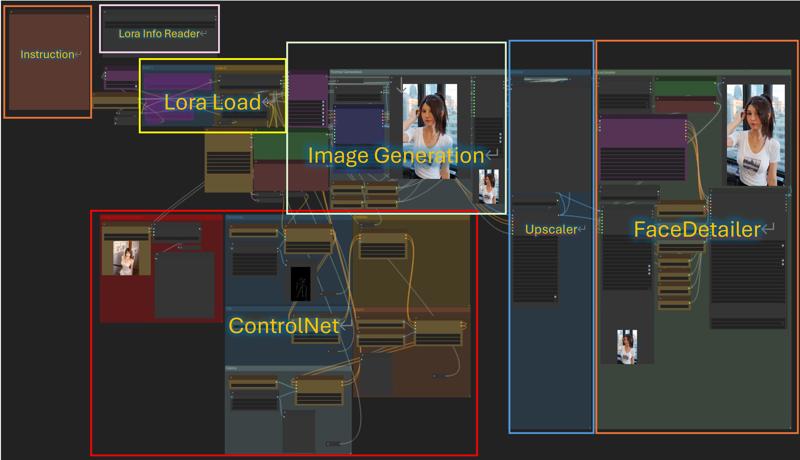
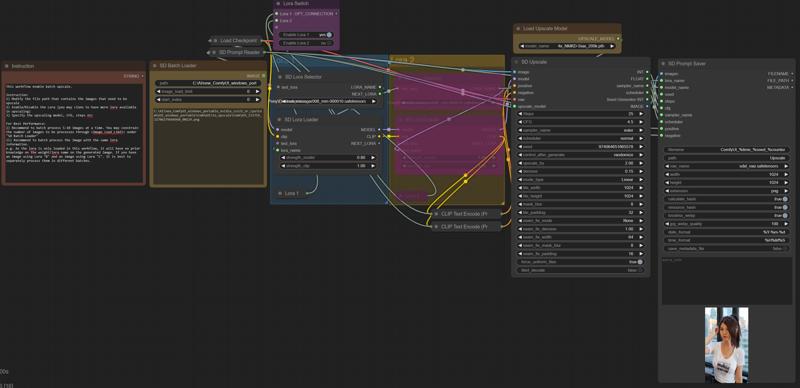
Please refer to the instruction I have provided within each workflow.
v1.1
--Added Prompt Save when output after Upscale/Facedetailer--
Sharing my own workflow for you to unleash your creativity. The current workflow supports on the following features
Switch to turn on/off various ControlNet (Canny, Scribble, Openpose, Tile, Depth), Upscale and Face Detailer functionality
Text-To-Image Generation
Multiple Lora Support
Lora Trigger Word Review (in case you forget the trigger word)
Such workflow should provide efficient support to generate images with high quality results.
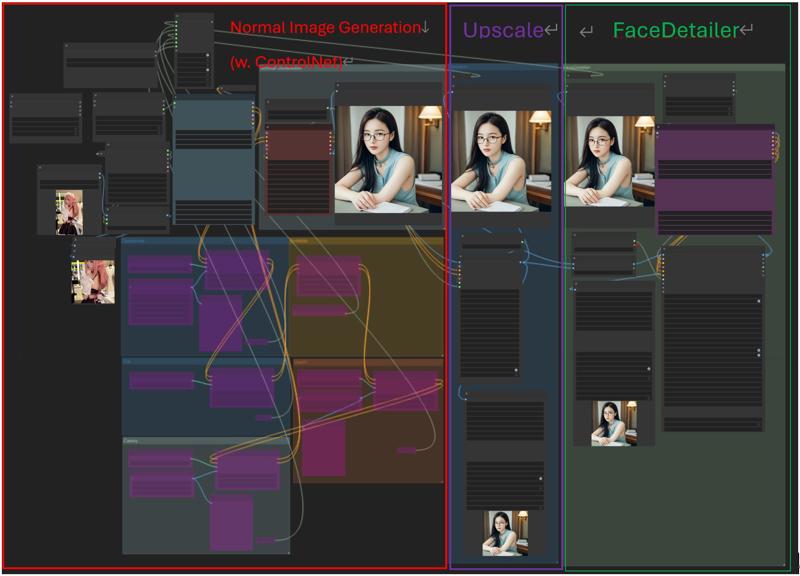 Instruction:
1) Change the prompt and Lora to be used in the <Efficient Loader> under the "Normal Image Generation"
2) If Controlnet is to be used, upload an image under "Normal Image Generation" and enable the corresponding switches - "Canny", "Tile", ... , etc
*The results of the ControlNet can also be viewed in its compartment
3) If the results is proven to be satisfying, you can also enable "Upscale" and "FaceDeatiler" in the consolidated switch.
*Feel free to play around with the denoising parameter
Additional Feature: If you forget the trigger word for your Lora, you may input the Lora name under the upper left corner to inspect the Lora Info and triggerword.
Description
FAQ
Comments (6)
Batch Upscale Error if Checkpoint not Found.
Please note that the batch upscale would work very well with my image generation workflow as it would output the "checkpoint name", "lora name", all other information to be used in the upscaler workflow.
If you have encountered an issue on no "Checkpoint" being specified, perhaps the reason is missing metadata. If the generated image does not contain the name of the checkpoint, it would fail.
[Errno 2] No such file or directory: 'C:\\Users\\MYNAME\\Downloads\\ComfyUI_windows_portable_nvidia\\ComfyUI_windows_portable\\ComfyUI\\input\\🍢干杯!_1_玖妍_来自小红书网页版 (1).jpg'
I don't know how to fix this
please try to switch off the "Enable Control Net Source" in the very left section.
Another way you can try is use another picture in the controlnet source section in the lower left side
nothing is happening after I turned off all the switches, it is just loading the sdxl model that's it.
This workflow is very well organized. Well done. The note says "default VAE is used". Just curious: how does the workflow know what the default VAE is? Not seeing any nodes that set the VAE
This workflow uses custom nodes you haven't installed yet.
Installation Required
Install RequiredSDLoraSelector
Install RequiredSDLoraLoader
Install RequiredSDPromptSaver
But I've already installed that custom node package. It's showing import failed. Pls help, I'm a noob at this.