


--v2.0 Updates - Revised the presentation of the Image Generation Workflow and Added a Batch Upscale Workflow Process--
Workflow (Download):
1) Text-To-Image Generation Workflow: Use this for your primary image generation
2) Batch Upscaling Workflow: Only use this if you intend to upscale many images at once
Current Feature:
Switch to turn on/off various ControlNet (Canny, Scribble, Openpose, Tile, Depth), Upscale and Face Detailer functionality
Text-To-Image Generation
Multiple Lora Support
Lora Trigger Word Review (in case you forget the trigger word)
Save image metadata
Batch Process on Upscaling
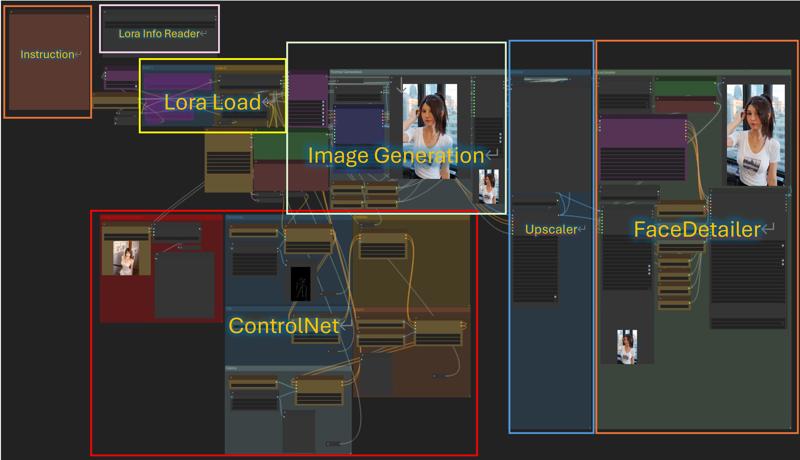
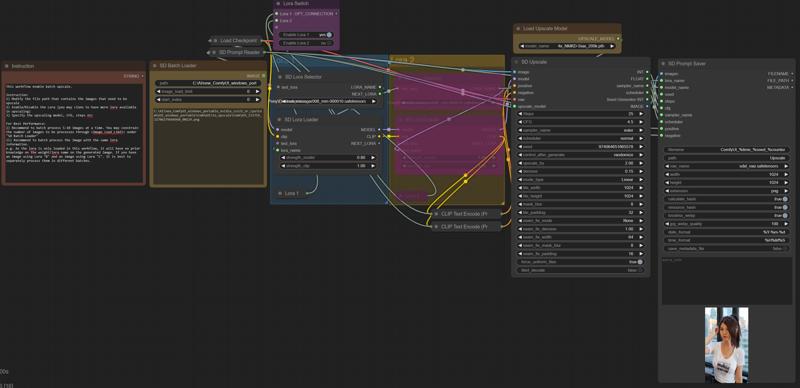
Please refer to the instruction I have provided within each workflow.
v1.1
--Added Prompt Save when output after Upscale/Facedetailer--
Sharing my own workflow for you to unleash your creativity. The current workflow supports on the following features
Switch to turn on/off various ControlNet (Canny, Scribble, Openpose, Tile, Depth), Upscale and Face Detailer functionality
Text-To-Image Generation
Multiple Lora Support
Lora Trigger Word Review (in case you forget the trigger word)
Such workflow should provide efficient support to generate images with high quality results.
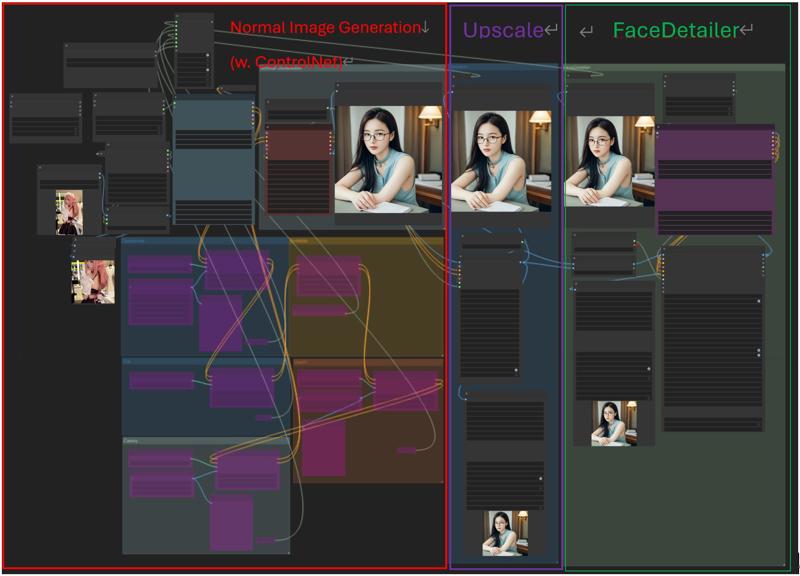 Instruction:
1) Change the prompt and Lora to be used in the <Efficient Loader> under the "Normal Image Generation"
2) If Controlnet is to be used, upload an image under "Normal Image Generation" and enable the corresponding switches - "Canny", "Tile", ... , etc
*The results of the ControlNet can also be viewed in its compartment
3) If the results is proven to be satisfying, you can also enable "Upscale" and "FaceDeatiler" in the consolidated switch.
*Feel free to play around with the denoising parameter
Additional Feature: If you forget the trigger word for your Lora, you may input the Lora name under the upper left corner to inspect the Lora Info and triggerword.
Description
Updated with Prompt Save Functionality
FAQ
Comments (7)
Sharing is caring! Sharing also save lives! Wonderufl workflow, Thank you!
hello
Noob question. If I wanted to run batches, how would I go about picking 1 image out of the batch and just upscaling that image within this workflow? Awesome workflow tho!
There are multiple ways to achieve similar results:
1) Once the batch outputs are generated, drag that image back into ComfyUI and trigger the "upscale" option on before re-generating the image. OR recall the seed number to regenerate it with "upscale" on
2) Use another workflow that feeds in an image and do an upscaling through controlnet (tile), or image-to-image upscale.
I personally go with option (1)
I have updated the current image workflow and also developed another workflow for batch image upscaling. Please try v2.0 when you have time :)
Nice, i just started in Swarm ui, and your workflow actually makes sense, has all the switches one could ask for, and it´s all well organised. Most workflows are just spaghetti where you can´t find the meatballs. A life saver for beginner, to be sure. Thank you.
Really appreciate your feedback and comment! I'm glad you like it