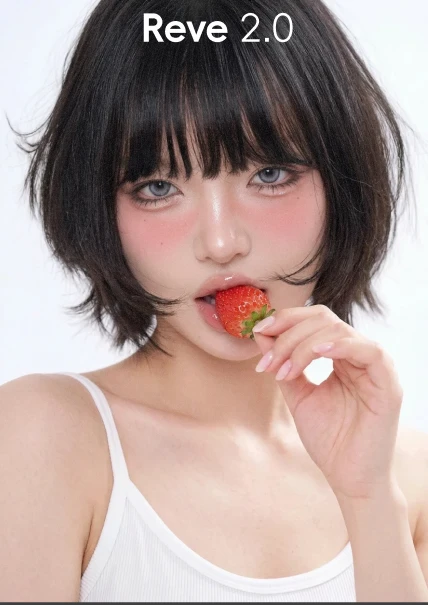
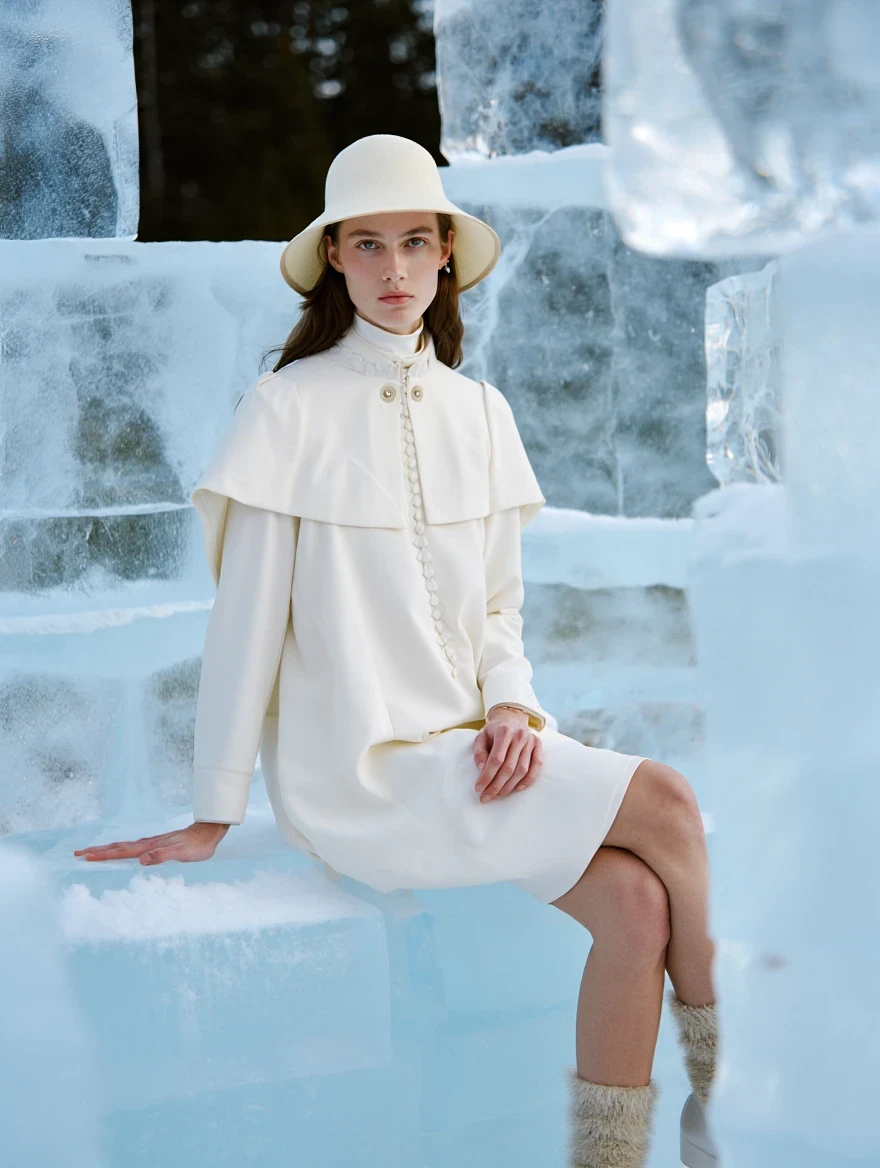
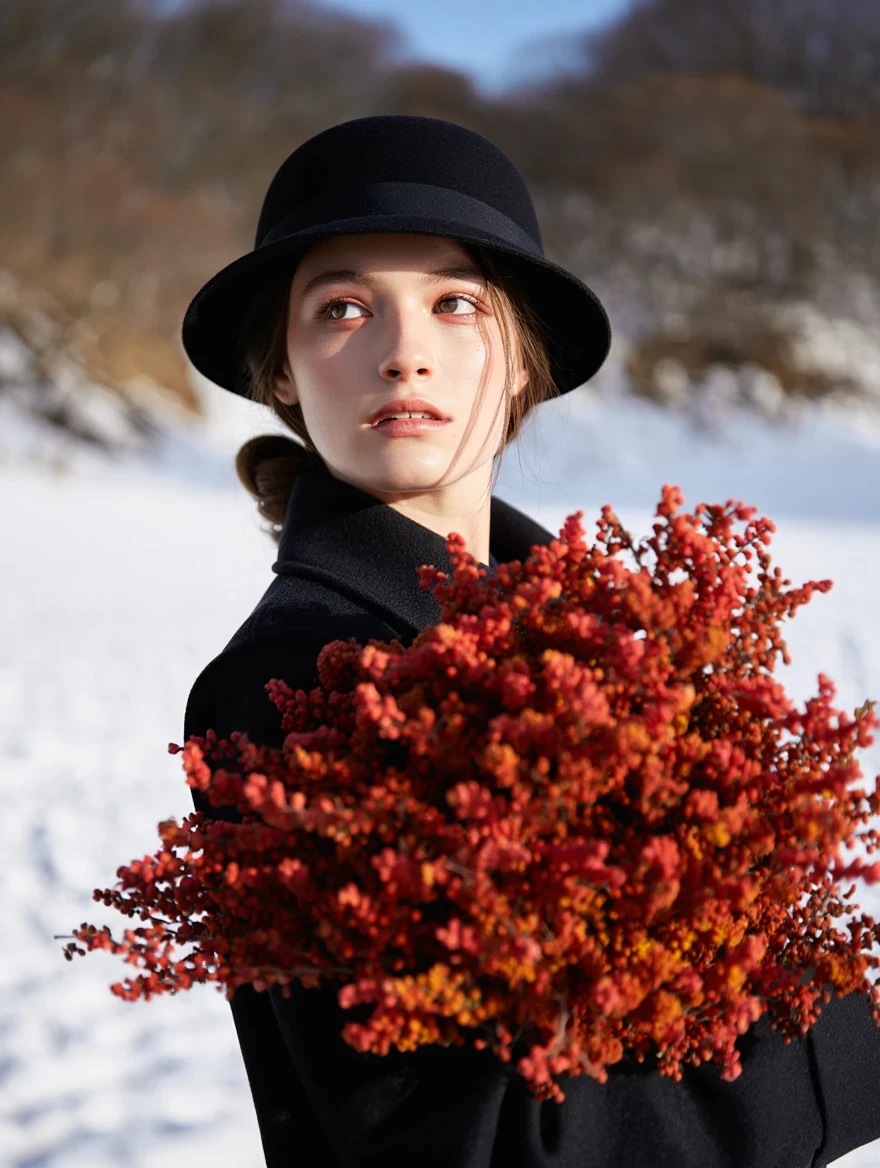
Reve 2.0
Reve 2.0 has arrived on SeaArt AI. This advanced AI image model brings a new level of structure, resolution, and creative control to image generation and editing.
Unlike many image models that jump straight from prompt to pixels, Reve 2.0 plans the image first. It understands layout, object placement, text position, composition, and visual hierarchy before rendering the final result. That makes it especially powerful for creators who need images that are not only beautiful, but usable.
Why Reve 2.0?
This model is built for creators who want precision, structure, and professional-looking results.
l Native 4K Image Generation: Create high-resolution images at up to 4K x 4K quality, giving your visuals sharper details, richer textures, and more room for professional use.
l Layout-First Control: Reve 2.0 plans the image before rendering it. This helps with better composition, cleaner spacing, more accurate object placement, and stronger visual balance.
l Smarter Image Editing: Make targeted edits without losing the whole image. Change objects, adjust text, refine colors, improve lighting, or remix a scene while keeping the original structure more stable.
l Better Text Placement: Create posters, signs, labels, packaging, thumbnails, and social graphics with more reliable text positioning and cleaner visual hierarchy.
l More Stable Iteration: Keep refining your image without watching the composition collapse after each edit. Reve 2.0 is designed for real creative workflows where you generate, adjust, and polish step by step.
l Cinematic Visual Style: Build images with natural lighting, strong framing, realistic space, and a polished editorial look.
How to Use Reve 2.0 on SeaArt AI
Here is how to get the best results from Reve 2.0:
1. Select the Model: Choose Reve 2.0 in SeaArt AI and start from a text prompt or an uploaded image.
2. Describe the Layout: Do not only describe the subject. Tell the model where things should appear. Mention the main object, background, text position, color mood, lighting, and overall composition.
3. Add Design Details: For posters, product shots, thumbnails, and brand visuals, include details like "centered product," "headline at the top," "clean empty space," "bold readable text," or "minimal luxury layout."
4. Generate and Refine: Create your image, then use editing prompts to adjust specific parts.