
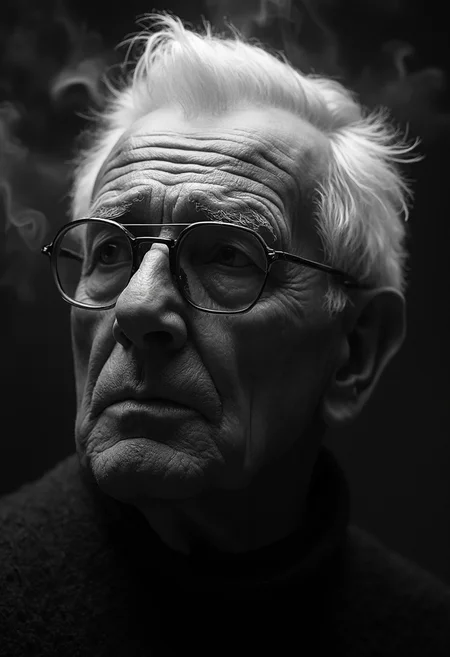
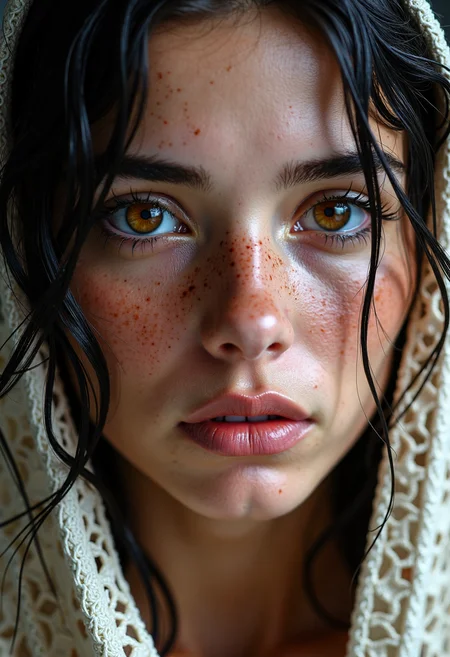
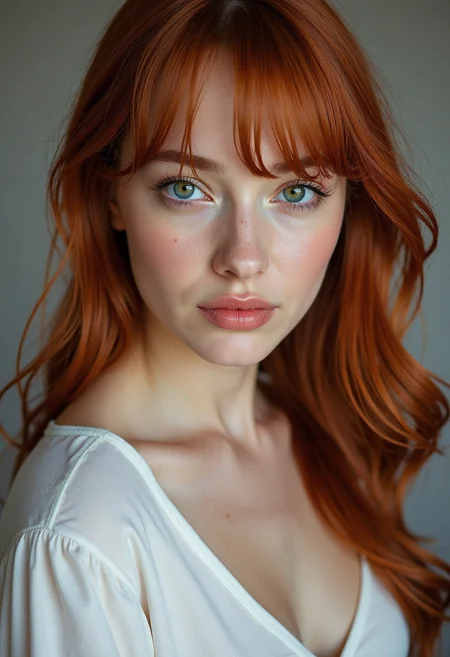





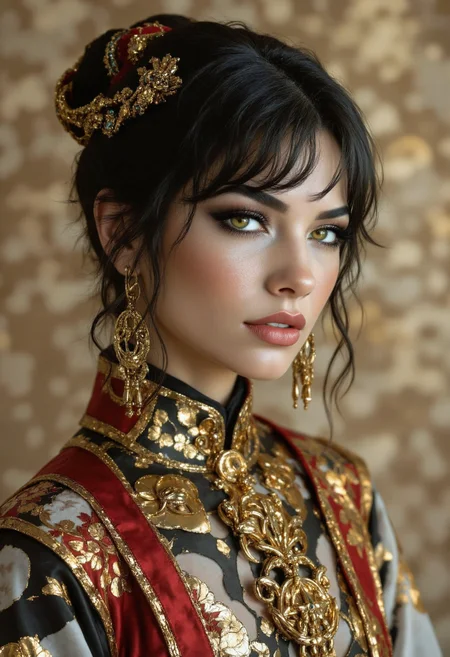








This workflow is now discontinued as I will focus on other models.
Version 6.0
The new Flux Modular WF v6.0 is a ComfyUI workflow that works like a "Swiss army knife" and is based on FLUX Dev.1 model by Black Forest Labs.
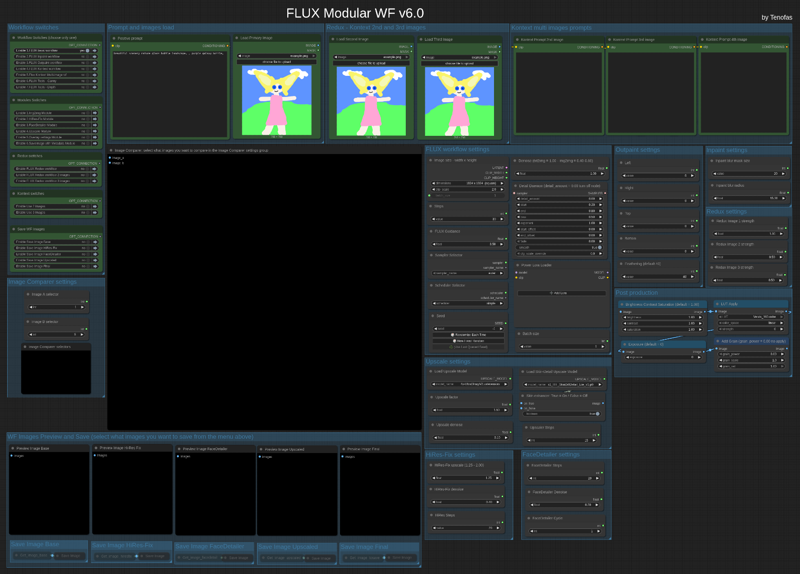 The workflow comes in two different edition:
1) the standard model edition that uses the BFL original model files (you can set the weight_dtype in the “Load Diffusion Model” node to fp8 which will lower the memory usage if you have less than 24Gb Vram and get Out Of Memory errors);
2) the GGUF model edition that uses the GGUF quantized files and allows you to choose the best quantization for your GPU's needs.
Press "1", "2" and "3" to quickly navigate to the main areas of the workflow.
You will need around 14 custom nodes (but probably a few of them are already installed in your ComfyUI). I tried to keep the number of custom nodes to the bare minimum, but the ComfyUI core nodes are not enough to create workflow of this complexity. I am also trying to keep only Custom Nodes that are regularly updated.
Once you installed the missing (if any) custom nodes, you will need to config the workflow as follow:
1) load an image (like the COmfyUI's standard example image ) in all three the "Load Image" nodes at the top of the frontend of the wf (Primary image, second and third image).
2) update all the "Load diffusion model", "DualCLIP LOader", "Load VAE", "Load Style Model", "Load CLIP Vision" or "Load Upscale model". Please press "3" and read carefully the red "READ CAREFULLY!" note for 1st time use in the workflow!
In the INSTRUCTIONS note you will find all the links to the model and files you need if you don't have them already.
This workflow let you use Flux model in any way it is possible:
1) Standard txt2img or img2img generation;
2) Inpaint/Outpaint (with Flux Fill)
3) Standard Kontext workflow (with up to 3 different images)
4) Multi-image Kontext workflow (from a single loaded image you will get 4 images consistent with the loaded one);
5) Depth or Canny;
6) Flux Redux (with up to 3 different images) - Redux works with the "Flux basic wf".
You can use different modules in the workflow:
1) Img2img module, that will allow you to generate from an image instead that from a textual prompt;
2) HiRes Fix module;
3) FaceDetailer module for improving the quality of image with faces;
4) Upscale module using the Ultimate SD Upscaler (you can select your preferred upscaler model) - this module allows you to enhance the skin detail for portrait image, just turn On the Skin enhancer in the Upscale settings;
5) Overlay settings module: will write on the image output the main settings you used to generate that image, very useful for generation tests;
6) Saveimage with metadata module, that will save the final image including all the metadata in the png file, very useful if you plan to upload the image in sites like CivitAI.
You can now also save each module's output image, for testing purposes, just enable what you want to save in the "Save WF Images".
Before starting the image generation, please remember to set the Image Comparer choosing what will be the image A and the image B!
Once you have choosen the workflow settings (image size, steps, Flux guidance, sampler/scheduler, random or fixed seed, denoise, detail daemon, LoRAs and batch size) you can press "Run" and start generating you artwork!
Post Production group is always enabled, if you do not want any post-production to be applied, just leave the default values.
Old version: V5.0
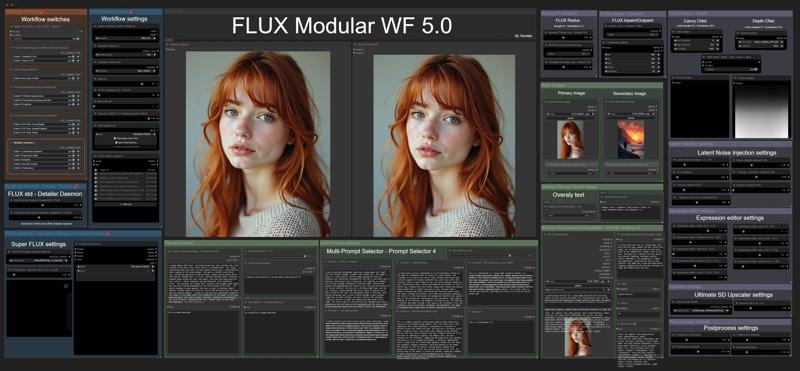 You can use the original model files or the GGUF versions.
There are two different basic workflows for generating an image: the standard FLUX workflow (with the optional Detailer Daemon nodes) and the Super-FLUX workflow (inspired by Olivio Sarikas' workflow). The Super-FLUX wf just split the total steps into three distinct sampler generations (1/3 of the total steps on each sampler) bringing more details to the image (sometimes even too much!).
The FLUX tools are all available: Redux (IP-Adapter), Inpaint/Outpaint, and Depth/Canny (ControlNets).
Prompt management is extremely powerful: you can use JoyCaption 2 for captioning an image and generate a detailed prompt; there is a local LLM (running on ComfyUI itself!) for LLM prompting generation; you can keep up to 6 different prompts for easy and quick use; last but not least you can create an image-database of your most used prompts: save the images you like in a specific folder, and use them as prompt-database. Just upload the image you want and the prompt you used for that image (and all the metadata saved with it) will be available for your next job.
The Modules available are the following:
1) Latent Noise Injection - improve the details of the image;
2) Expression Editor - to modify the expression of your subject in portrait images;
3) ADetailer - to improve quality and detail of hands, eyes, and faces;
4) Ultimate SD Upscaler - to upscale your images with the upscale models you like;
5) Postprocess - the final retouch to your images: saturation, contrast, sharpen, grain, and apply LUT.
The workflow needs ComfyUI with Python 3.11, as the latest version of ComfyUI is based on Python 3.12 and some custom nodes are not working with 3.12. On my YouTube channel, you can find a workaround if you have windows_portable ComfyUI with Python 3.12 and want to revert back to 3.11.
If you have trouble (Out of memory errors) with the original FLUX Dev model, I suggest you to try the GGUF version of the model: Q8 is almost the same as the original one, Q6.K or Q4.K are good alternatives.
Use the following keys to navigate the Workflow: "1" for the frontend; "2" for the explanation notes and links to models to download; "3" for the backend (usually you will need this just for the first use).
How to use the workflow
The first time you upload the workflow you will need to install 35 custom nodes (unless you use some of them already for other workflows or you already used my old workflows like the v.4.3).
I suggest installing one custom node at a time, restarting ComfyUI to make sure the installation was successful, and then installing the next custom node.
Once you have the workflow ready with all the custom nodes, you will need the models files (unet, vae, gguf, clip, clipvision, stylemodel, upscale model, sam model, bbox detector, LUT...). In the workflow's notes (press "2") you will find all the links if you need to download them or if the ComfyUI Manager does not have them available for installation (always check ComfyUI Manager first!).
Before you run the workflow, you need to do one last thing: upload the images for Input Images (Primary and Secondary) and the Prompts & parameters DataBase group. You can use any image you want to run the workflow, it's just because those nodes need an uploaded image to work. Otherwise, the workflow may get stuck.
The Worflow video-guide on my YouTube channel:
Coming soon...
Important
If you like my workflow and you want to share images you create with it, I would really appreciate it if you post them in the Gallery below, just click on "+ Add Post" button.
Thanks
Tenofas
Description
FAQ
Comments (37)
Outstanding work, i'm happy to get news from you. Thank you for your work and effort.
Great work, amazing workflow!
Oh I was missing u! It's good have u back! I will try your new WF. Ty!
Getting this error, and my ComfyUI portable will no longer start:
ImportError: huggingface-hub>=0.24.0,<1.0 is required for a normal functioning of this module, but found huggingface-hub==0.23.4.
Try: pip install transformers -U or pip install -e '.[dev]' if you're working with git main
This could be a problem with Python dependancies. Try to run update Comfy and Python dependancies batch file in the update directory.
Thank you so much for this workflow!
I wanted to ask if there’s a way to make ADetailer run after the Upscaler (like in your Workflow 4.3)?
No, not in the v.5.0 unless you modify the wf. I tested both ways and the best results came out from this config. Anyway, you could modify the order of the modules quite easily: just need to change the order of the two modules in the Switches group in the back end section of the workflow.
cant wait to test it!! getting some weird missing notification for two nodes
1.(IMPORT FAILED)comfyui-prompt-reader-node
2.ComfyUI-Logic
i use python 3.12 and updated everything tried to switch versions for these nodes but still nothing, if i find a fix ill post it
excited!!!!
Why would you create a workflow that requires an older version of Python than is used by the official Comfy organization? That seems like a bad choice. I just tried to load the workflow and I'm getting an error message before it even loads.
Not all the Custom nodes work with Python 3.12. I am working on a version that will work with 3.12, but too many nodes are not compatibile yet.
had the same issue, now i am thinking to follow the youtube instructions for comfyui Tenofas suggested to do. I just want to know after the new setup, when you fix the incompatible nodes, will i be able to update comfy or will it be stacked with the older version?
@Sven111 using windows-portable you will need a new fresh install with Python 3.12, unless you already have one. Windows-portable are great, as you can have many on the same HD or as backup on external drive or in the Cloud. Just move the folders and you can start the ComfyUI versione you like. It takes Just a few minutes.
Not sure what im doing wrong, but when loading the WF, it does not look like your example, its a complete mess. Its splines all over the show, nodes are spread out, and it seems that your nodes that you grouped together, are all stacked ontop of each other. Im still trying to resolve it, see what is wrong on my end, but yeah, just a heads up.
The first time you load the wf, if you don't have all the custom nodes, you probably would see a mess. You need to update Comfy and Python dependencies, then install all the missing custom nodes (up to 35!) and update all the custom nodes. This should solve your problem. (Oh, and be sure to use python 3.11)
I've just done a clean install of comfyui (python 3.11) Its the same for me and I've installed all of the missing custom nodes. Searge LLM is failing to import though so trying to trouble shoot that.
All groups are missing. Nodes are stacked on top of each other. Huge spacing between nodes.
@Neoblizzard it is supposed to have nodes stacked on top of each other. and the front-end group is way apart from the back-end group and the notes group. did you update all the nodes and the python dependencies?
@Tenofas All nodes updated and I've just created a new virtual env and comfy cli to avoid conflicting python dependencies, same result.
I followed a separate link (comfyworkflows) from your youtube video and downloaded that workflow and it actually appears with the groups and the nodes organized within them.
The version I get from civitai doesn't have any groups and all nodes including the nodes like the sliders or model selectors are all stacked on top of each other.
@Neoblizzard oh, maybe the file I uploaded here is corrupted, I will check... but it seems strange as it was downloaded many many times by other CivitAI users, and no one else had your troubles. Maybe you could try to download it once more from CivitAI. Anyway, the one you downloaded from the other website is working?
@Tenofas I will redownload from civitai and let you know. The other website download works great. Its a really nice workflow. Thank you very much for sharing it with us all!
@Tenofas that is super strange. Downloaded the file from civitai again and its causing no issues at all. Third time is a charm I guess. Sorry for the false flag.
love this version aswell :D
Still havent been able to make a de-distilled version work using your workflow(s) yet :(
have you gotten the chance to mess around with them yet? acornisspinning has a good model ive been using.
(also glad to see you back!)
Yes, I tried to use them, but that would mean to modify the workflow completely. Have to study a workaround to add them to the workflow.
@Tenofas understood, this was the one I was using for dedistilled which worked similarly to yours.
I wasnt able to work out the bugs however
(https://openart.ai/workflows/caiman_thirsty_60/flux-dedistilled-ultra-realistic-t2i-dual-upscale-facedetailer/1Hhrjm54PjM632btIY3A)
I found a workaround for the issue with failed nodes mentioned in my previous comment.
If you don't want to install an older version, you can resolve this by adjusting the config.ini files located in the Manager folders for both the user and custom nodes. Open these files in a text editor and change the security level from normal to weak.
Note: This adjustment reduces security, particularly if you install unverified or sketchy custom nodes, so proceed only if you're confident about the source of your nodes. Once the new workflow release from Tenofas is available, you can revert the security level back to normal.
After making these changes, you can manually install the nodes by using their GitHub URLs."
I dunno if I'm doing anything wrong, but I can't get the workflow to save my images in the output folder. They always appear in COMFYUI/temp?
I guess you updated Comfy and its nodes today... the same thing happened to me this evening... I am trying to find a fix to it... I guess they modified something in the last update...
I had this issue just today, and it was caused by 'png' appearing in the two 'metadata_scope' textfields within the 'Save Image Module'. I could see errors like this in the console: "* SaveImageWithMetaData 731:
- Value not in list: metadata_scope: 'png' not in ['full', 'default', 'workflow_only', 'none']".
still experimenting with the workflow !! great job , Found some inconsistencies with the upscale model and the adetailer. the upscaler is not connected to the model and the detailer is missing the scheduler
The scheduler should be connected wireless, with Anything everywhere node...
@Tenofas ok everything works great now, i would love to have more options for inpaint though, i tried to change the pattern of a fabric on a couch and had a hard time. if i find better nodes for that that work with flux ill let you know
@Sven111 The modular WF was created for Easy task, mostly portrait photography. Inpaint and the Flux tools are very powerful and flexible, but you Need a specific WF to bring out their potential. I am working now on a redux+inpaint WF for a Try-on job, and results are just unbelievable. Beta testing it, Hope to publish the WF in a couple of weeks, maybe there...