


🎥 WanVideo ComfyUI RunPod Setup Guide
This comprehensive guide will walk you through setting up and using the WanVideo ComfyUI environment on RunPod for AI video generation. Wan needs alot or vram to get outputs ata resonable speed. 48GB for $0.44 an hour is a pretty good deal IMO
Nothing to download from here. This is a Runpod Template with all the models and workflows added.
WAN 2.1 Video - ComfyUI Full - T2.0 - Running on CUDA 2.5
https://runpod.io/console/deploy?template=6k2saccgx8&ref=0eayrc3z
## UPDATE
20/03/25
Notice a Pytorch Bug on using Community Cloud GPUs.
EDIT: Its with just the 5090 cards with the blackwell architecture

19/03/25
'Error: 'NoneType' object is not callable fix'
I added a depth 0 to ComfyUI and implemented nodes to reduce the container size, but these changes introduced several bugs. I've since removed them, and everything should now work much better.

17/03/25
- Added environment variables to control setup behavior:
  - `SKIP_DOWNLOADS=true`: Skip downloading models
  - `SKIP_NODES=true`: Skip verification custom nodes (nodes are packaged into the container for faster build)
🚀 Getting Started
Step 1: Deploying Your Pod
Sign up/login to RunPod
Navigate to "Deploy" → "Template"
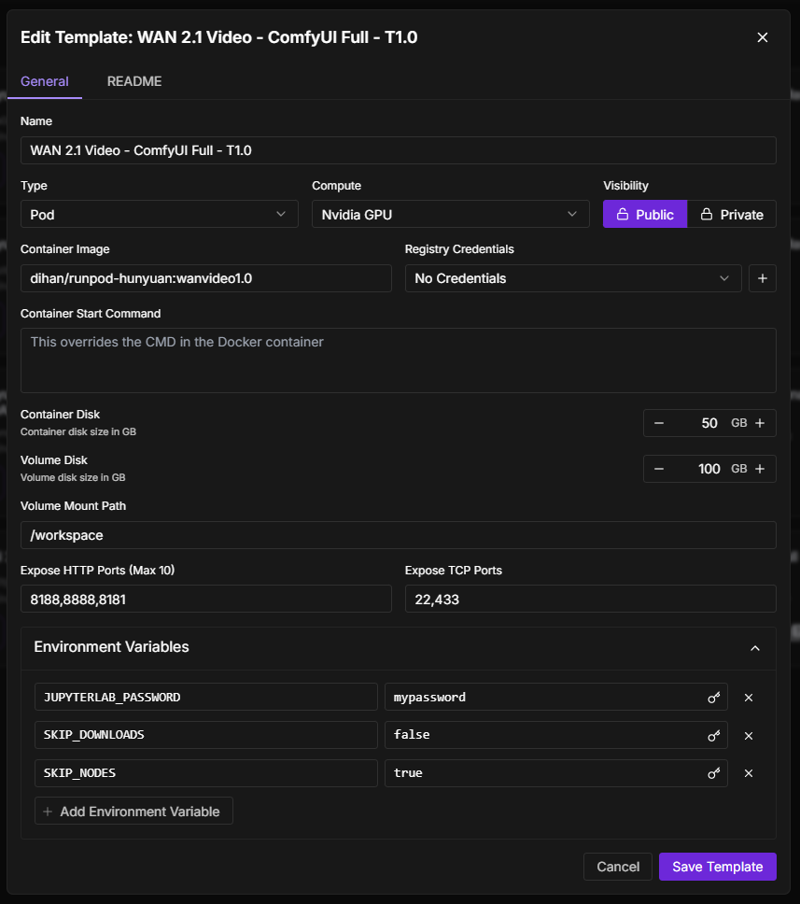
Search for "WAN 2.1 Video - ComfyUI Full - T1.0" template
Select the hardware:
Recommended GPU: RTX A40 (minimum 48GB VRAM)
Storage: 60GB minimum (100GB recommended)
Filter GPU's above CUDA 2.4
Click "Deploy" to launch your pod
Step 2: Initial Setup
Once deployed, your pod will automatically:
Download all required models (takes ~10 minutes)
Install custom nodes
Set up the environment
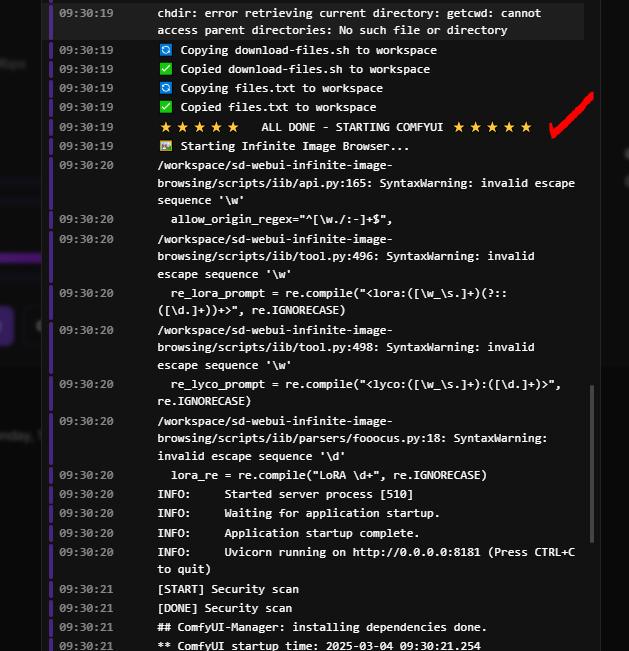
You'll see the following message when setup is complete:
⭐⭐⭐⭐⭐ ALL DONE - STARTING COMFYUI ⭐⭐⭐⭐⭐
Step 3: Accessing Your Environment
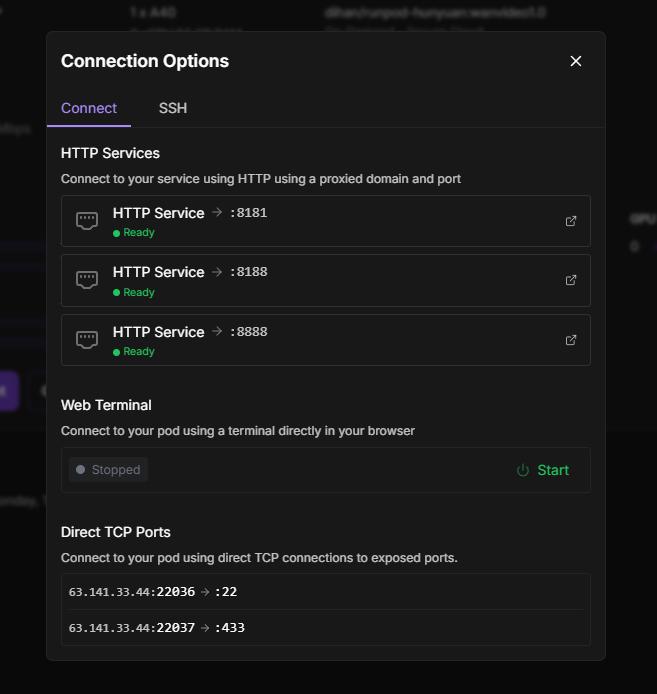
From your pod's detail page, access:
ComfyUI Interface:
Port 8188 (primary interface for creating videos)
Wait for this to turn green after setup completes
JupyterLab:
Port 8888 (available immediately, even during setup)
Use for file management, terminal access, and notebook interactions
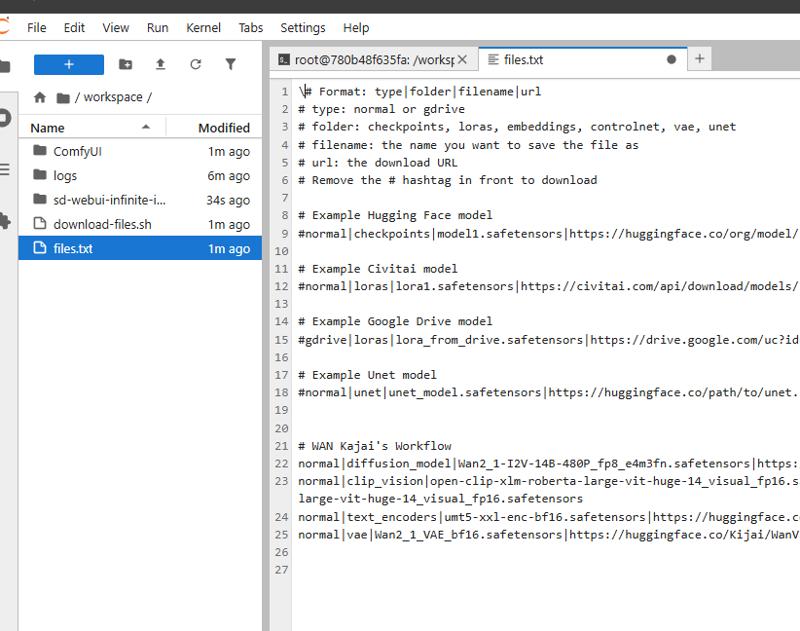
Image Browser:
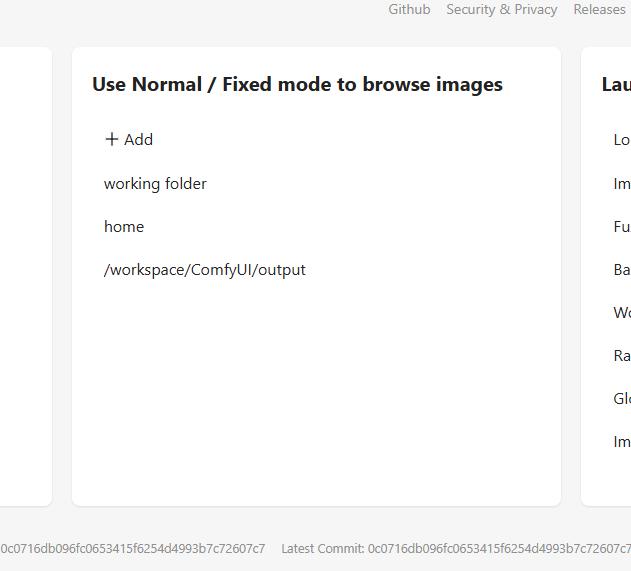
Port 8181 (for managing your output files)
View and organize generated videos and images
💾 Managing Models
Downloading Additional Models
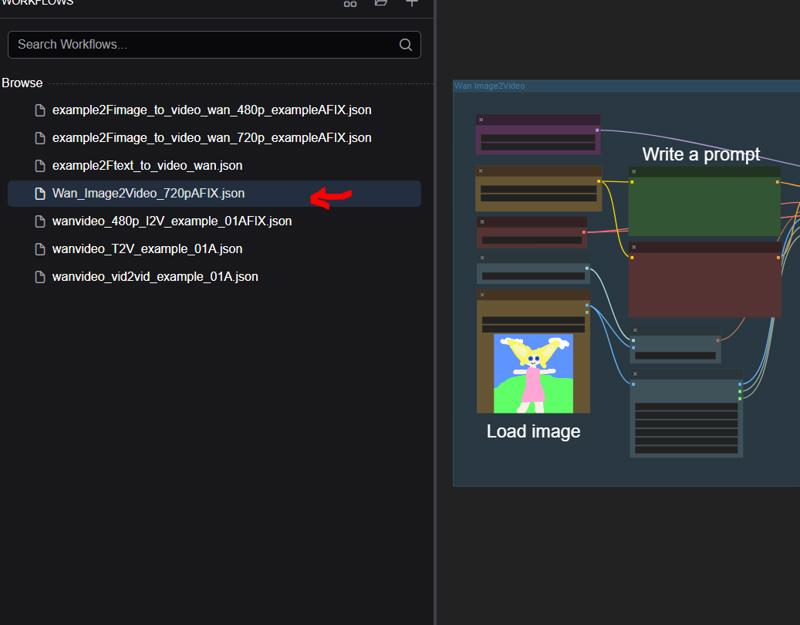
This will only download everything you need for Wan_Image2Video_720pAFIX.json workflow. If you want to use the other workflows run the ./download-files.sh from terminal and it will download all the models for Kajai's workflow.
Use the flexible model download system:
Edit the configuration file:
files.txt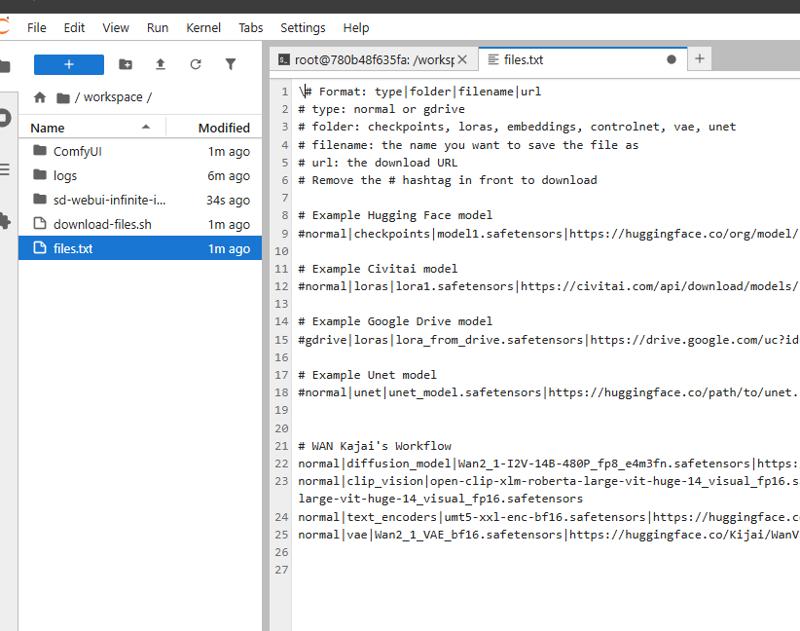
Add model entries using this format:
type|folder|filename|urlExamples:
normal|checkpoints|realistic_model.safetensors|https://huggingface.co/org/model/resolve/main/model.safetensors

gdrive|loras|animation_style.safetensors|https://drive.google.com/uc?id=your_file_id
Run the download script:
./download-files.sh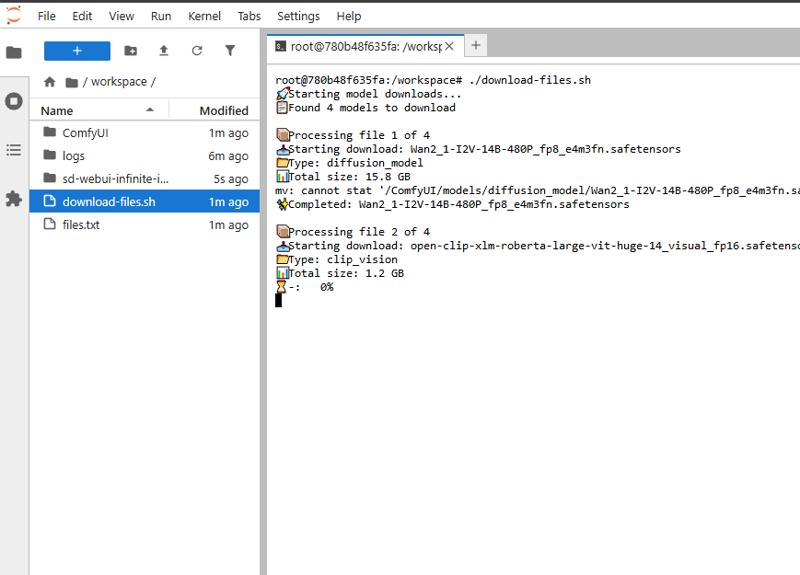
WAN 2.1 Models
https://huggingface.co/Kijai/WanVideo_comfy/tree/main
https://huggingface.co/Comfy-Org/Wan_2.1_ComfyUI_repackaged/tree/main/split_files
Pre-installed Models
The template comes with these key models:
Wan 2.1 Models:
Wan2_1-I2V-14B-720P_fp8_e4m3fn.safetensors(Base video model)wan_2.1_vae.safetensors(VAE)
Text Encoders:
umt5_xxl_fp16.safetensors(Advanced text encoder)
CLIP Vision:
clip_vision_h.safetensors(Enhanced vision model)
🎨 Using ComfyUI for Video Generation
Step 1: Load a Workflow
Access ComfyUI interface (port 8188)
Click on the folder icon in the top menu
Navigate to the default workflows folder
Select one of the pre-configured workflows
Step 2: Customize Your Generation
Modify text prompts to describe your desired video
Adjust settings:
CFG Scale: 7-9 recommended for quality (higher = more prompt adherence)
Steps: 25+ for better quality (more steps = more refinement)
Resolution: Start with 512x512 for tests, increase for final outputs
Frame count: Determines video length
Step 3: Generate and View Results
Click "Queue Prompt" to start generation
Monitor progress in the ComfyUI interface
When complete, view your video in the output panel
Access all outputs via the Image Browser (port 8181)
📊 Managing Your Files
Using JupyterLab
Access JupyterLab (port 8888)
The workspace folder contains:
/ComfyUI- Main application and modelsFiles for downloading additional models
Notebook for image/video browsing
Using Image Browser
Access the browser interface (port 8181)
Browse your generated content by:
Creation date
Filename
Metadata
Right-click on items for additional options (download, delete, etc.)
🔧 Advanced Features
SSH Access
To enable SSH:
Set your
PUBLIC_KEYin the template settings before deploymentConnect using the command shown in your pod's connect options
Custom Nodes
The template includes these pre-installed node collections:
Workflow utilities (
cg-use-everywhere,ComfyUI-Manager)UI enhancements (
rgthree-comfy,was-node-suite-comfyui)Video-specific nodes (
ComfyUI-WanVideoWrapper,ComfyUI-VideoHelperSuite)Performance optimizers (
ComfyUI-Impact-Pack)
🛠️ Troubleshooting
If you encounter issues:
ComfyUI not starting:
Check JupyterLab terminal for logs
Ensure models downloaded correctly
Models not loading:
Verify files exist in
/ComfyUI/models/directoriesCheck file sizes to ensure complete downloads
Custom node problems:
Try reinstalling via ComfyUI Manager
Restart your pod if necessary
🎯 Tips for Best Results
Use detailed prompts with specific descriptions
Increase CFG and step count for higher quality videos
Save your successful workflows for future use
Monitor VRAM usage and adjust resolution accordingly
Use the Image Browser to organize and review your outputs
Need more help? Check the readme.md file in JupyterLab or reach out to the RunPod community!
Description
ComfyUI Interface:
Port 8188 (primary interface for creating videos)
Wait for this to turn green after setup completes
JupyterLab:
Port 8888 (available immediately, even during setup)
Use for file management, terminal access, and notebook interactions
Image Browser:
Port 8181 (for managing your output files)
View and organize generated videos and images
FAQ
Comments (18)
"error starting container: Error response from daemon: failed to create task for container: failed to create shim task: OCI runtime create failed: runc create failed: unable to start container process: error during container init: error running hook #0: error running hook: exit status 1, stdout: , stderr: Auto-detected mode as 'legacy' nvidia-container-cli: requirement error: unsatisfied condition: cuda>=12.5, please update your driver to a newer version, or use an earlier cuda container: unknown"
which GPU did you use?
Your host system has NVIDIA drivers that don't support CUDA 12.5
Would make templates on Vast.ai?
Something like this should do it. Havent had a chance to test. let me know if you run into issues. ill try setting up one this weekend
https://cloud.vast.ai/?ref_id=218806&creator_id=218806&name=Runpod%20WAN%202.1%20Img2Video%20Template%20-%20ComfyUI
Error: 'NoneType' object is not callable
There seems to be a bug in the current Comfy Version. If you get this, you need to reset Comfy to the latest working commit. In (web) terminal:
cd /workspace/ComfyUI
git fetch --unshallow
git reset --hard e8e990d6b8b5c813c87d1aeaed3e5110c7aba166
Thank you! This container is my favorite :)
It doesn't seem to work with a 5090 (or any 5000 series, I'm guessing):
CLIPTextEncode
CUDA error: no kernel image is available for execution on the device CUDA kernel errors might be asynchronously reported at some other API call, so the stacktrace below might be incorrect. For debugging consider passing CUDA_LAUNCH_BLOCKING=1 Compile with TORCH_USE_CUDA_DSA to enable device-side assertions.
Updating cuda is a bit of a hassle inside a pod, I noticed. For starters, comfyui does not seem to use a virtual environment. I guess it could be done anyway with some knowledge but I had to give up since it kept using the space on the pod and not my added network space which led till out of space all the time.
Correct, I havent had a chance to work out the bugs.
Love this. Thank you so much for this easy to use workflow using runpod! Could i ask if it would be possible to a first/last frame version, using the same method?
I do need to update the Templates. There are so many new VACE workflows etc I would like to add but you can always drag in a workflow like the first and last frame ones.
@DIhan The thing about your template that makes it so great, is the fact its all pre-installed. Im really new to all this, and can barely get any workflow to work because i need to download large models to make them run (i have limited harddrive space haha), they can be way over complicated too. this template was easy to understand and learn from, and does the job perfectly. ive adjusted it a little adding the power lora loader and color matcher, and thats it. I have a totally seperate workflow for upscaling and interpolation. Honestly if you could make another one nice and simple like this for start/end frame, id be creamy lolz. Thanks again mate, appreciate it!
P.S I think i would have given up on I2V without this template and your well explained tutorial/instructions. Its now turned into an a addiction haha.
I'm definitely going to need this in the future when I start making my way around WAN more comfortably. Having never even heard about runpod like a week ago, I'm stoked. 48c/hr for some crazy GPU usage sounds like a godsend. Thanks for making this man, laymans like me are going to get a lot of use out of it. You should consider posting to the SD reddit, if you haven't already. They always need good information, and direction.
Stopped working today...literally within a few hrs. I was on it earlier (maybe 4-5 hrs ago). Now pod keeps getting same error:
Error: clip_vision_h.safetensors is missing from clip_vision directory❌ Error: umt5_xxl_fp16.safetensors is missing from text_encoders directory⚠️ Some models failed to download or verify
The pod wont even launch to load the models myself inside. Really appreciate if you can fix. I'll report back if it starts working again, but ive had this same error 3 times in a row.
Update: Headsup.
For some reason my pod got corrupted (maybe?), as when i tried launching a new one with this template it worked fine. Which is cool it still works, but minus my Loras, WF's & generations that ive been too lazy to download/backup. Bittersweet 😥😊
Yeah my volume has got a corrupted a few times too and had to start from scratch.
if you not doing already use the T2 version which i updated and runs the dependencies better
https://console.runpod.io/deploy?template=6k2saccgx8&ref=0eayrc3z
Hey love the set up, just curious, I installed everything on to my runpod storage so I can keep everything stored for later, will it only work with whatever GPU I used to install it? I tried using a more powerful GPU after installing to see if I could speed things up but I kept getting a Clip Vision Encode Kernel error. When I went back to the GPU I used to install, everything worked fine.