


Create spritesheet from 1 full body image.
Required workflows
To make a spritesheet from a single image, you need 3 workflows:
Pose Selector: https://civarchive.com/models/1774551
WAN2.1 Seamless loop: https://civarchive.com/models/1779212/wan21-seamless-loop-with-presets-low-vram-and-fast-lora-workflow
WebP Animation To SpriteSheet: https://civarchive.com/models/1779346
and some image editing software (GIMP, Photoshop, Paint.NET)
How to use
Get full body image
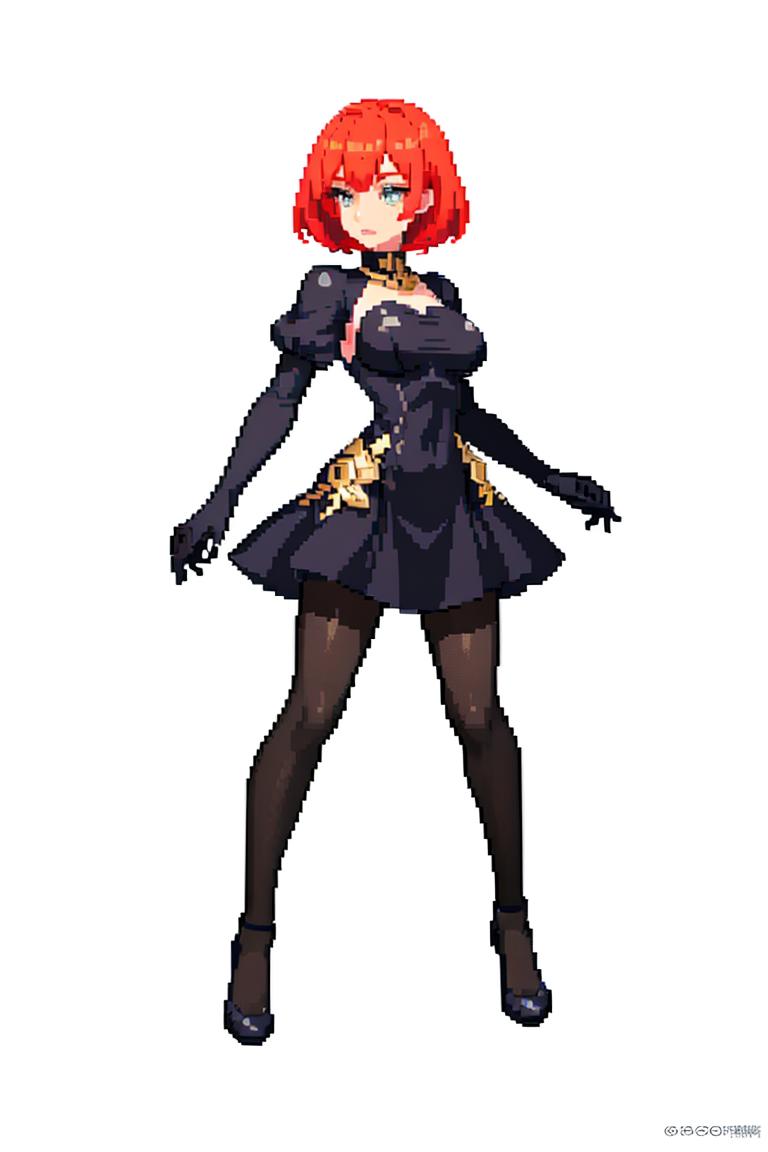 In Pose Selector generate image in "default pos". Why? Because Flux Kontext changing anatomy, in the generated images anatomy will be the same, but it will differ from the reference image.
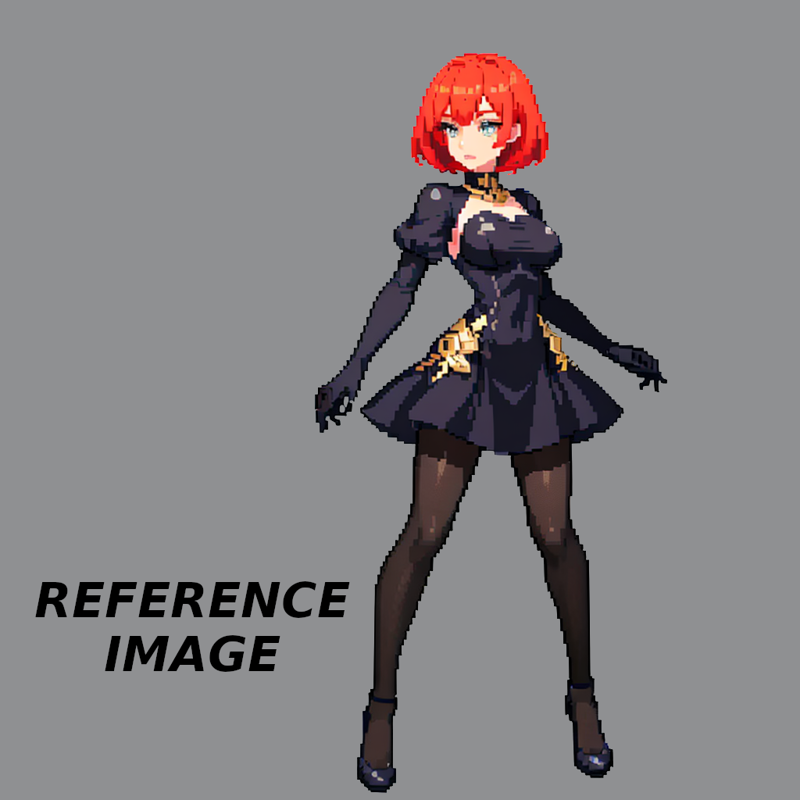
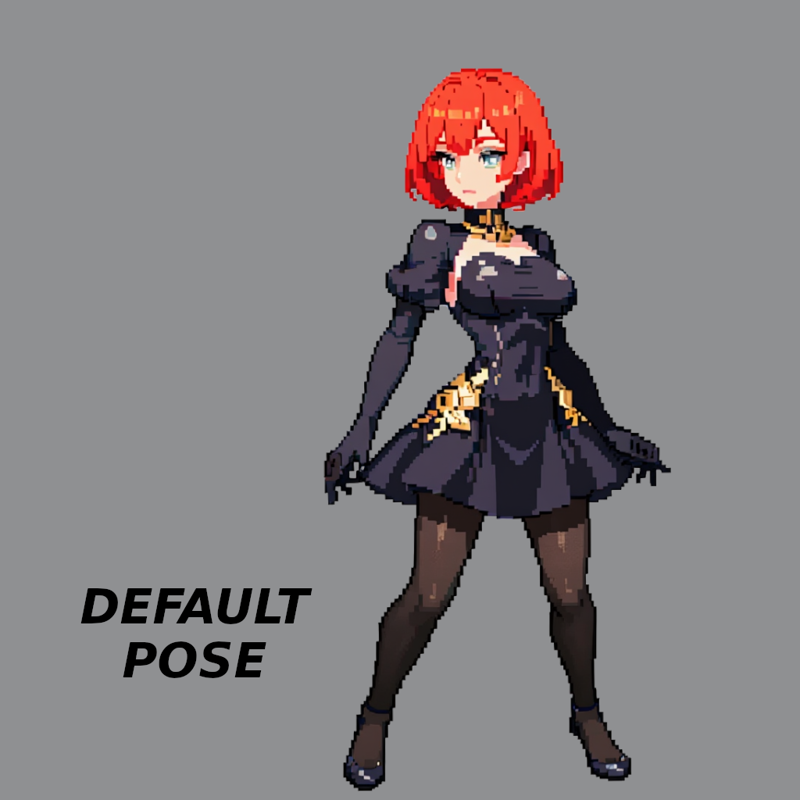 And generate Run, Jump and Sit poses.
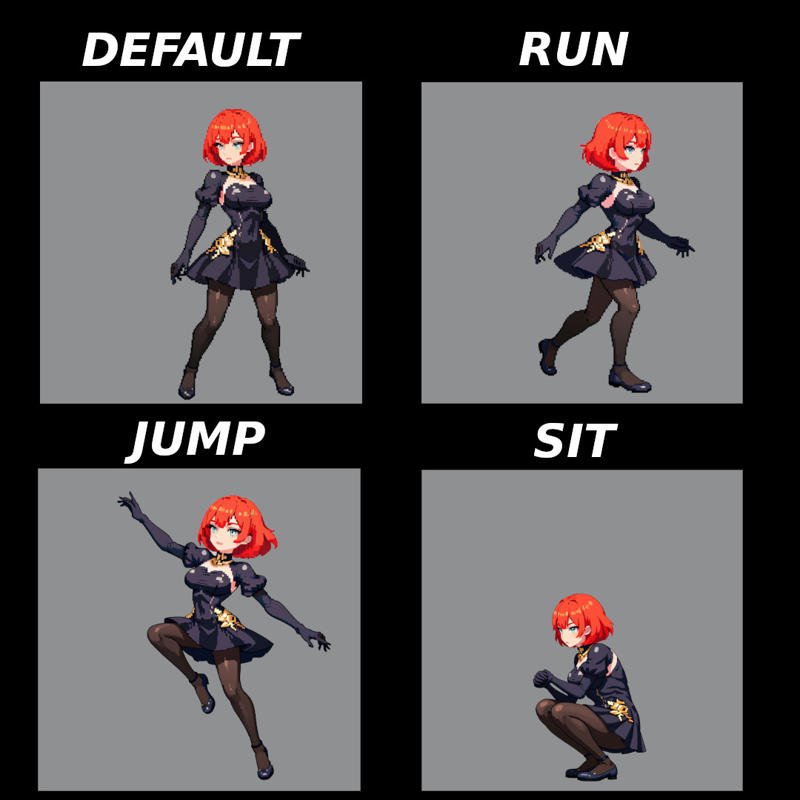 All characters should look in one side, not like in my example, where "Run" pose looking in right side, but others in left.
You need to rescale generated pose images to 1 scale. Like that.
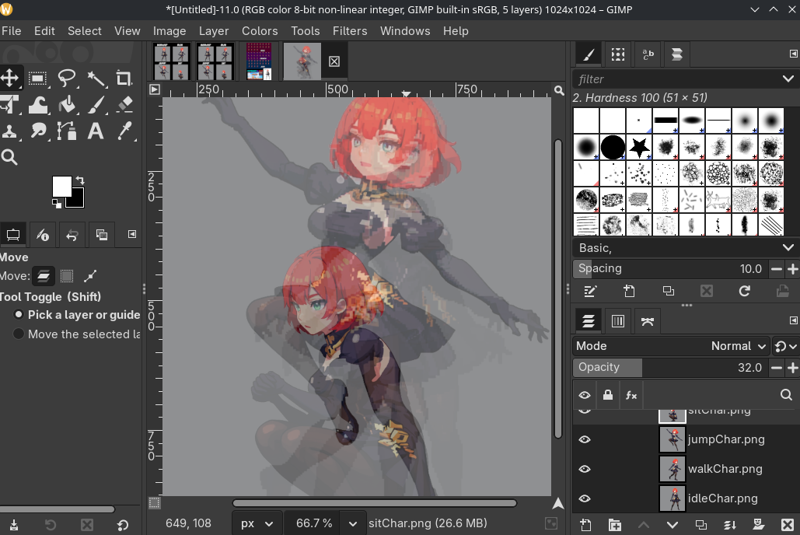 Pose images with correct scale, put in WAN2.1 Seamless loop
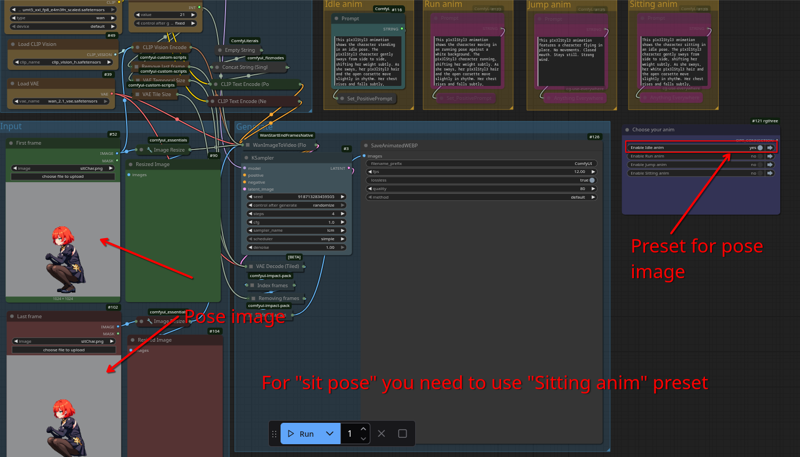 First frame and Last frame should be the same.
For default pose, you need to use "Idle anim" preset
For Jump pose, you need to use "Jump anim" preset
etc.
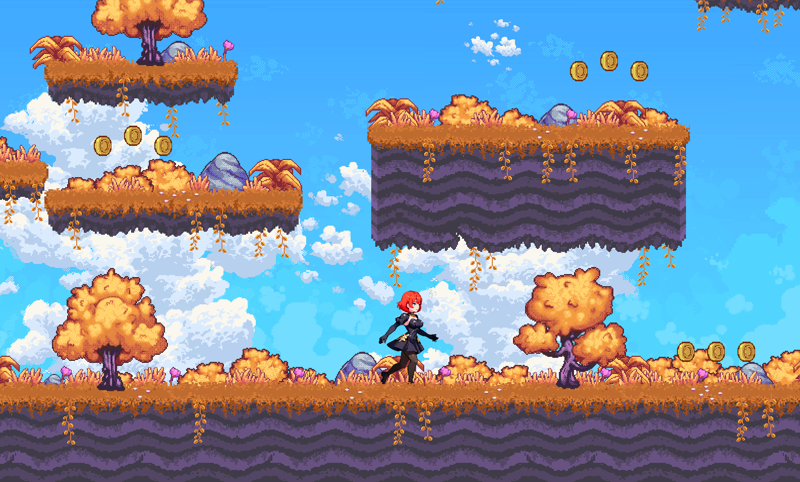
Ok, by now you have a good WebP animations. Next step, is to remove background from animation and put every frame in spritesheet, for that, use WebP Animation To SpriteSheet.
Done.
Description
FAQ
Comments (8)
Man this is awesome! Thanks for sharing.
Can I ask where to get the base64 pose images? I'm trying to make a walk animation.
I have already answered this question before, so I will copy the answer.
You can get pose on PoseMy Art, click on a T-Pose icon in left-bottom corner, and, click on first button (dancing icon), you will find a large list of poses, choose one. When you are happy with the pose, go to settings, turn off "Floor grid" and "Ground". Next, click on Screenshot button (Camera icon) to save png image of a pose. Next step, put this pose in black square 1024x1024px, and save. Pose image in black square, convert to base64 via base64 guru site, and put base64 code in "Base64 Decode to Image" node inside "pos" group. That's all.
nothingherern450454 Thank you very much and sorry. After I sent the comment I found your other answer in a different workflow of yours and I thought I deleted this one but sounds like I didn't.
Downloaded all the models, and threw a test image in there for Idle animation.
It was not named sitChar.png, but it was expecting a sitChar.png? Are the names hard coded?
got prompt
Failed to validate prompt for output 104:
* LoadImage 102:
- Custom validation failed for node: image - Invalid image file: sitChar.png
Output will be ignored
Failed to validate prompt for output 126:
* ConcatStringSingle 130:
- Required input is missing: string_a
Output will be ignored
WARNING: [Errno 2] No such file or directory: '/mnt/data/ComfyUI/input/sitChar.png'
Prompt executed in 0.20 seconds
They mention it that the first and last frame should be the same. You may have the last frame empty. I think sitchar is not needed specifically, just use whatever input frame you have.
Hello, for some reason I don't have these nodes installed(ReferenceLatent, FluxKontextImageScale,Base64DecodeNode,ImageStitch). Could you tell me what the problem might be?
You need go to Manager->Install missing Nodes. Choose everything, press install.
@nothingherern450454 Also don't use the install button from the Missing Nodes warning page. If there are "conflicts" with already installed nodes (i.e. they both do the same thing), the manager won't install the one you need on that page. Have to go to the actual Manager window (assuming you have installed Manager plugin first), and choose Install Missing Custom Nodes option of Custom Nodes in Workflow option and install from there.