


This is a custom workflow I’ve been working on. It allows you to make unlimited new Img2Img outcome. By taking a image and creating a prompt from that image and use it to create new images.
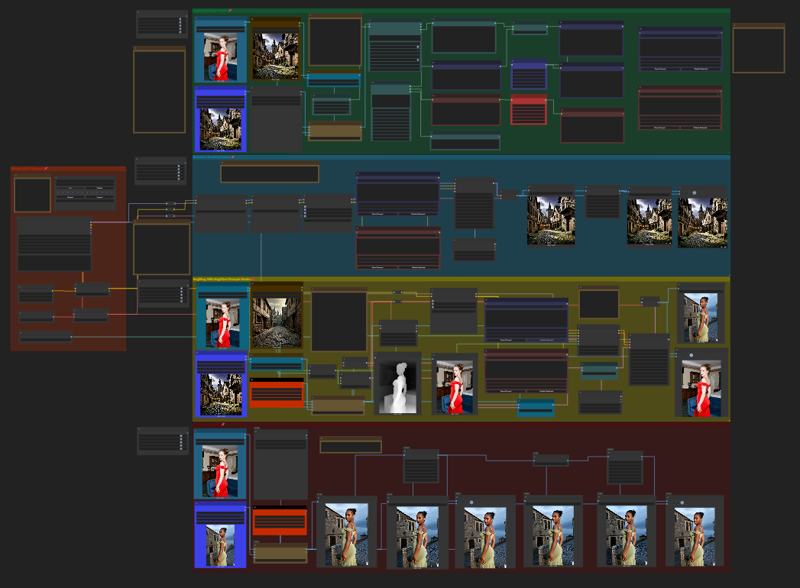
The lady in the red dress and the medieval town were blinded together for the prompt. Then the lady in the red dress was used as the "ControlNet Preprocessor VAE" image to create these images.
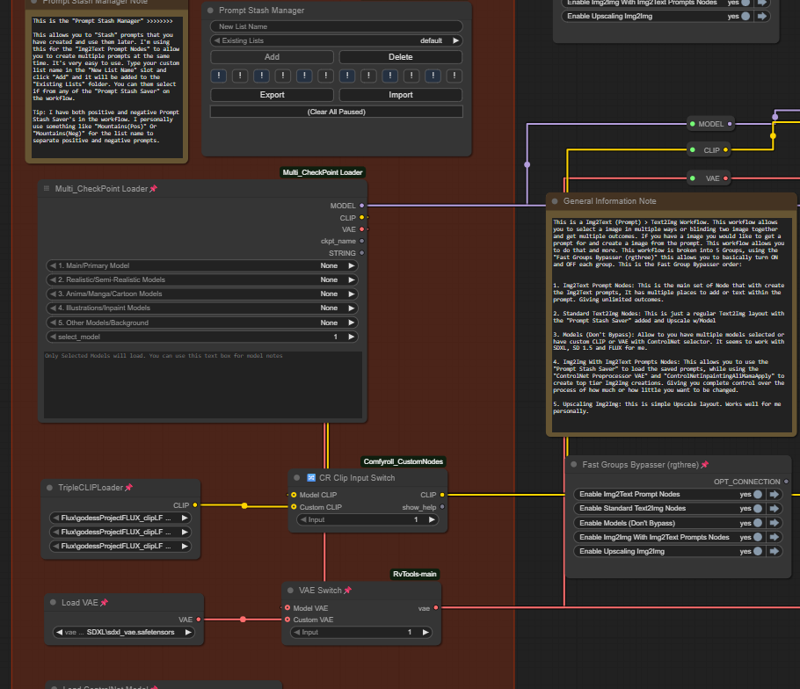
This is the Fast Group Bypasser order:
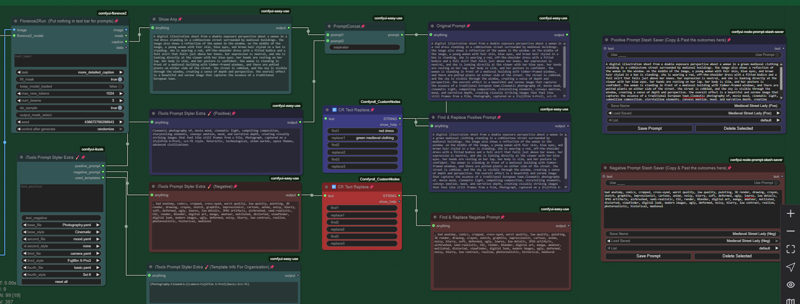
1. Img2Text Prompt Nodes: This is the main set of Node that with create the Img2Text prompts, It has multiple places to add, modify or change text within the prompt. Giving unlimited outcomes.
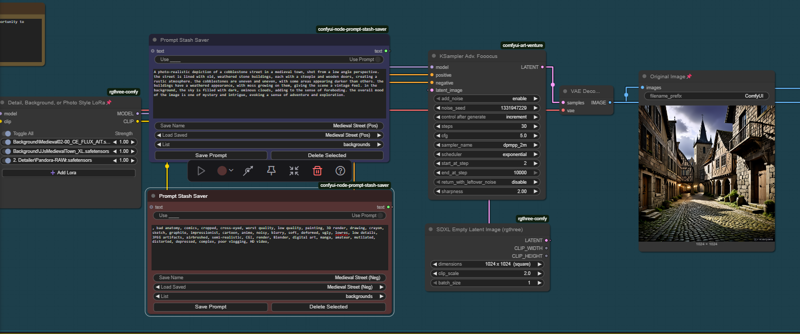
2. Standard Text2Img Nodes: This is just a regular Text2Img layout with the "Prompt Stash Saver" added and Upscale w/Mode
3. Models (Don't Bypass): Allow to you have multiple models selected or have custom CLIP or VAE with ControlNet selector. It seems to work with SDXL, SD 1.5 and FLUX for me. Do not bypass this group or you will have to reload the models if you use Img2Text or Upscale.
4. Img2Img With Img2Text Prompts Nodes: This allows you to use the "Prompt Stash Saver" to load the saved prompts while using the "ControlNet Preprocessor VAE" and "ControlNetInpaintingAliMamaApply" to create top tier Img2Img creations. Giving you complete control over the process of how much or how little you want to be changed. (The masking part is not the best masking workflow. But you can use it if you want)
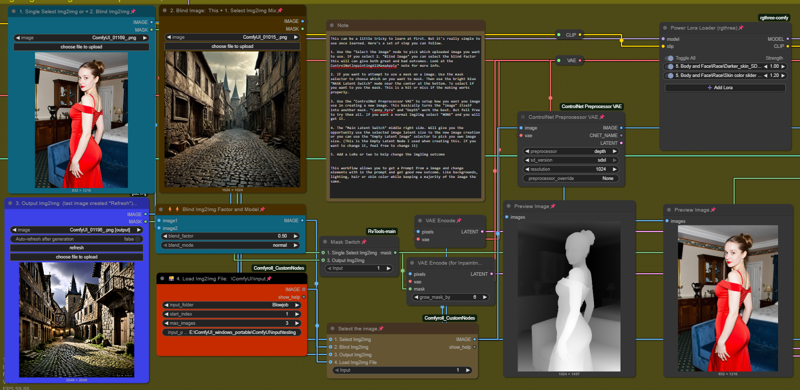
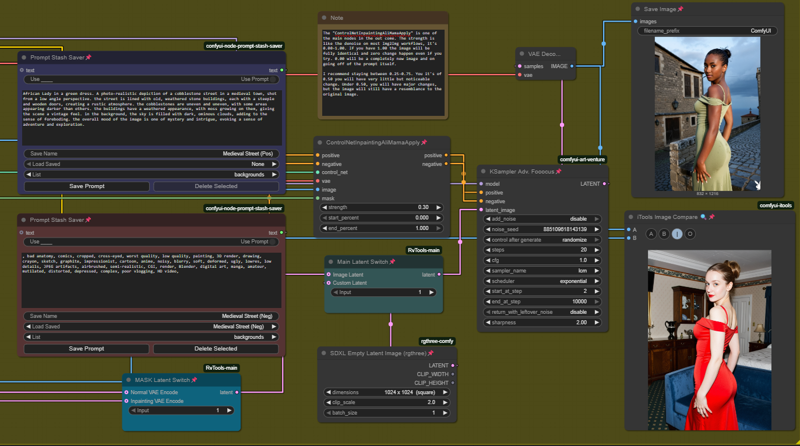
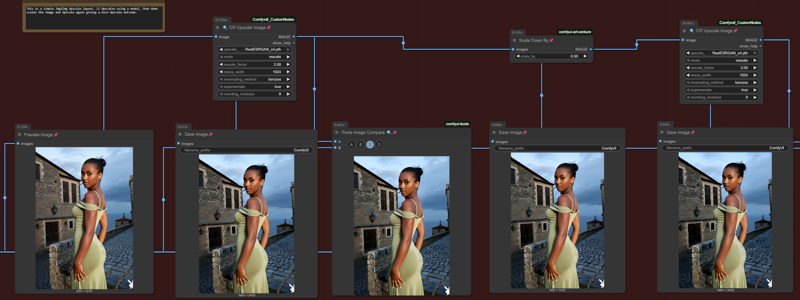
5. Upscaling Img2Img: this is simple Upscale layout. Works well for me personally.
You will need these download these Nodes and programs to run this workflow for how it is currently setup. The Comfyui Custom Node Manger Namw, Github and HuggingFace links will be listed below.
rgthree-comfy (Custom Node Manger)
or
https://github.com/rgthree/rgthree-comfy
ComfyUI-Easy-Use (Custom Node Manger)
or
https://github.com/yolain/ComfyUI-Easy-Use
ComfyUI_Comfyroll_CustomNodes (Custom Node Manger)
or
https://github.com/Suzie1/ComfyUI_Comfyroll_CustomNodes
comfyui-art-venture (Custom Node Manger)
or
https://github.com/sipherxyz/comfyui-art-venture
ComfyUI-iTools (Custom Node Manger)
or
https://github.com/MohammadAboulEla/ComfyUI-iTools
Prompt-Stash (Custom Node Manger)
or
https://github.com/phazei/ComfyUI-Prompt-Stash
ComfyUI-Florence2 (Custom Node Manger)
or
https://github.com/kijai/ComfyUI-Florence2
(Needed Downloads to run node)
https://huggingface.co/microsoft/Florence-2-base
https://huggingface.co/microsoft/Florence-2-base-ft
https://huggingface.co/microsoft/Florence-2-large
https://huggingface.co/microsoft/Florence-2-large-ft
https://huggingface.co/HuggingFaceM4/Florence-2-DocVQ
Have fun using this workflow
Description
FAQ
Comments (8)
For those of you that don't want to download the "ComfyUI-Florence2" program or want a more simplify version. I can create one, I know what to do, but it takes time. If I do, it will only be able to do image "Tags" only and less custom nodes. Not the full image prompt creation like in this Workflow. Let me know if you want one like that. Or any other ideas you may have.
workflow>Multi_CheckPoint Loader
Note ID: 392
How do I find this node??
Sorry about that. I completely forgot to mention that is a custom node I personally created.
I used "🔮 CR Select Model" + "Text Multiline" to create the node. I created that a couple month ago and added the text box to rank models as I testing them.
If other people are having issues with it. I can reupload the model with out the text line or you could just replace it with the "🔮 CR Select Model" if it is causing issues for you.
You can create custom node? damnnn comfy ui keeps surprising me with new features. I will replace it with CR Select Model, suggesting you to mention it somewhere :)
Node ID 406 also does not work, any fix?
@souravchhotray40943
Sorry it took so long. 406 is the "ControlNet Preprocessor VAE". That is the "ControlNet Preprocessor VAE". That is the "ControlNet Preprocessor" + "VAE Encoder" custom node. I didn't create that one, it was from a another workflow or something I downloaded.
This is the first time unloading a workflow to share. I'll go through and fix a lot of these custom nodes or preplace some of the nodes for more common nodes. Then release a version 2, may take me a week or two.
@souravchhotray40943
If you want to create your own custom nodes. Find the nodes you wish to combined together and lay them next to each other. Hold Ctrl and left click the mouse and drag the square over them. The will highlight them and then right click the mouse over one of the nodes. The menu with appear, click on "Convert To Group Node (Deprecated)" and name the node. Then you can go in to Manage Group Node and customize it all you want. This gives you lots of power in customizing your workflow.
I am glad you have so much patient, you are very dedicated- will try and let you know