
Load one photo and MiniMax H3 films a camera orbit all the way around the subject. The same photo is the first and the last frame, so the clip ends where it starts and loops. The clip has no sound.
This workflow runs the 360 Orbit LoRA by pablodawson. All credit for the orbit goes to them.
Why use this workflow
You can load the LoRA into a plain first + last frame graph. This workflow adds four things:
It sets the LoRA up for you. Your photo goes in as the first and the last frame, with the LoRA card's own prompt. There's no prompt to write.
It fixes the "spinning on the spot" look. On a plain wall or backdrop the turn looks like the subject is spinning, because the camera has nothing to go past. Type what is around them and the clip shows that place going past. That worked on all three plain photos I tested.
No bars. The photo loads through a crop tool and the clip takes its shape. One tap gives the square the LoRA was trained on instead, with black bars or as a crop.
It is fast. A 4-step turbo LoRA is switched on, about 4x faster than the LoRA card's 28 steps.
How to use it
Load your photo.
Pick how many seconds. It opens on 4, which gives a cleaner background than 3.
Optional: type what is around them.
Run.
Plain wall or backdrop? Say what is around them
Type the place into What is around them. Two short sentences are enough, like "She is in a photo studio in front of a gray backdrop. Around her are light stands, a stool and a desk."
The place is made up from your words, so it won't be your real room. Leave the box empty when the photo already has a room or a street in it.
The shape of the clip
The clip takes the shape of your photo, with no bars. The LoRA was trained on square clips, so that is outside what it was trained on, but the camera went all the way round on the four photos I tried.
Want the square? Tap 1:1 under your photo. It gets black bars to make it square.
A square crop instead: with 1:1 lit, set Fit to crop and drag the box to what you want in the clip.
What you need
AusBoss nodes 2.5.0 or newer. In ComfyUI-Manager, search "AusBoss". Already have them? Update first.
The MiniMax H3 first/last-frame model, the 360 Orbit LoRA and the turbo LoRA:
minimax_h3_fl2va_pruned_int8_convrot.safetensors →
models/diffusion_models· 21.0 GBqwen3vl_32b_minimax_h3_nvfp4_awq.safetensors →
models/text_encoders· 15.7 GBminimax_h3_video_vae_fp16.safetensors →
models/vae· 5.21 GBminimax_h3_flf2v_lora_v1.safetensors →
models/loras· 155 MBminimax_h3_fl2v_turbo_4step_v1.0_768p_comfyui_bf16.safetensors →
models/loras· 1.96 GB (the 4-step turbo LoRA)
Comfy-Org recommends the int8_convrot model when your PyTorch is built for CUDA 13 (cu130), and their fp8_scaled build otherwise. Both are on the same Comfy-Org/MiniMax-H3 page.
Tips
Turbo is on, for speed. For better quality, turn it off. Switch the turbo row off, then double-click Film the orbit and set steps to 28 and shift_video to 12. That's the LoRA card's own setting, about 4x slower. The cover clip was made that way. On a plain backdrop keep turbo on: at 28 steps the backdrop stayed flat in my tests.
If the camera goes to the back and returns the same way, press New seed on the Seed node. Switching turbo off also fixed it on the photo where I saw it.
In a busy room the camera passes behind things. With shelves or walls close by, it goes behind them on its way around, like the library clip on the cover.
The LoRA was trained on 28 short clips of people, square. Other subjects and shapes are untested by its author.
Anything the photo doesn't show gets made up, like the back of a shirt.
Every video and picture on this page has the workflow inside. Drop one on ComfyUI to load it.
Small movements like a blink can slip in. Press New seed and run it again.
About 35 seconds a 4-second clip on an RTX 5090 with turbo, about two and a half minutes without.
Credits
The 360 Orbit LoRA is by pablodawson, under the MiniMax H3 Community License (its card lists the license as "other"). MiniMax H3 is by MiniMax, under the same license, and the files, including the 4-step turbo LoRA, are Comfy-Org's repackage. The license only covers its "Applicable Territory", which leaves out the European Union, the United Kingdom, South Korea and the United States, and the same limit applies to what you make with it. Commercial products above US$20M a year in revenue need MiniMax's written OK and must show "MiniMax H3".
v1.1 (2026-10-04): a box to say what is around the subject, for photos with a plain backdrop. The photo loads through a crop tool and the clip takes its shape, so there are no bars; one tap gives a square with black bars. v1.0 (2026-09-30): first release.
Questions or bugs: GitHub issues or the comments here. More from me on X @Zanzibased and GitHub.
Description
First release.
FAQ
Comments (10)
This is perfect! I use it with LichtFeld Studio to create a Gaussian Splat. I load the video into the SplatReady Asset, and it creates a really good splat.
Now we need multiple angles, especially from above and below. Maybe we could use a video rendered from the splat itself as a reference?!
ha thats awesome! i did that before with a wan2.2 360 video frames and a trellis 2 model i think.
i bet you could use qwen image 2.1 and a multi angle lora (or without the lora) for those top and bottom views.
I can't find AusBoss in manager
thanks for letting me know. i tested it on a fresh install to see if i could reproduce it. installing through manager worked for me, but searching the full name ComfyUI-AusBoss finds nothing, only ausboss does. that might be what happened
search ausboss, or open one of my workflows and go Manager > Missing Nodes > Install, then restart and refresh. pic shows both manager versions
i'm changing the listing so the full name works too. if it still doesn't show up, tell me which comfyui and manager version you're on
here's both ways, left is the built-in manager, right is the github one: https://files.catbox.moe/oxuniy.png
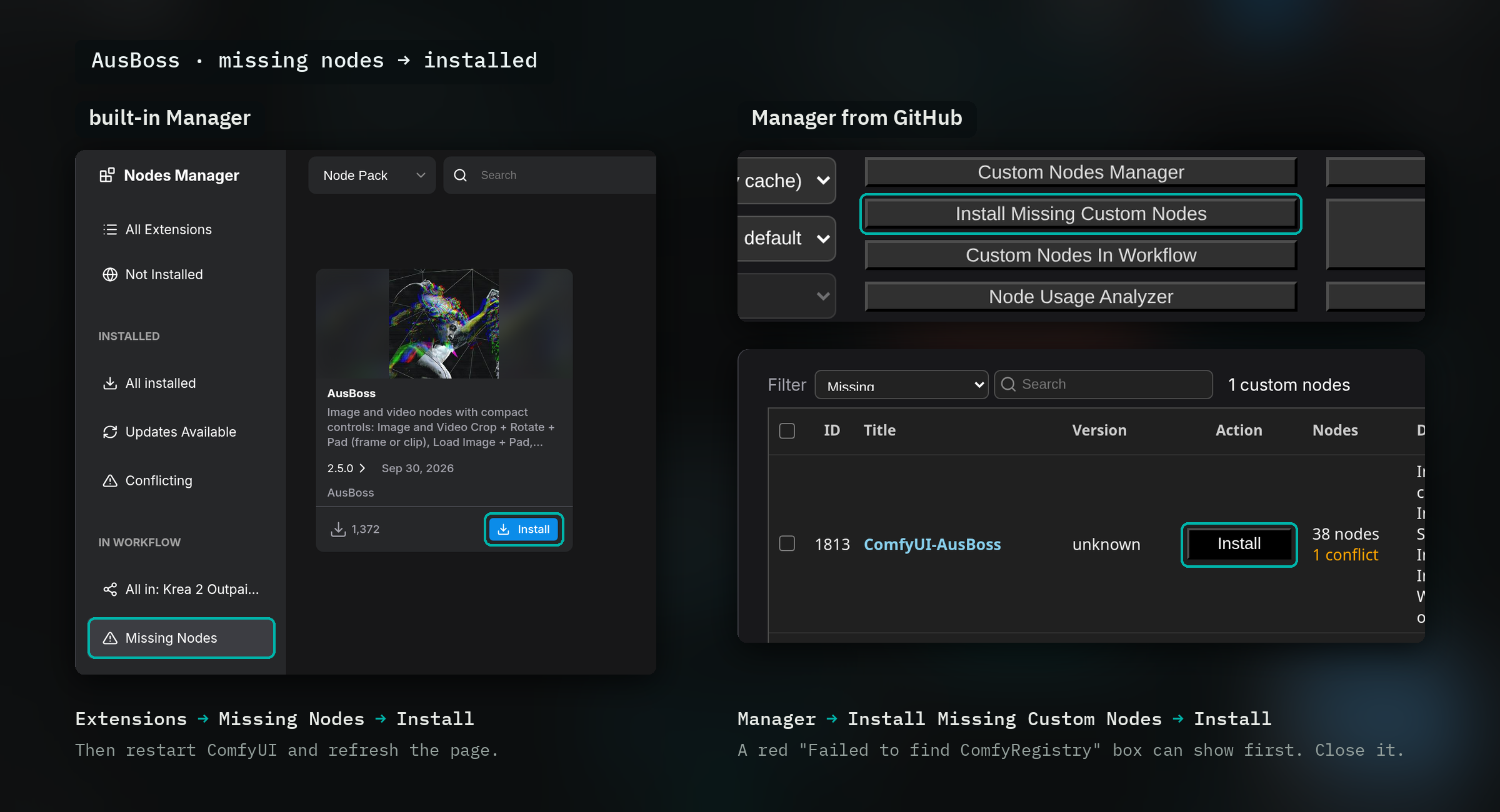
update: the listing change is out, so searching ComfyUI-AusBoss in manager finds it now. let me know if it still doesn't show up for you
This is cool. I really like the look of your nodes and workflow. Not sure if it's just the images I'm using but the effect I get makes it look like the subject is just twirling/spinning in place, rather than the camera orbiting around them.
yeah the lora does that sometimes. run a few different seeds and you'll land on a clean orbit.
looked into this properly and it's mostly the photo. when there's a room or a street behind the subject the camera really does go around them. on a plain wall or a studio backdrop there's nothing behind them to slide past, so the same move just looks like they're spinning on the spot. new seeds won't fix that part, my bad.
i just put up v1.1 with a box where you type what's around them. two short sentences like "she is in a photo studio, around her are light stands, a stool and a desk" and the clip shows that place going past. that got it orbiting on every plain photo i tested.
I got this error during VAE decoding : "Expected all tensors to be on the same device, but found at least two devices, cuda:0 and cpu"
thanks for the error text, that helps. it's not the workflow itself: that step is comfy's own vae decode node, and this is a known bug in comfy's minimax h3 vae. it crashes when comfy offloads part of the vae to system ram (weights on cpu, data on the gpu). it's open here and not fixed yet: https://github.com/Comfy-Org/ComfyUI/issues/16686
what gpu and comfyui version do you have? if it's a low vram card, starting comfy with --disable-dynamic-vram or --gpu-only might keep the vae on the gpu, but i haven't tested that myself.