


Wildcard Gallery V2 [Github]
What is this
This Automatic1111 extension primary adds a new extra networks gallery for wildcards along with preview thumbnails and other features for an enhanced wildcards management and user experience.
Installation
git clonethis repo to theextensionsfolder in your Web UI installation, or paste the its link to theextensions/Install form URLtab in WebUiif you have the old Wildcard Gallery V1 extention consider removing before installing the new one (this a whole rebase from V1 so a clean reinstall is remcommended)
make sure to backup a copy the folders
metadataandcardsif you already have those populated then copy them back to the new extension folder afterward
requirements
This extension extends on the wildcard functionality so it goes without saying that you already have the sd-dynamic-prompts extension in your WebUi ecosystem if not then you'll need to install the .
This extension was made with Gradio 3.x in mind things may break with higher versions
Settings
to limit indexation to specific wildcard branches you can add the parent activation path wildcard to the Whitelist (default behavior)
important!! you wont see any wildcard in the gallery unless you add its file name to whitelist in the webui settings and restart it
to exclude wildcards from indexation you can add their activation path to the Blacklist
you can toggle the Downscale preview images to resize and compress generated previews to take far less size on the disk

Wildcard Filter Tab
Overview
The Wildcard Filter Tab is the most notable addition in Version 2 of the Wildcard Gallery addon. Without the limitations of the previous Extra Network subtab, this tab introduces a wide range of powerful features, such as:
More advanced card filtering options
A cleaner, more resource-efficient viewer
Real-time preview channel switching
Card tagging support
Live card selection for operations (e.g., export, preview generation, tag editing)
Wildcard creation directly from within the WebUI
Tab Layout
The layout is intentionally simple and includes:
Filtering Options
Handles the creation and execution of filtering queries.
Cards Viewer
Displays filter results as cards, paginated (typically 25 per page).
Allows card selection for future operations
Enables card creation
Includes a Viewer Options subsection for tag visibility, preview cycling, and card grouping
Operations Sections
Contains actions for selected cards or the entire wildcard dictionary.

Terminology
Preview Channel: A named profile that contains a different set of preview images for the wildcard dictionary. Used to visualize how wildcards behave in various prompt scenarios.
Tag Group: A logical collection of tags that share display properties (e.g., color, masking behavior).
Wildcard Sequence: An ordered set of wildcards under a shared parent, executed in a chained manner. Designed for niche cases like prompt-based storytelling.
Filter Modes
Mode: wildcard
The simplest mode. Displays a searchable dropdown of all wildcards in the dictionary.
You can select one or multiple cards.
Optionally extend the filter to include all cards with the same parent as the selected one.


Mode: selector text
Uses selector-style input (e.g.,
__parentA/parentB/exampleCard__) to filter results.Wildcards can be targeted directly or via wildcard globbing:
__parentA/parentB/*__will show all cards underparentB.
Supports multiple comma-separated selectors (e.g.,
__x/y/*__, __z/card__).
Mode: tags
Filters cards based on custom user-defined tags.
Supports Inclusion Logic:
AND: All specified tags must be present in a card.OR: Any of the specified tags can be present.
Tags placed in the Excluded dropdown will be used to reject cards with those tags.

Mode: prompt search
The most specific and niche mode.
Filters based on the card’s internal prompt text.Supports Included and Excluded comma-separated terms (unordered).


Cards Viewer
This is where you'll interact with filtered results in the form of cards.
Uses pagination to ensure performance even with large datasets.
Selection mode defaults to Stacked, but can be changed to Single in the top-right corner of the viewer.
Viewer Options
Additional utilities can be accessed from the collapsed section above the card viewer:
Card Stacking Level
Groups cards based on their parent rank.E.g., setting stacking to 3 will group
parentA/parentB/parentC/Card1and.../Card2under a sharedparentC/*stack.Selecting a stack selects all cards within it.
Changing stacking level does not reset card selections.


Tag Masking
Allows hiding or decluttering tags on cards based on their tag group settings.Selected Preview Channel
Lets you cycle through different preview images per card based on the chosen channel.


Card Detail Panel
When you select a card, details and actions become available on the left-side panel.
Actions (available for single or multiple selections): 
Copy to Clipboard: Copies the wildcard activation text for manual prompt use.
Edit Card Tags:
Add/remove tags using the dropdown or by typing a new one.
"Add Tag" attaches the tag; "Remove Tag" detaches it.
Favorite: Adds cards to your favorites list.
Remove: Currently disabled until card editing is fully implemented.
Information: 
Tags: Full list of card tags (ignores masking).
Card Path: The virtual path of the card in the dictionary.
Prompt: The raw prompt text embedded in the wildcard.
File: The physical location of the wildcard file.
Protected: Indicates whether the card is protected from editing (feature not yet implemented).
Channels: Lists which preview channels contain this card.
Operations Sections
Import Wildcard Pack: Imports a Wildcard Pack zip into the dictionary (including all of it metadata and perviews)
Export as Wildcard Pack: Export the selected cards (or all filtered results) as a valid Wildcard Pack
Tag Groups: Create new Tag Groups or edit existing ones by adding member tags and setting tag colors
Misc Actions
Rebuild Wildcard Dictionary: rescan for changes and builds an up to date wildcard dictionary (think of it as a refresh action)
Collect Redundant Thumbnails Files: round up all images that don’t correspond to any existing entry in the "USER_OUTPUT/STRAY_RESOURCES" folder.
Collect Thumbnails: collects copies of selected cards thumbnails from the active channel in "USER_OUTPUT" folder.
Nullify Thumbnails: Sets the thumbnails for selected cards thumbnails in the active channel so that they can be skipped with batch generating perviews.
Remove Thumbnails: Clears the thumbnails for selected cards thumbnails in the active channel.
Wildcard Preview Utils
This is a txt2img script used in conjunction with the Wildcard Filter Tab to automate preview generation and deployment for multiple wildcards within the dictionary. It also provides additional utilities depending on the selected script mode.
.jpg)
.jpg)
Disabled: Bypasses script logic and generates images normally.
Batch Prompting: Uses the selected (or filtered) wildcards from the Wildcard Filter Tab to generate images for each wildcard individually.
Setting Prompt Usage Mode to Combine Cards will instead generate a single image using all selected wildcards.
Sequence Generation: Generates all images for a sequence-type wildcard in the correct order.
Simply select any wildcard that belongs to the sequence — the entire sequence will be generated automatically.
Preview Generation: Generates and assigns preview images to the selected (or filtered) wildcards.
Make sure to switch to the channel where you want the resulting image(s) to be saved.
Enabling Override Existing Previews will force regeneration and replacement of previews for all selected wildcards, even if they already have a preview in the chosen channel.
Simplified Usage Steps:
Select the desired cards in the Wildcard Filter Tab.

Add the base positive and negative prompts for image generation.

Activate the Wildcard Preview Utils script, choose Preview Generation, and set the desired channel for output.
You can also check how many cards are included in the generation queue by clicking Count Selected Cards.

Click Generate and wait for the generation queue to finish.
Back in Wildcard Filter Tab, confirm that previews were assigned by switching to the correct channel.
(Sometimes you may need to deselect and reselect a card for the info to refresh.)


Description
FAQ
Comments (30)
i think this extension is not working on webUI v1.10!
TypeError: Script.run() missing 8 required positional arguments: 'selected_wild_path', 'task_override', 'replace_str_opt', 'preview_suffix', 'selected_wildcard', 'use_wild_path', 'task_nullify', and 'insertion_type'
@Tiefling_Bard interesting, I'll check it out
@navimixu thanks!!!
I think it's not working on webUI v1.10.1 either.
@Tiefling_Bard try out the instructions in my post in the discussions - I figured out what worked for me using automatic 1111 1.10.1
I found that once installed, the extension "prompt all in one" didn't load.
Is there any way to change the naming convention of the cards in the gallery? I'd love to be able to change/remove the parenthesis sitting at the end of every wildcard file (ex. hair(test)).
it was actually a work around the limitation of the gallery system in webui only allowing for uniquely name items , that means no items can share the same name.
Please direct your issues to the project's Github page [https://github.com/navimixu/wildcard-gallery/issues] it would make it easier for me to remember them that way, thanks.
Really cool and useful resource. Thanks for making it!
For anyone using this who might not know, to maintain some randomness for each 'set' all you have to do is add a * after the section you are randomising in your prompt.
For example:
__ponyxl/chara_expression/happiness/awed__
.Into.
__ponyxl/chara_expression/happiness/*__
This is insanely good. Really user friendly for wildcard beginners! Amazing contribution to the community!
Sorry, i'm a lame, but i dont understand how to install it :/ i have extract it on extensions folder but i dont know what to do after that ?
after restarting webui you should notice a new "wildcards" tab added next to the "lora" tab
@navimixu ha thanks ! I'm blind !
@etude2k if you didn't get it to work after that try checking out my post in the discussion - I had to take a few extra steps.
For me ur wildcards looks like this: https://i.ibb.co/cJrRfJL/obraz.png can u tell me how to make that there will be screens with examples?
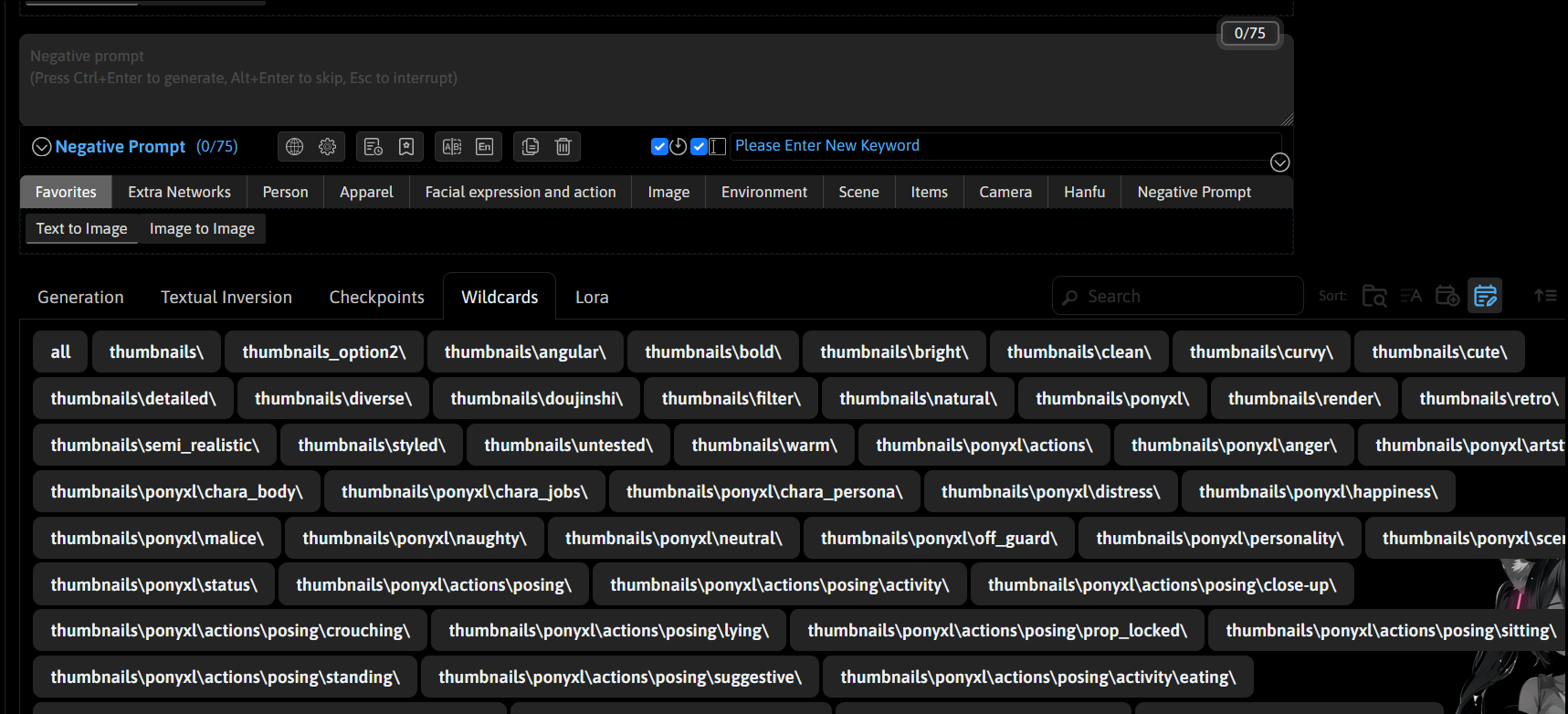
might be an incompatibility issue with the newer versions of webui 1.10 and above
try going to settings -> stable diffusion ->extra networks-> look for the section that says "Extra Networks directory view style (requires Reload UI)" and change it from Dirs to Tree
@Tozi_White try following my post in discussion - I had to take a few extra steps - it may work for you.
FINALLY I Figured it out. (at least for automatic1111 1.10.1)
For those that can't make this thing work. This worked for me.
Prerequisite : Dynamic Prompts - Make sure you have sd-dynamic-prompts installed, you can find it from within the "available" section from the "Extensions" tab or use https://github.com/adieyal/sd-dynamic-prompts.git for the "Install from URL" section in the "Extensions" tab
1. Install navimixu's Wildcard Gallery extension
1.a - easiest way (In My Opinion) - go to WebUI->Extensions->Install from URL-> URL for extension's git repository - enter "https://github.com/navimixu/wildcard-gallery/" without the "" quotes and click on "Install"
1.b - go to "WebUI->Extensions->Installed->" click on the "Apply and restart UI" orange button
Now you've got the Exension Required to load navimixu's Wildcard files from their PonyXL Wildcards Vault!! - https://civitai.com/models/615967
2. Download a Wildcard collection by navimixu
--example used here - "Jobs and roles" pack from navimixu's PonyXL Wildcards Vault
2.a - download "Jobs and roles" -
--should be a file named "ponyxlWildcardsVault_jobsAndRoles.zip"
2.b - use a program like 7zip to unpack the .zip file somewhere for now temporarily
3. Add the prompts and corresponding pictures correctly - aka placing the files+folders from the unpacked .zip in the right place
3.a - create 2 new folders called "PonyXL", one in "webui\extensions\sd-dynamic-prompts\wildcards\" and the other in "webui\extensions\wildcard-gallery\cards"
--- this is because each of navimixu's yaml files start with "PonyXl"
--- this will help keep things tidy in your computer's folders
3.b - SD Prompts - place the "ponyxl-jobs.yaml" file from the "ponyxlWildcardsVault_jobsAndRoles.zip" you unpacked earlier into the folder you created "webui\extensions\sd-dynamic-prompts\wildcards\PonyXl"
3.c - Pictures/Thumbnails - choose the thumbnail folder you prefer (if there's more than 1) from the .zip you unpacked and place it in "webui\extensions\wildcard-gallery\cards\ponyxl"
--- in this example I chose the first set of thumbnails so I took the folder found within "thumbnails/ponyxl/chara_jobs" from the .zip and placed it into the ponyxl folder mentioned in the line above - looks like this now "webui\extensions\wildcard-gallery\cards\ponyxl\chara_jobs"
--- inside the "chara_jobs" folder it has 3 three other folders 1. fantasy_jobs 2. modern_jobs 3. scifi_jobs - each of these folders has the thumbnails for the yaml file "ponyxl-jobs"
ALMOST DONE!
This is the part that made things WORK!!!!
4. give permission to Wildcard gallery to use the yaml file
4.a - add the name of the Wildcard yaml file you downloaded to "webUI->Settings->Uncategorized->Wildcards Gallery->Whitelisted Wildcards->ponyxl-jobs "
---in other words add the yaml file name without the ".yaml" - each line in the Whitelisted Wildcards section should have just 1 yaml file name.
4.b - click on the big orange "Apply Settings" at the top of the page and then on the big orange "Reload UI" button right next to it
--- with the yaml file and thumbnails in the right folders the extension will link them together and present them to you in the "extra networks" section of your webUI (the section to the right of "generation" in txt2Img and img2img
****
Suggestion : to have the tree view on the left side of the Wildcard Gallery extension enabled, go to WebUI->Settings -> Extra Networks -> Extra Networks directory view style (requires Reload UI) - click on the "Tree" radial to select it and then click on the big orange "Apply Settings" at the top of the page and then on the big orange "Reload UI" button right next to it-
---NOTE: this will change the view for all of the "Extra Networks"
Suggestion : I deleted everything in the "Wildcard Directories" section from "webUI->Settings->Uncategorized->Wildcards Gallery->Wildcard Directories"
--- unsure if this was critical in making this work, at this point I didn't care to test anymore.
ALSO - you can do the same for prompts using ".txt" though the extension seems to give each just 1 slot for a single thumbnail per text file
For "artstyles" it seem each one is built upon the last - only need to get the latest version and not the ones that precede it. If you're getting only artstyles (the first version, and also, makes no sense cause you should only get artsyles III as it has the 2 before it in there) you'll have to take the folders from the thumbnails folder and put them in a folder you need to create called "artstyle" like this "webui\extensions\wildcard-gallery\cards\ponyxl\artstyle"
For "expressions" i had to create a folder called "chara_expression" in the wildcard gallery/ponyxl folder and put all the folders from the thumbnail section in there.
You're the best I try for 2 days to install it, I could'nt make it without you ! thanks !
It doesn't seem to work with Forge anymore :(
I actually made a hacky work around that (mostly) fixes it. Search is broken and tree view doesn't work either but other than that it works fine. I put the fix up in a fork of the extension but didn't make a pull request to add it to the official repo because the way I managed it is by no means good practice. Here's the link to the fork. https://github.com/dualdragoon/wildcard-gallery
I'm not quite sure how to create multiple thumbnails by content inside a txt file. Or is this extension not for that?
I love it :) Thank you
Please help! Extra network does not show previews if I select a specific dir. I have a bunch of previews all together, but I can’t select a specific group, since dirs tree does not work correctly- if I tap on the specific dir it shows as if it was empty. Does anyone have any ideas on how to fix this?
I also tried to create some previews and had problems with txt files. It doesn’t show any txt, only yalm (i added both txt and yalm wildcards to white list in settings but it didn’t help)