
Description
# Installation and Startup Guide
### Windows (
If the automatic installation fails, please refer to the manual installation instructions at the bottom.1. Double-click install_windows.bat
to run and install all necessary dependencies.2. Once installed, you can launch GPT4V-Image-Captioner in a terminal by double-clicking `start_Windows.bat'
.3. If you hold down Ctrl and click the URL address in the terminal
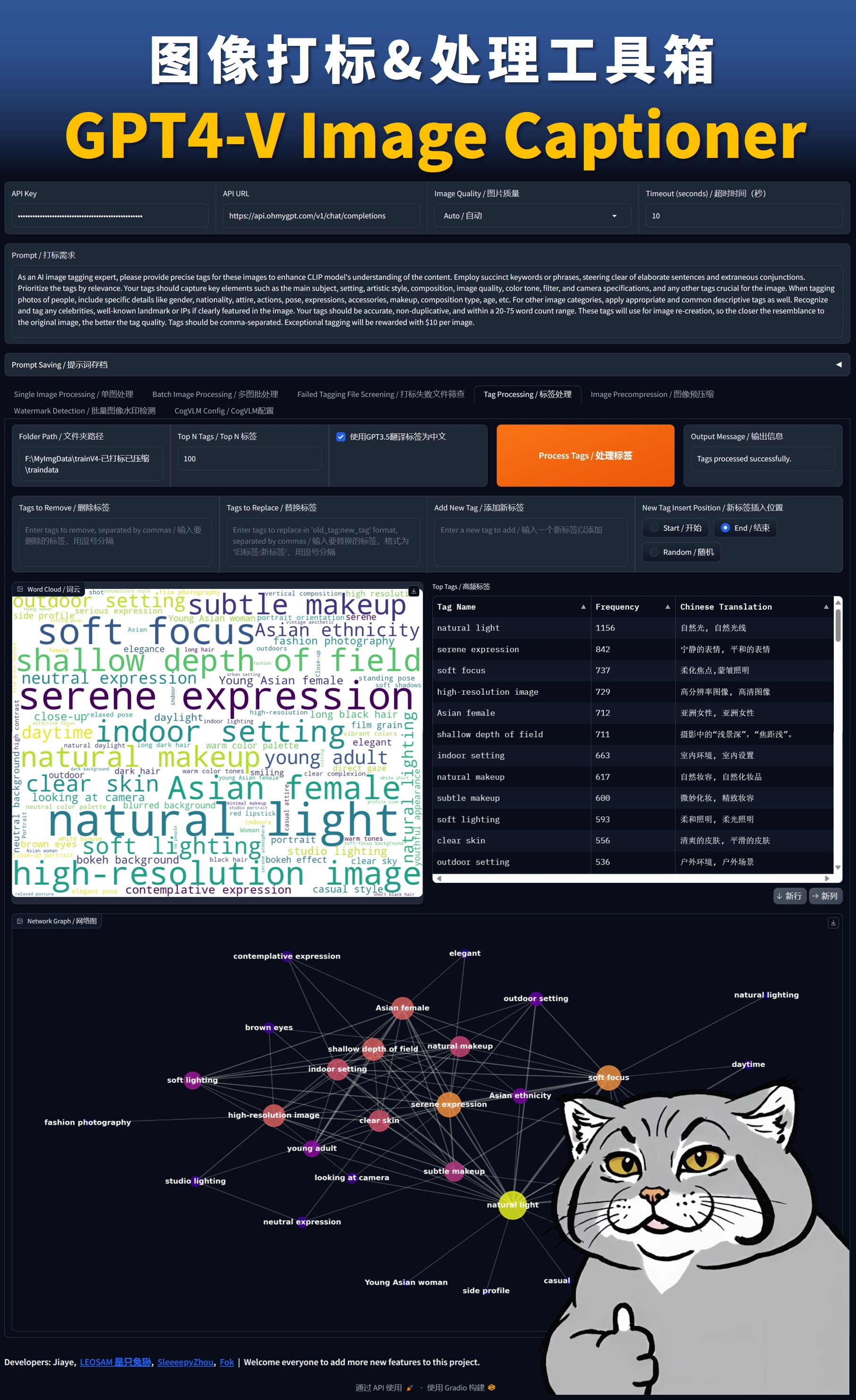
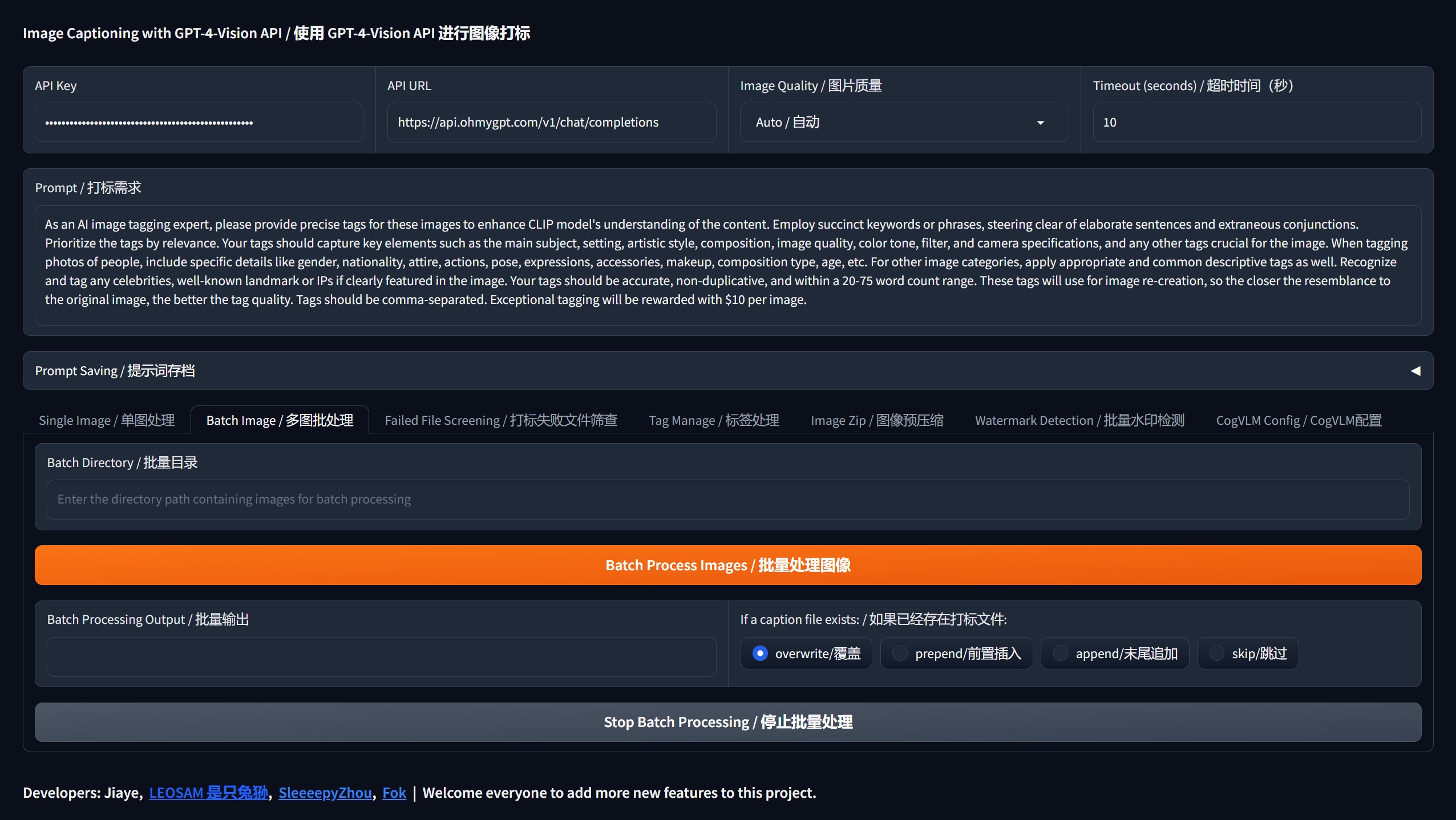
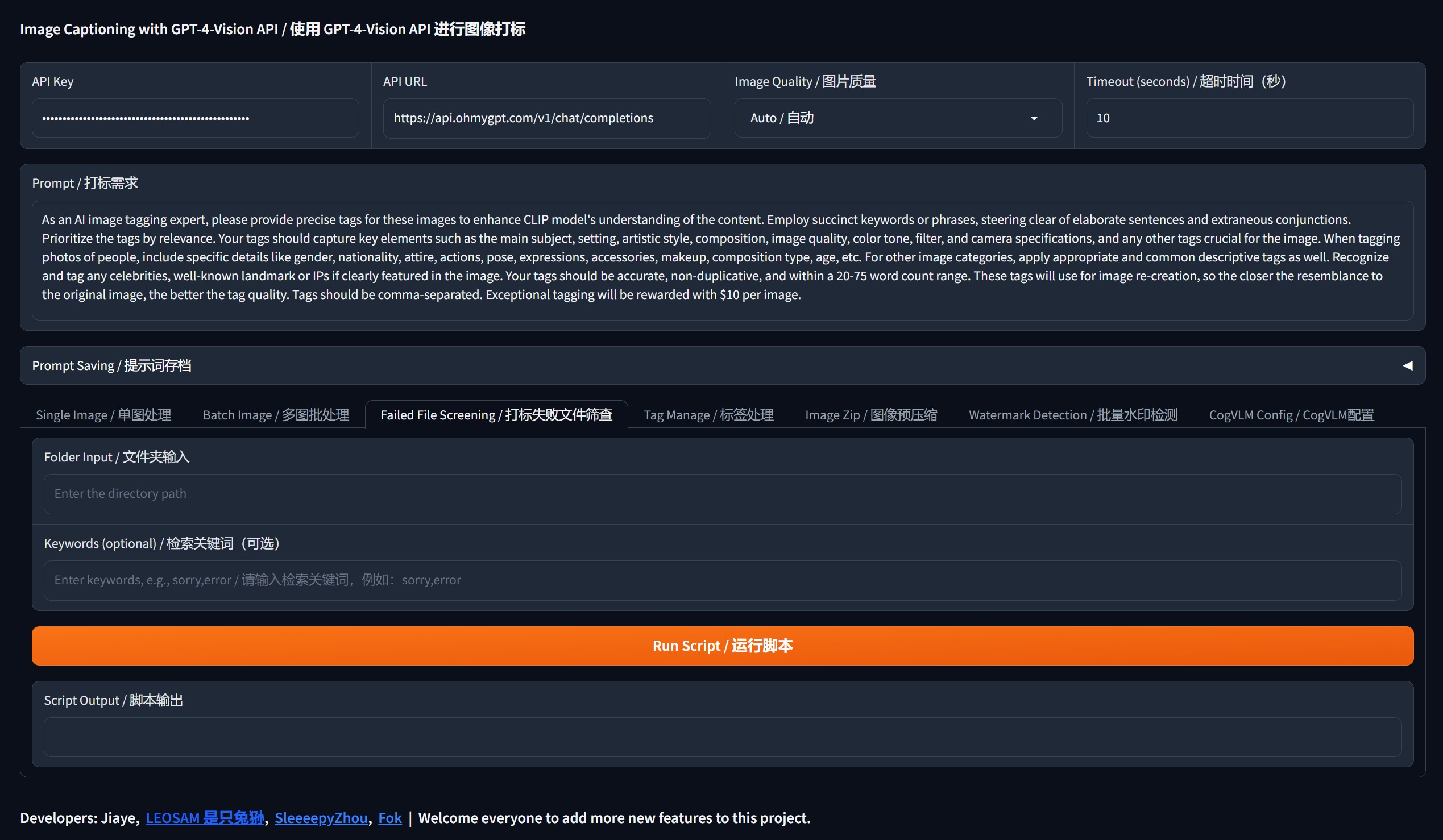
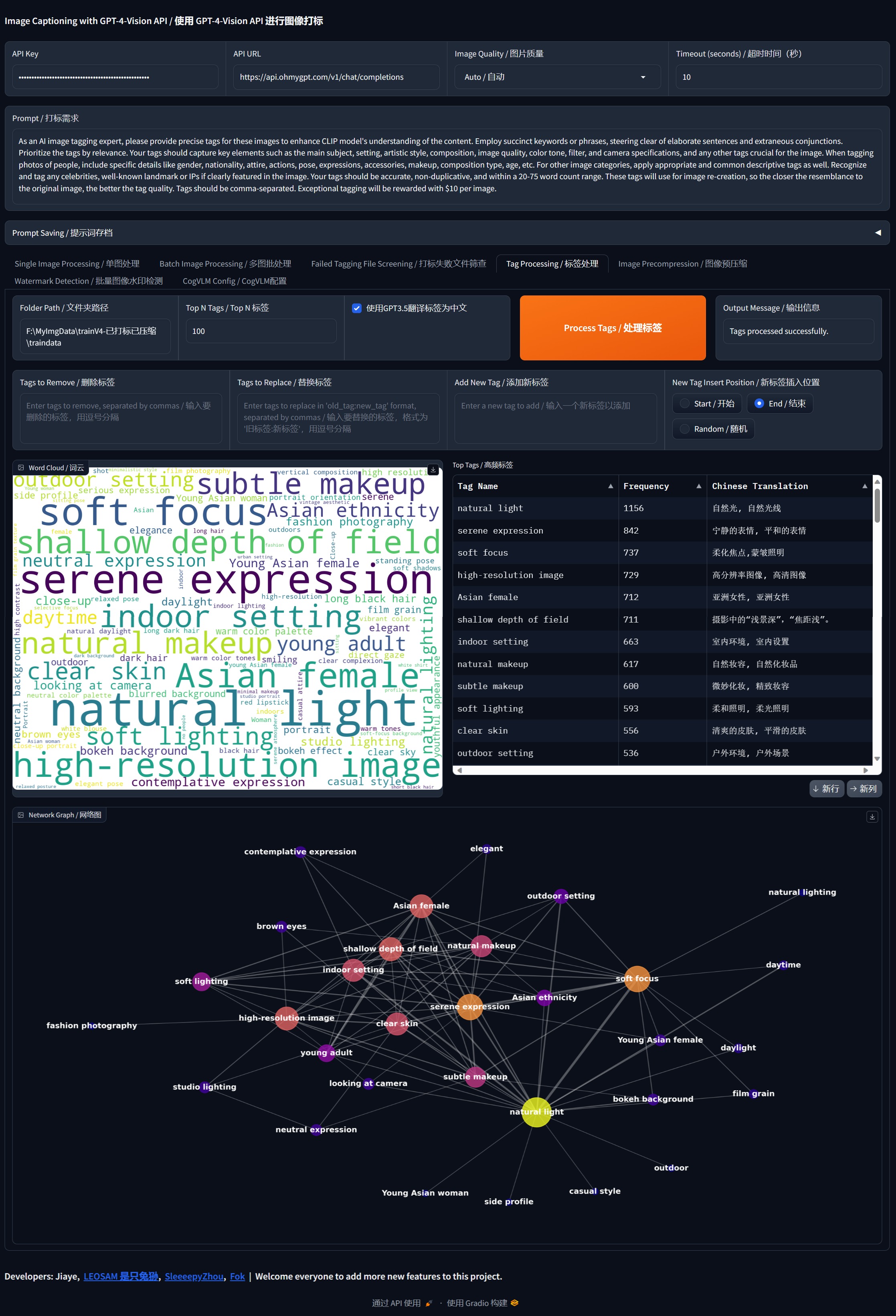
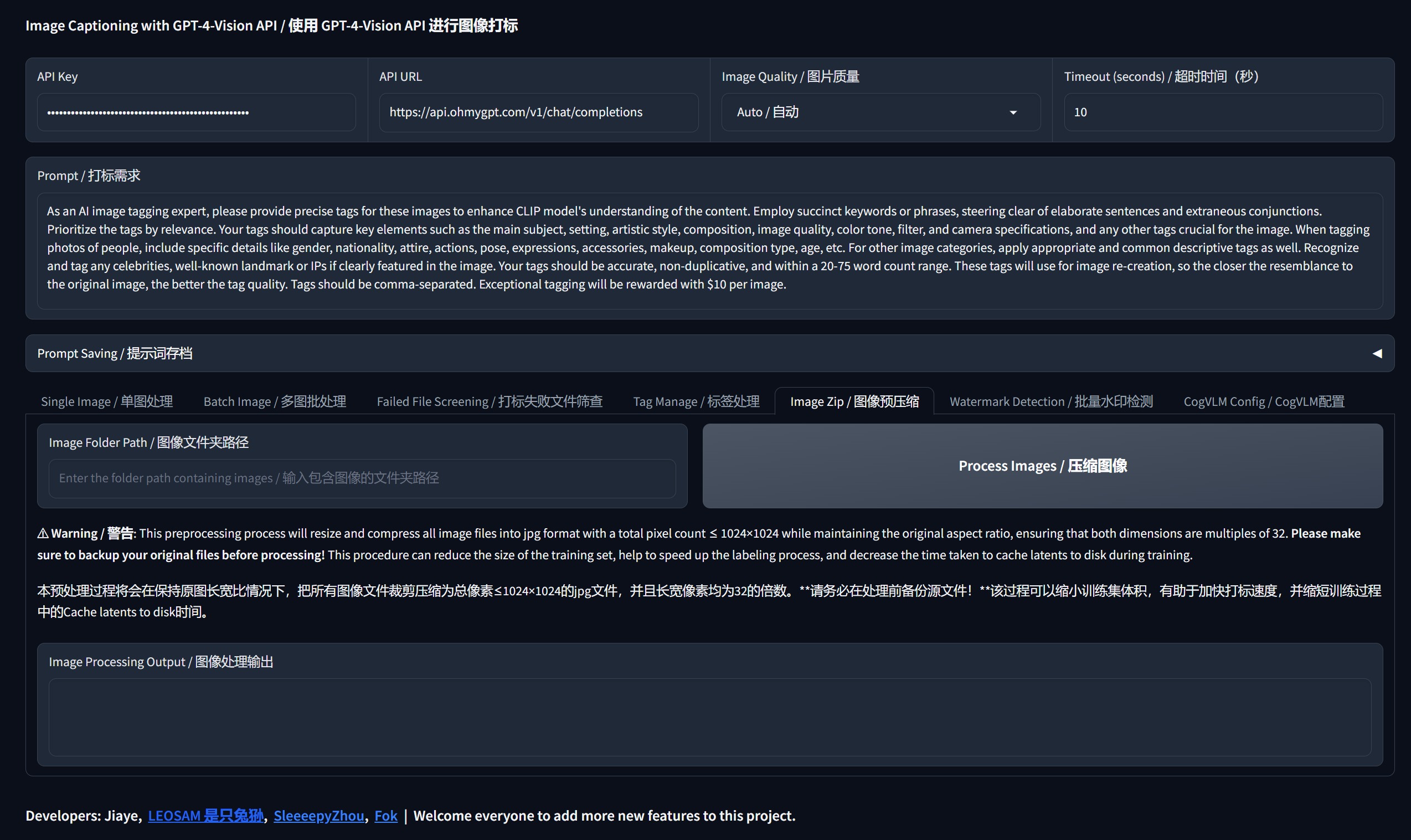
(or copy the URL address to open in a browser), you will be redirected to the Gradio application interface in your default browser.4. Please enter OpenAI's official or third-party GPT-4v API Key and API URL at the top of the interface
, set the image address, and then you can mark the image.### Linux/macOS 1
.
Open a terminal and navigate to the project directory: cd gpt4V-image-captioner2.
Make the installation script and startup script executable using the following command: chmod +x install_linux_mac.sh; chmod +x Start_linux_mac.sh 3.
Execute the installation script:.
/install_linux_mac.sh4. Run the startup script in the terminal to start GPT4V-image-captioner
..
/Start_linux_mac.sh5. Copy the URL address displayed on the terminal and open the Gradio application interface in
your browser.6. Please enter OpenAI's official or third-party GPT-4v API Key and API URL at the top of the interface
, set the image address, and then you can mark the image.### Windows Manual Installation Instructions 1
. Press Win + R to open the command prompt. Type `cmd` and press `Enter`
.2.
Clone the repository locally using the following command: git clone https://github.com/jiayev/GPT4V-Image-Captioner 3.
Once cloning is complete, switch to the cloned directory: cd gpt4V-image-captioner 4.
Before installing the dependent libraries, type the following command in the command prompt and press `Enter` to check if the computer already has Python installed: python --version If not installed, an error message will be displayed.
Please visit [Official Python Download Page] (https://www.python.org/downloads/)
and follow the instructions to install it.5.
Create a virtual environment called `myenv` to avoid polluting the overall Python environment: python -m venv myenv 6.
Activate the virtual environment you just created:
myenv
\ Scripts\ activate 7.Update `pip` to the latest version:
python -m
pip install --upgrade pip 8.Install libraries such as requests, gradio, and tqdm in a virtual environment: pip install scipy networkx wordcloud matplotlib pillow tqdm gradio requests
9. After completing these steps, you can launch GPT4V-Image-Captioner by double-clicking the `start_Windows.bat` file
.