


How to Use the Batch Watermark Remover Workflow in ComfyUI (Flux Kontext)
Removing watermarks from a large set of images can be time-consuming if done manually. Thankfully, with ComfyUI and the powerful Flux Kontext model, this process can be fully automated using a Batch Watermark Remover workflow that I created.
In this post, I'll walk you through how to use the workflow step-by-step so you can quickly remove watermarks from a folder full of images with just a few clicks.
🛠 Step-by-Step Instructions
1. Set the Model Paths
Before running the workflow, make sure to adjust the model file paths according to where the models are stored on your machine.
Refer to the screenshot below to see where to make these changes in the workflow.
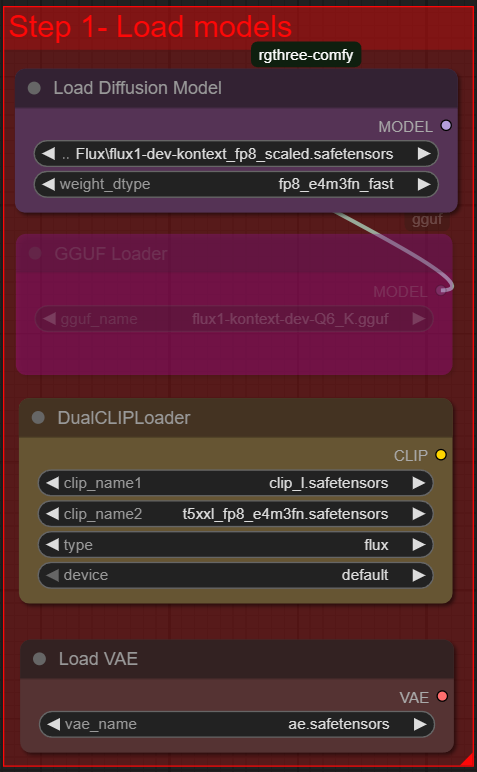
⚠️ If the paths are incorrect, the workflow will fail to load the models.
2. Enter the Folder Path of Your Images
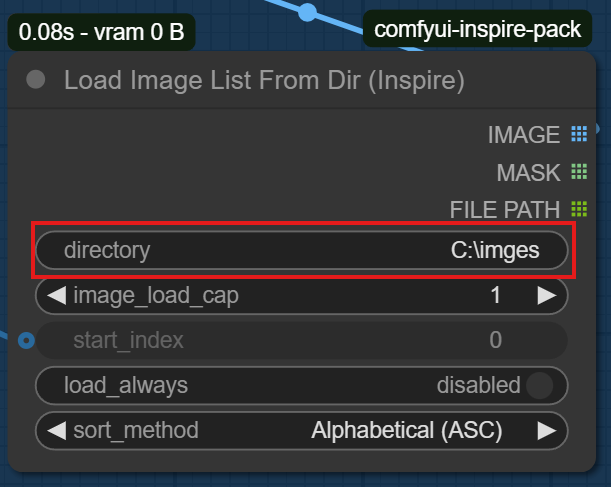
Locate the node where you need to provide the input folder path. This should point to the directory containing all the images you want to process.
Make sure the path is correctly entered as shown in the screenshot below.
3. Set start_index to 0
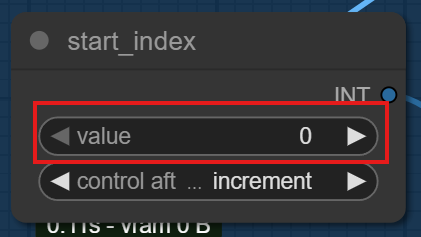
Next, update the start_index value to 0. This ensures that the processing starts from the first image in your folder.
Check the screenshot to confirm you are editing the correct node.
4. Set batch count to the Number of Images
Finally, change the batch count value to match the exact number of images in your input folder.
This tells the workflow how many images to process in one batch.
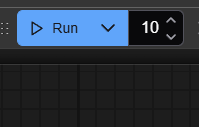
After setting this, simply click Run, and the watermark removal process will begin automatically.
Description
FAQ
Comments (10)
You're removing the watermark, but are you resizing the image afterwards and color adjusting?
Disable node FluxKontextImageScale to get no resizing
The workflow works amazingly well, thanks for sharing it! ❤️
before I get into running this - what's the average speed per image?
Depending on your GPU for me it took 45 seconds on a 3090 card.
@razansaeed1701 ah. thanks. As I suspected.
It gives good results but for true batch processing that's very slow. Hopefuly some good optimisations emerge to bring that down to under 20. I'm on a 4090.
Thanks for the info.
I uploaded a new faster version, it only takes 8 steps:
https://civitai.com/models/1744132?modelVersionId=1989394
@jorgmikel76648 FYI, these are the times it took to remove watermarks from 18 random images (of random sizes - smallest 490X898, largest 1280x1920) using a 5090:
kontext modified to keep original image dimensions (meaning processing larger images) 573 seconds (31.8 seconds per image)
kontext nuncahaku modified to keep original image dimensions (meaning processing larger images) 201 seconds (11.1 seconds per image)
kontext out of the box (i.e. resized images) 180 seconds (10 seconds per image)
kontext nunchaku out of the box (i.e. resized images) 80 seconds (4.44 seconds per image)
we live in a wonderful time
@Optimum Thank you I have added a new version that uses nunchaku
https://civitai.com/models/1744132/batch-watermark-remover-workflow-flux-kontext?modelVersionId=1998113
@jorgmikel76648 perfect. This is much much better.