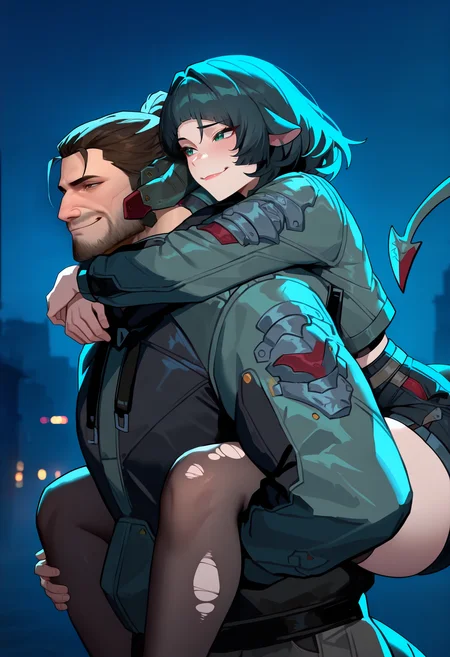
How to Generate Multiple Different Characters, Mix Characters, and/or Minimize Color Contamination | Regional Prompt, Adetailer, and Inpaint | My Workflow
Edit: 27.01.25
Hey, it's been a while—more than six months, to be exact. The AI/SD space changes so quickly that it’s hard to keep up with all the possible errors. Everyone uses different WebUIs and versions, so some might work while others don’t.
Sections 1 and 3 of this tutorial focus on the Regional Prompt Extension, which no longer works with the new Forge (i.e., since the import of Flux). Old Forge and Reforge might still support it. If you’re using the new Forge, you may want to install Forge Couple instead.
I’ve now added a fourth section covering SD Forge Couple. Most of the basic concepts are already explained in Sections 1 and 3, so this new section will focus on the usage of Forge Couple. The underlying logic is similar to the Regional Prompt Extension, but there are some differences.
(All images shown in Section 4 were generated on IllustriousXL/PaSanctuary.)
Edit: 30.06.24
I added a brief installation guide on how to install this extension. I will continue this tutorial section (Part 4) shortly after my exams. Things have been pretty busy lately, so I apologize for the inconvenience.
0. Intro
Hello everyone,
here is a little guide that will be updated from time to time. I will add different versions on top of the model page to show you some different images with their metadata, so you can copy and paste into auto1111/forge. I post this in a model page instead of article, because I can showcase images better this way, while also having a better view of comments I get. No need to download the file I attached here.
In this guide, I will go over Regional Prompt, Adetailer, and inpainting. This is also different on XL and 1.5, so the settings are not the same on both versions, but similar.
What do we need?
SD Forge Couple (Section 4)
Checkpoints and LoRA's
Any Character LoRA's, but works with baked-in characters as well.
Models, where I used/needed Regional Prompt:
Here is a small list of models that I published, where you might need or want a regional prompt for optimal results:
For Pony:
For 1.5:
For Illustrious:
Note for 1.5: 1.5 LoRAs require Latent Mode, which is currently not usable in Forge. This tutorial doesn't cover that for now but will do so later. It's a bit more complicated.
0.5 INSTALLATION:
First, we start our WebUI (in this case, Auto1111 or Forge). It's best to use the latest version of either one. After opening the WebUI, go to the Extensions Tab -> Install from URL. Paste the following link under URL for extension's git repository: https://github.com/hako-mikan/sd-webui-regional-prompter. Then, press Install.
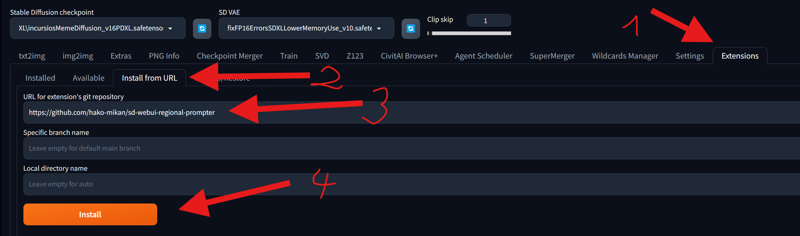 After doing that, restart your WebUI. I recommend closing the WebUI terminal and rerunning it.
Note: If you are using Colab or sharing your WebUI with the command-line argument --listen, you might need to add an additional command-line argument: --enable-insecure-extension-access. WARNING: Only use this command if you are the only one using your WebUI. If other people use your WebUI, you need to trust them, or you could lose your data or get hacked.
The file with the command-line arguments can be found in your WebUI folder. It's called webui-user.bat. Right-click and open it with a text editor or Notepad to edit it.
 You don't need to do this step if you don't share your WebUI. It's only necessary when you use
 --listen or when using Google Colab or something similar.
1. REGIONAL PROMPT Basic (Matrix) (Pony XL):
Overall Settings:
After installing all necesarry Extensions, you will see in your txt2img and img2img the tab "Regional Prompt".
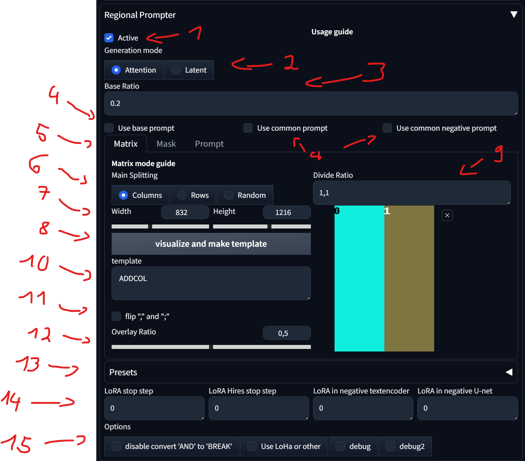
Activate/disable
There are two generation modes. For XL, only the 'Attention' mode is important, with or without LoRAs. The 'Latent' mode doesn't work properly IN FORGE, due to the XL encoder. A separate Tutorial section will be done for 'Latent' mode.
With the base ratio, we can change how strong the base prompt is. If the base value is 0.2, then the weight of the base prompt in the generation is 0.2, and the divided areas are 0.8.
Base, Common, and Negative Prompt:
'Use base prompt' affects the entire image, mostly used for backgrounds and/or characters, impacting all divided areas. I personally don't use it much.
'Use common prompt' copies and pastes all prompts in that section to all regions.
'Use common negative prompt' does the same for the negatives. This is only useful if you want to have a specific negative in a specific divided area. Otherwise, leave it unchecked, as the negatives will affect the entire image anyway.
Section for Matrix, Mask, and Prompt: We will see the differences between them later. For now, we will focus on Matrix.
Main Splitting: This allows you to change how you divide the template. Changing this and pressing 'visualize and make template' will update it to the template.
Changing Width and Height does not affect the image; it's there only for visualizing the template. You can leave it at its default setting.
Pressing 'visualize and make template' will update the template on the right side.
Dividing Ratio:
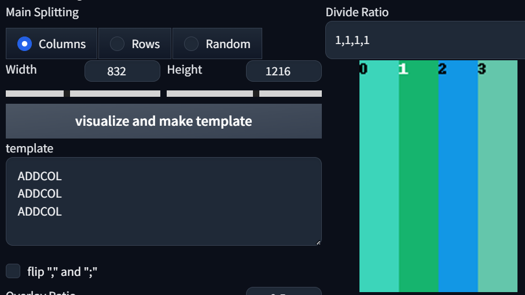
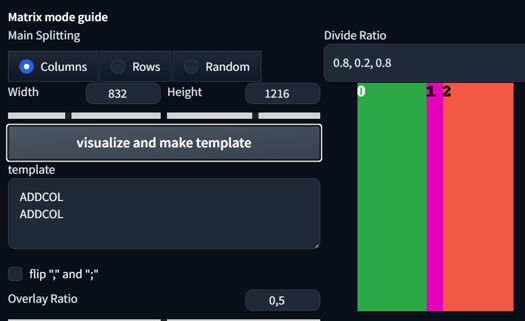
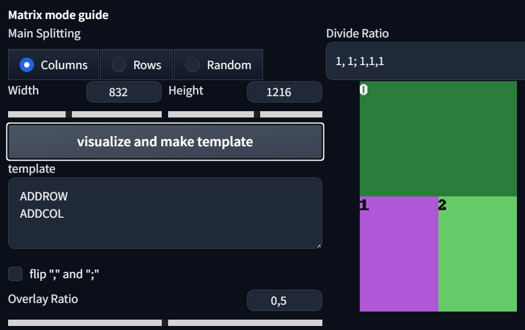
This divides your image into regions. Setting it to 1,1 will give you 2 regions. Setting it to 1,1,1 will give you 3 regions. You can even set different sizes for regions. Here are some examples:
1,1 Columns

1,1,1,1
0.8, 0.2, 0.8
1, 1; 1,1,1
1,1; 2, 3, 3

1, 1, 1; 1, 1, 1
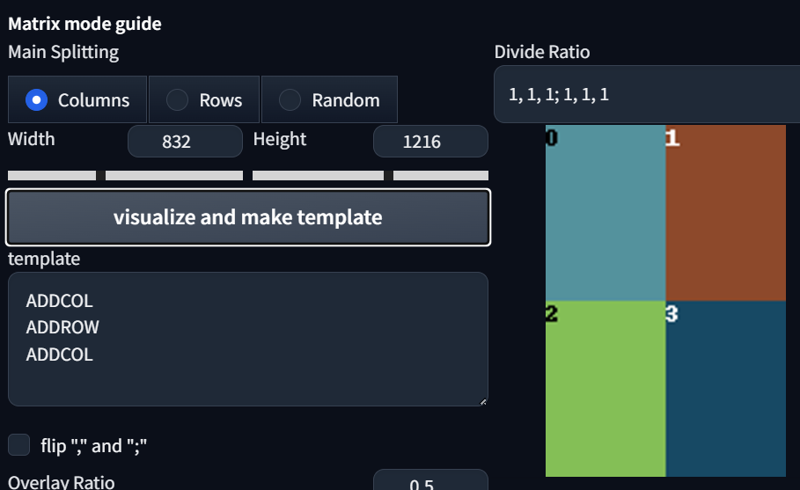
Shows the current template format and the order of regions.
Flips ',' and ';'. Fairly useless.
The overlay ratio might be an important factor in determining how much impact one region with its prompt and overlay has on other regions. If you require precise prompting and don't want much interaction between the regions, lower the ratio. If not, keep it at 0.5.
Your presets
Options for Latent, fairly useless for us in XL.
Options for other things that might be needed for debugging.
Prompting Multiple Characters:
So, how do we use it? Let's start with something basic. First, activate the regional prompt, select the common prompt, divide the ratio to 1,1, create the template, and then set your prompts:
score_9, score_8_up,score_7_up, source_anime, indoors, standing, cowboy shot, 2girls, seductive smile, from above, hoodie, jeans, looking at viewer,

BREAK yae miko,
BREAK raiden shogun,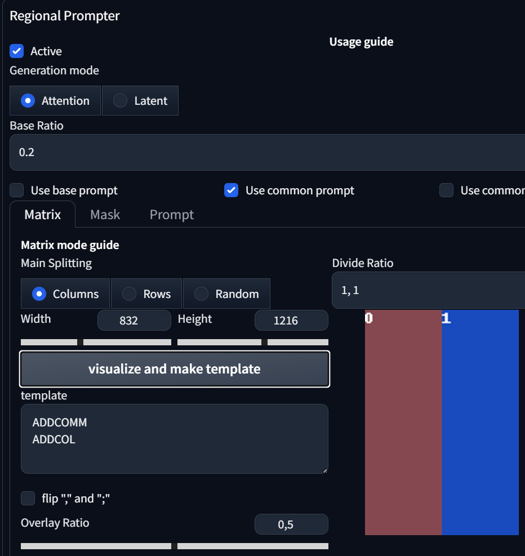


Okay, what do the prompts do here? We selected the Common prompt, which means the first line of the prompt will be applied to all regions. After the use of our first BREAK prompt, we arrive at our first region, Region 0. Here, I typed a baked-in character that is already quite stable without any additional use of LoRA. In this case, Yae Miko. After that, I added another BREAK to move to my second region and typed in another baked character, also known as Raiden Shogun.
See, that was pretty simple, right?
We can also make the prompt a bit longer or more complicated. Let's try the same settings, but with more prompts:
score_9, score_8_up,score_7_up, source_anime, indoors, standing, cowboy shot, 2girls, seductive smile, from above, hoodie, jeans, looking at viewer,

BREAK yae miko, black hoodie, waving,
BREAK raiden shogun, white hoodie, hand on hip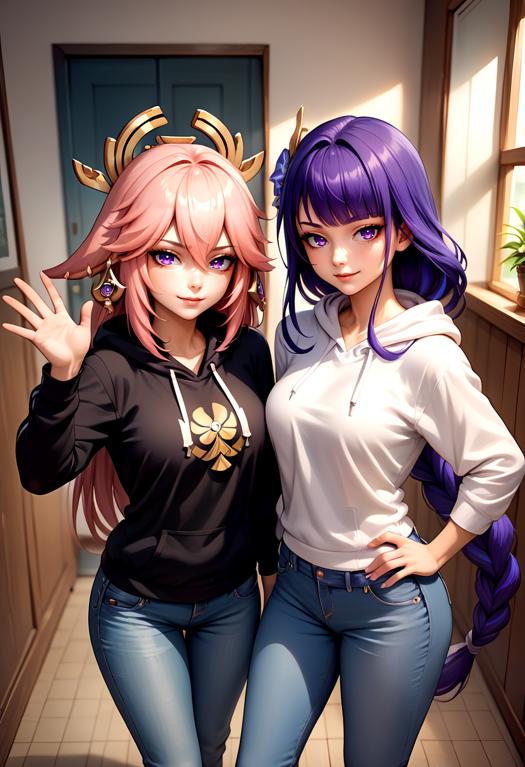
Okay, how about adding another character? Sounds crazy, right? Now, let's incorporate the use of LoRA for "Fubuki from @holostrawberry". Here are the prompts and settings:
score_9, score_8_up,score_7_up, source_anime, indoors, standing, cowboy shot, 3girls, seductive smile, from above, looking at viewer,

BREAK yae miko, black hoodie, hoodie, jeans,
BREAK raiden shogun, white hoodie, hoodie, jeans,
BREAK reaching towards viewer, <lora:fubukiXL:1>, fubukibase, white blouse, detached sleeves, black shorts, blue neckerchief, thigh strap, single thighhigh, white hair, single side braid, ahoge, piercing, fox tail, pentagram,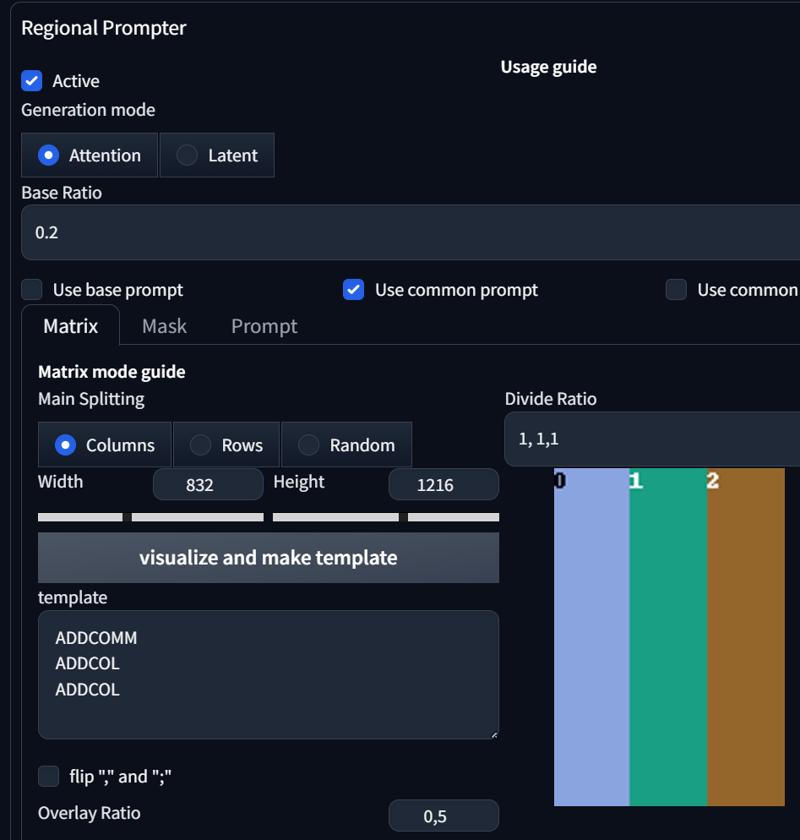
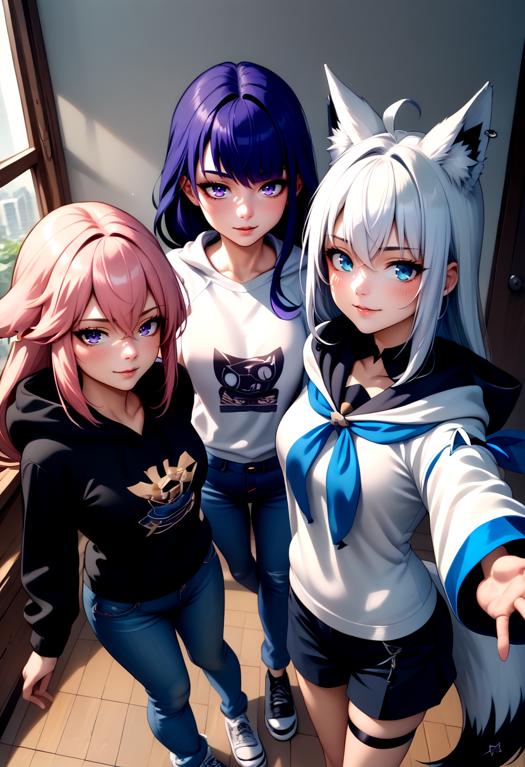
So, what changed? First of all, I tweaked the prompt slightly. I changed "2girls" to "3girls", swapped the positions of hoodie, jeans in the prompt, and added another BREAK to introduce another character. In the Regional Prompt Settings, I simply added another Divide Ratio; in this case, it's 1,1,1.
As you can observe, the results are becoming somewhat unstable. Incorporating elements like Cowboy shot, from above and generating images of 3 people can complicate maintaining the same scenario. However, by removing from above, we achieve this image:
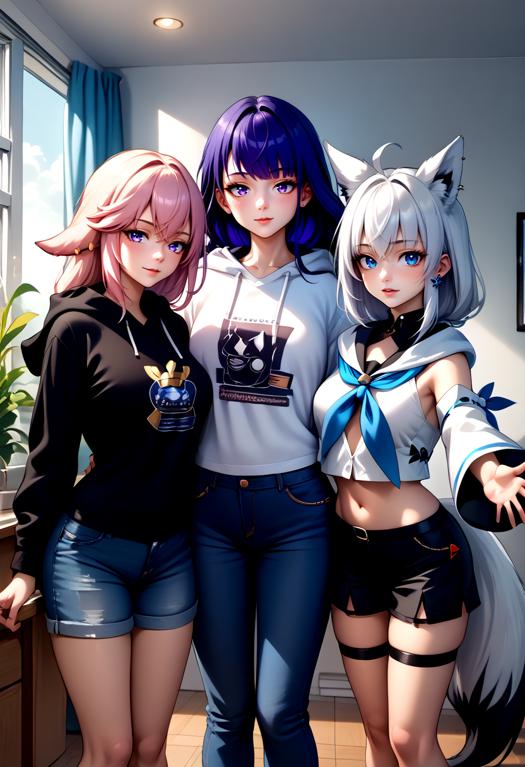
As you can see, our image becomes a bit more stable and follows the prompts more closely. What you prompt is very important; every single prompt can and will induce drastic changes. If something is not going according to plan in Regional Prompt, try to be more precise in your prompts.
Let's prompt some more girls, shall we? Changing to a 1344x768 landscape format and increasing the number of sample steps from 24 to 30. Adding another two LoRAs Frieren and Watame from @ChameleonAI):
score_9, score_8_up, score_7_up, source_anime, 6girls, office, office lady, around table, table, food, beverage, burger, starbucks, shirt,

BREAK yae miko, smirk,
BREAK raiden shogun (genshin impact),
BREAK yoimiya \(genshin impact\),
BREAK FrierenBase, green eyes, white hair, long hair, twintails, earrings, <lora:ChamFrierenPonyXL:1>, eating burger,
BREAK keqing \(genshin impact\),
BREAK <lora:CHAR-TsunomakiWatamePonyXL:1>, TsunomakiWatame, sheep girl, long hair, ahoge, happy, sheep horns, blonde hair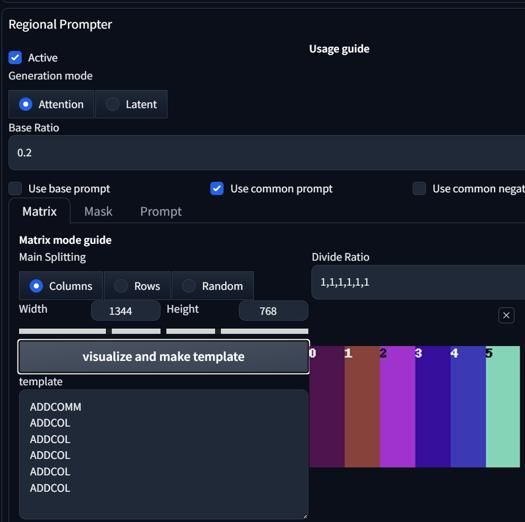
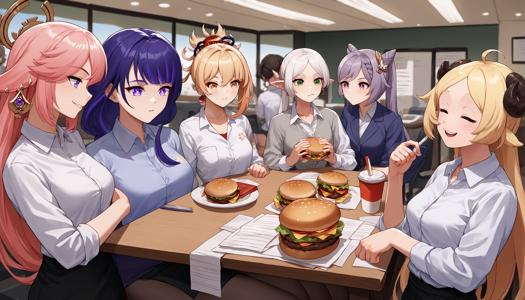
Cool, right? Using two different Character LoRAs while also prompting four baked-in characters in one image. With that many people, there's a high chance that you'll encounter image errors.
Now, let's combine some actions or concepts with multiple characters. As always, let's start with something basic and add "hug":
score_9, score_8_up,score_7_up, source_anime, indoors, standing, cowboy shot, 2girls, seductive smile, looking at viewer, hoodie, jeans, hug,

BREAK yae miko, black hoodie,
BREAK raiden shogun, white hoodie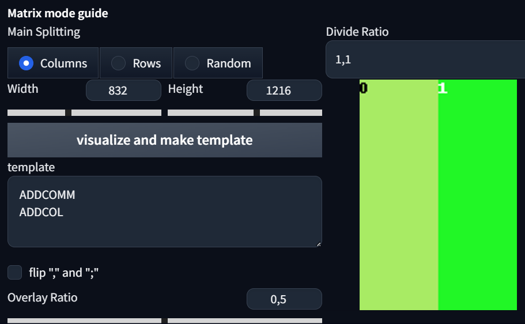

Hugging each other without much problem? Well, that's because our overall overlap ratio is high enough.
Now let's do it with a Concept LoRA called Handshake from @justTNP. Same settings, but with a different aspect ratio (1:1) and a different prompt:
score_9, score_8_up,score_7_up, source_anime, indoors, standing, cowboy shot, 2girls, seductive smile, looking at another, hoodie, jeans, handshake, <lora:concept_handshake_ponyXL:0.5>,

BREAK yae miko, black hoodie,
BREAK raiden shogun, white hoodie,
As you can see, I used that LoRA in the common prompt, but with half of the original weight (1 -> 0.5). Divide by the amount of regions you use, so if you have 2 regions, do half of the original LoRA weight. The reason for this adjustment is that each region takes the value, and the overall image shouldn't exceed a reasonable amount of LoRA weight.
Edit: Keep the batch size low. Max batch size should only be 4.
Also, using multiple characters requires you to adjust your Adetailer, because your Adetailer doesn't get affected by the regional split. It will mix faces and can dominate one eye color.
2. Adetailer
Adetailer is a very useful tool for detecting stuff and automatically inpainting. There are different YOLO models like face, hand, eye, full body, feet, clothing, etc., but we will focus here on the face model. There are two main ways to use Adetailer: one via Txt2Img and the other with Img2Img.
If you generate an image with one person and have your Adetailer on, it works normally. If you generate two people, with or without Regional Prompt, the attributes will most of the time be mixed. Dominant color or attributes from the other character will take over. Here is how to fix that.
Settings:
First, we need to adjust one setting when we install Adetailer. Go to Settings -> Adetailer -> Sort bounding boxes by -> Set it to "Position (left to right)"

That's it for now. Let's move on to image generation.
Adetailer (Txt2Img):
First, let us generate an image without adetailer on:
score_9, score_8_up, source_anime, 2girls, upper body,

BREAK white shirt, red eyes, black hair, long hair, tongue out, mole under eye,

BREAK black shirt, blue eyes, blonde hair, ponytail, smirk,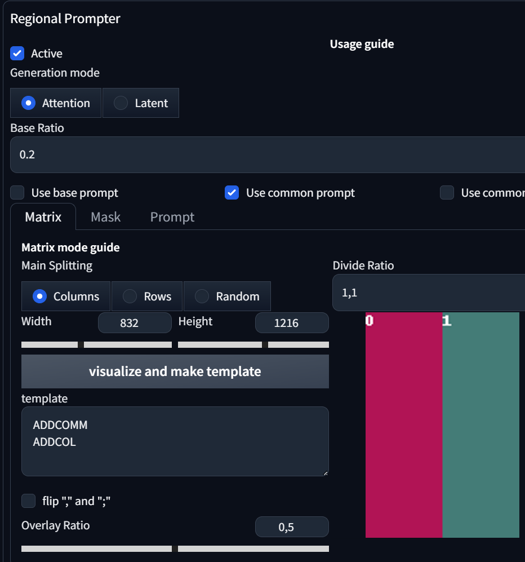
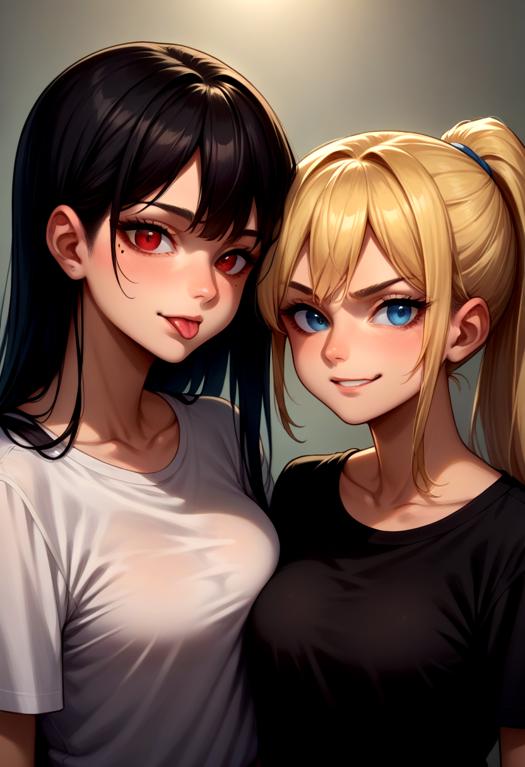
As you can see, the results are quite sharp even without the use of Adetailer. This is because we are using an upper body shot. Most faces will be sharp, but we can also see much more detail when we use Adetailer. Now, let's enable Adetailer.
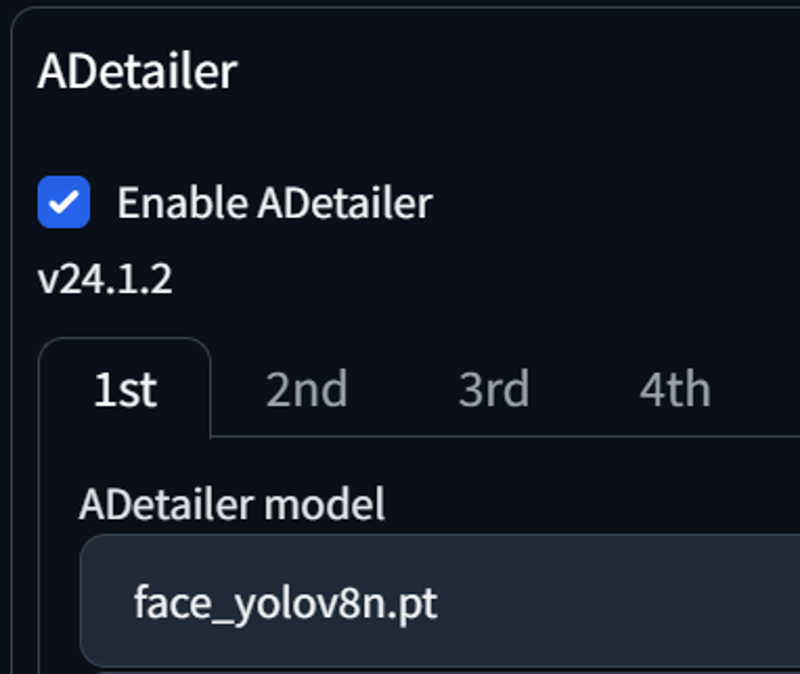

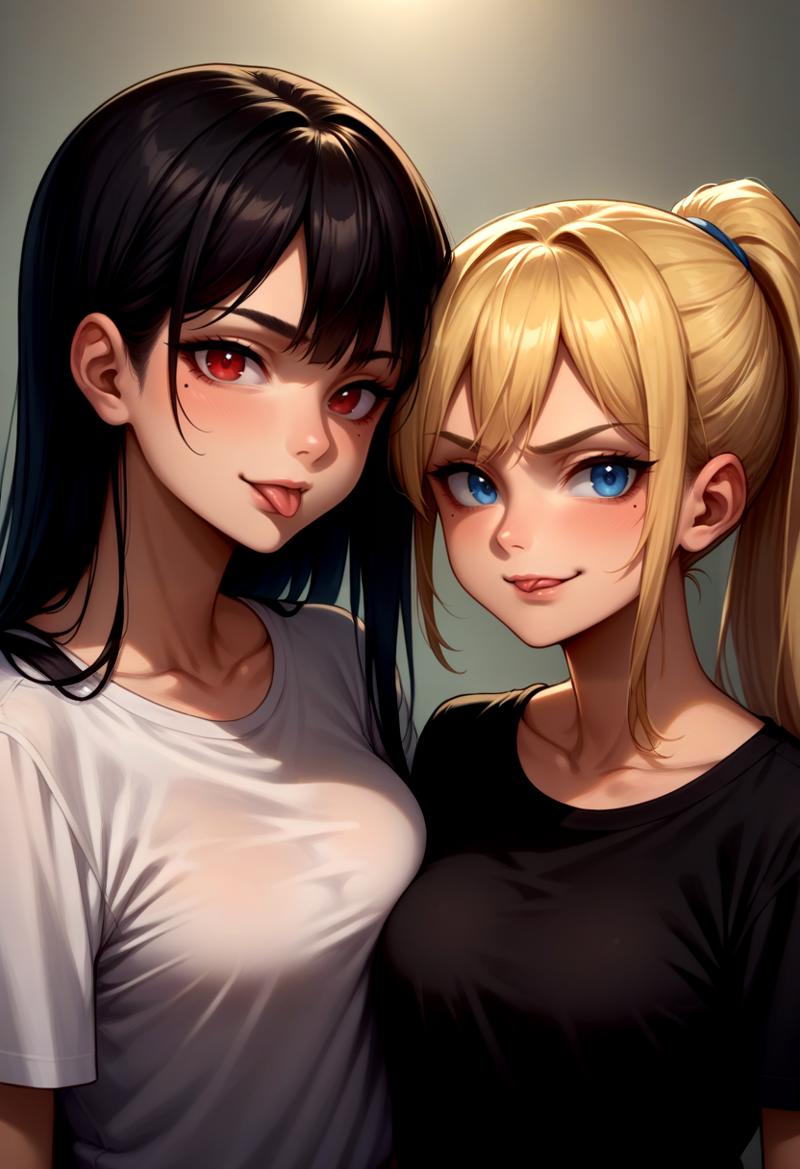
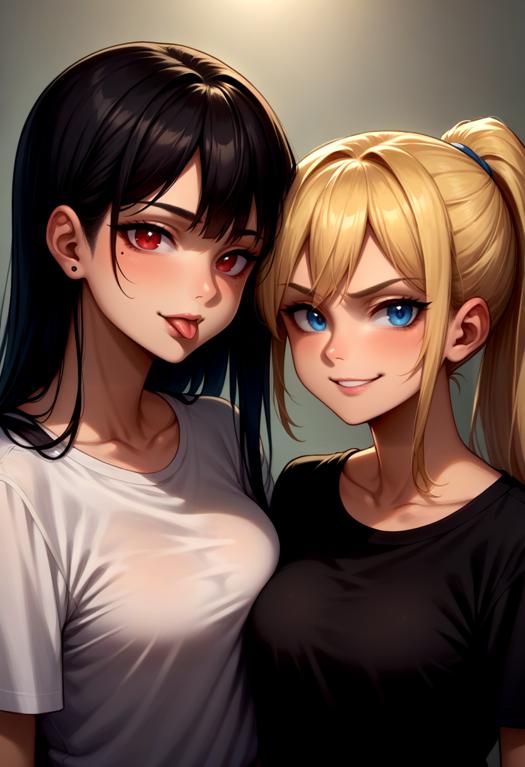
Both faces were detected by the Adetailer. As you can also observe, features like a mole under the eye, tongue out and smirk are getting mixed here. This is expected. How do we fix that? Easy solution: We use the [SEP] token in our Adetailer positive prompt. Generating this image again yields this result:

This was quite an easy example. Let's try this with a LoRA. Here are Ranni from Elden Ring and Vergil from DMC:
score_9, score_8_up, source_anime, cowboy shot, standing,

BREAK 1girl, <lora:Ranni_XLPD_CAME:1>, IncrsXLRanni, wavy hair, cracked skin, blue skin, colored skin, extra arms, extra faces, doll joints, white dress, witch hat, brown cloak, waving, crying,

BREAK 1boy, <lora:dmc5_vergil_ponyXL:1>, dmc5vergil, black coat, fingerless gloves, pants, smirk,
without adetailer

Adetailer detecting Faces:
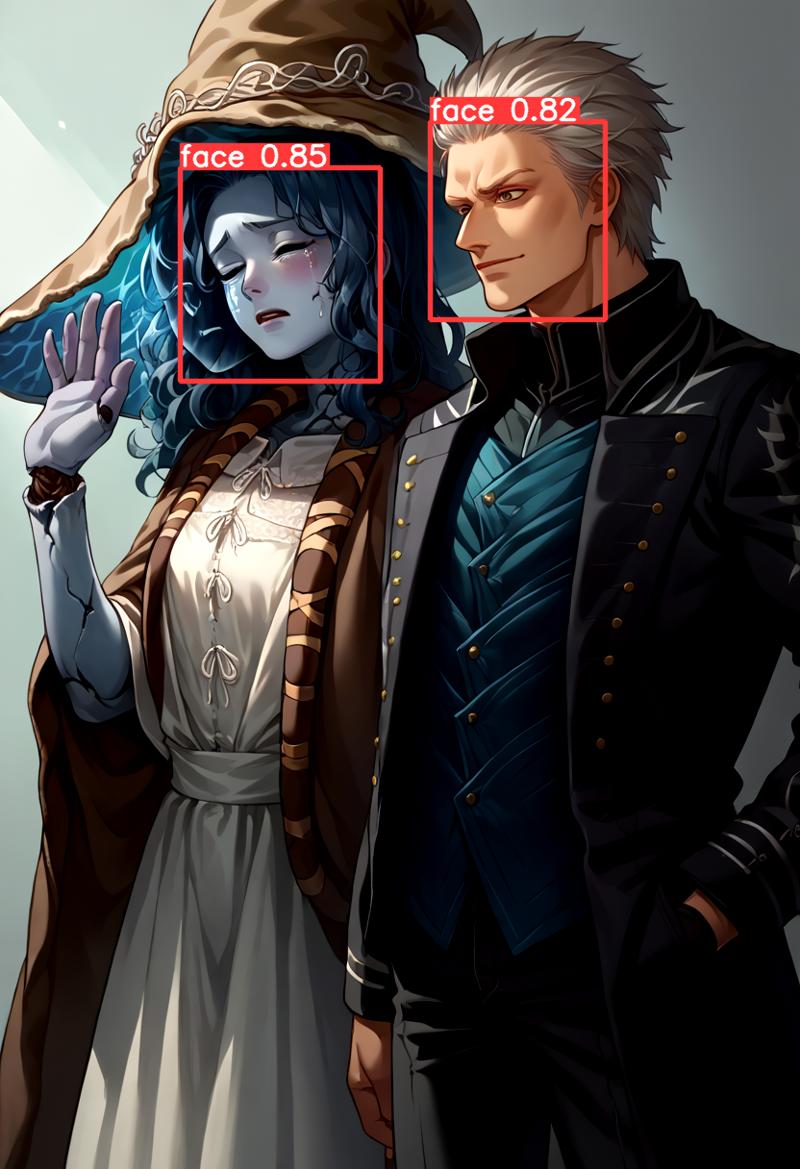
Adetailer without Prompt:
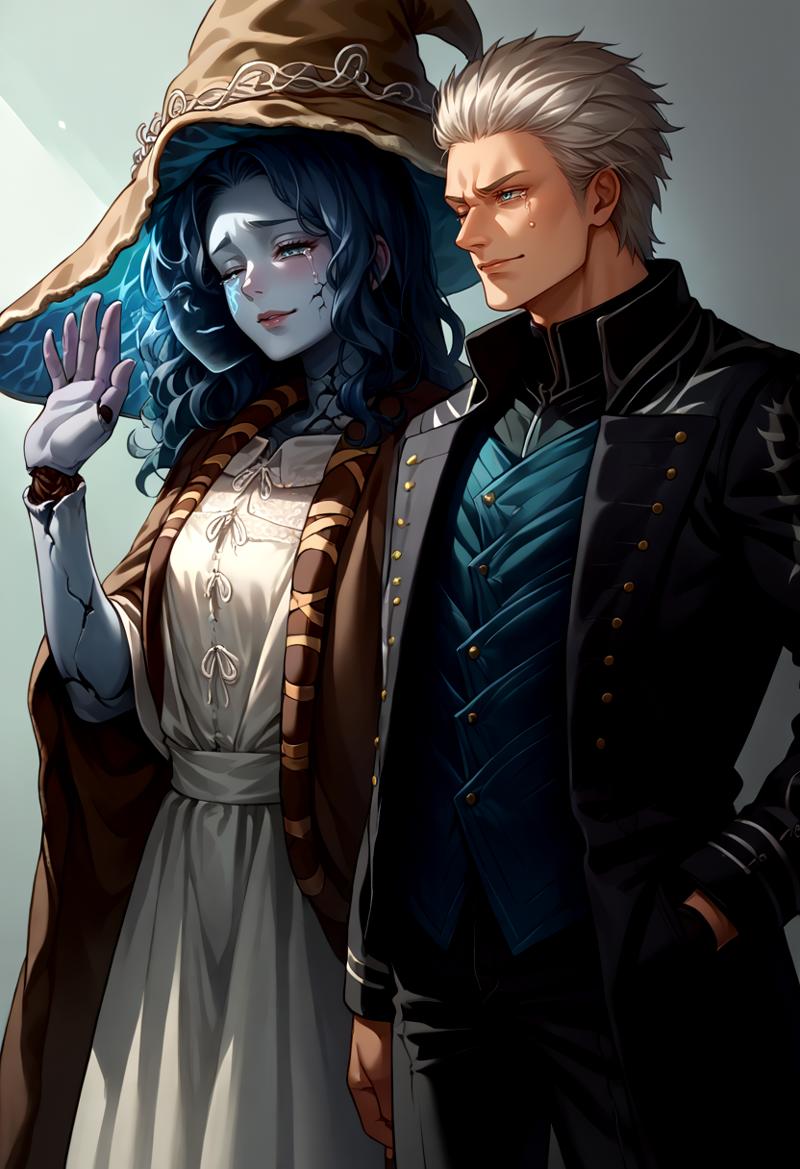
As you can see here, Vergil got some attributes from Ranni, like one eye closed and her crying. Let's fix that with this Adetailer prompt:
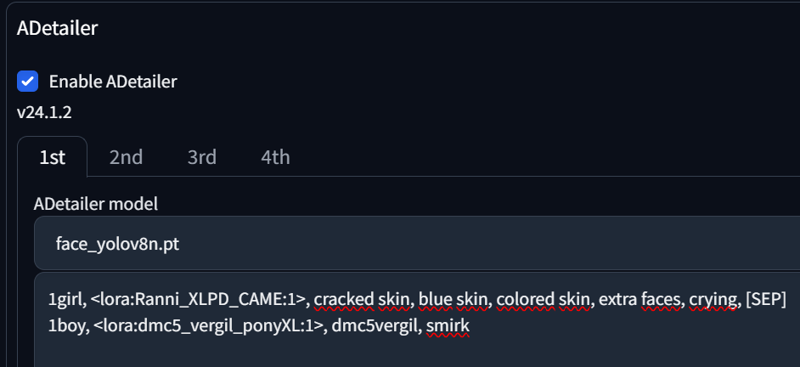
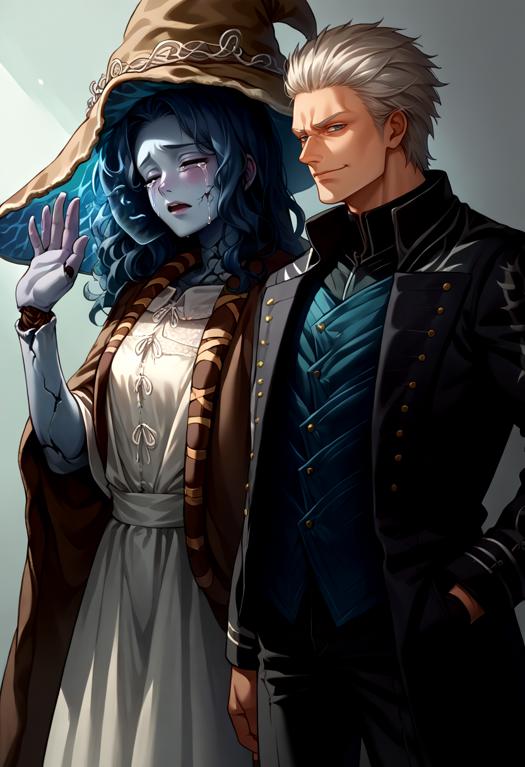
And it's done. Nothing more is needed here.
One final aspect you need to be aware of is that some VAEs leave marks around the faces. I'm currently using flatpieceVAEXL, and it can get quite messy, especially with other color VAEs. Here is one example:
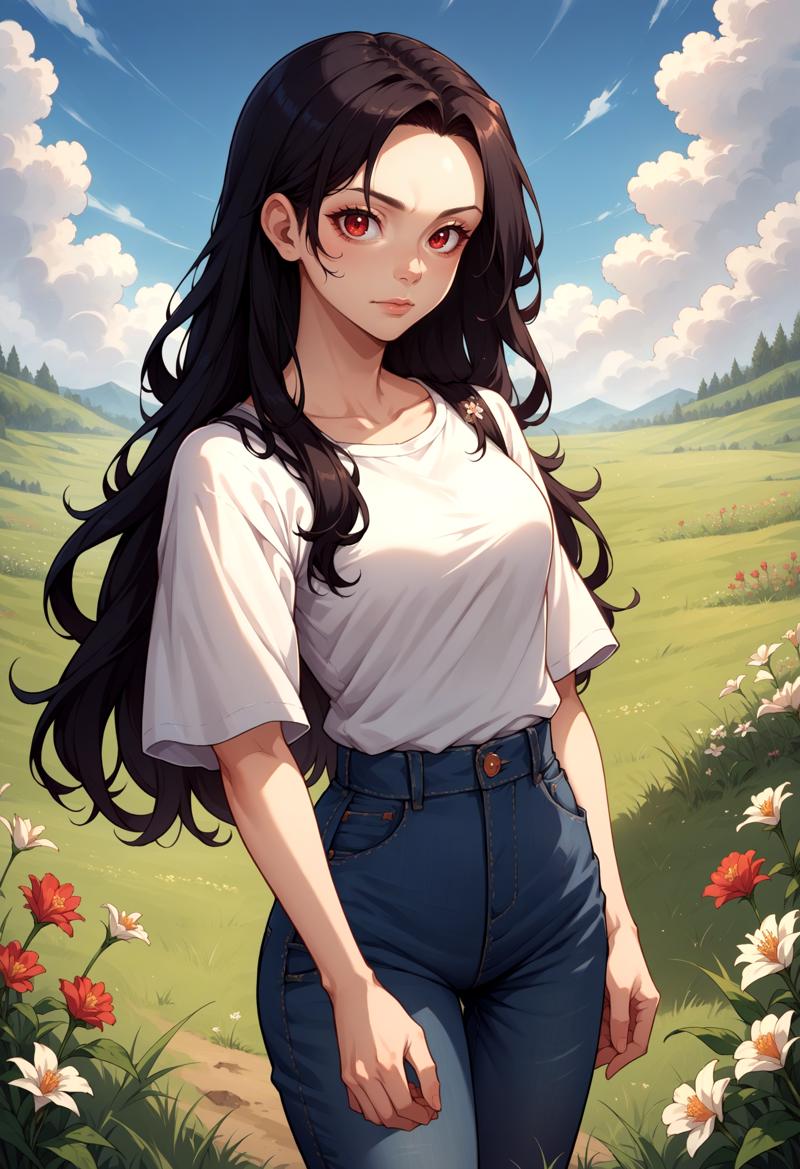
score_9, score_8_up, source_anime, 1girl, solo, looking at viewer, cowboy shot, medieval, grass, flower field, cloudy sky, red eyes, long hair, black hair, shirt, jeans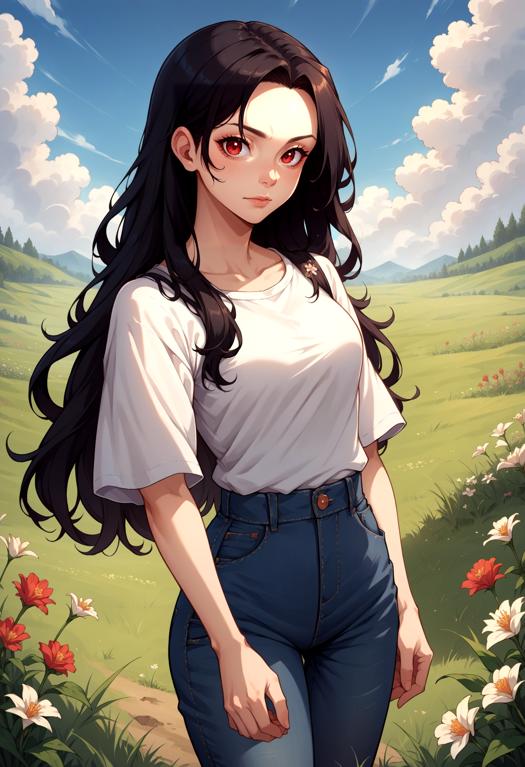
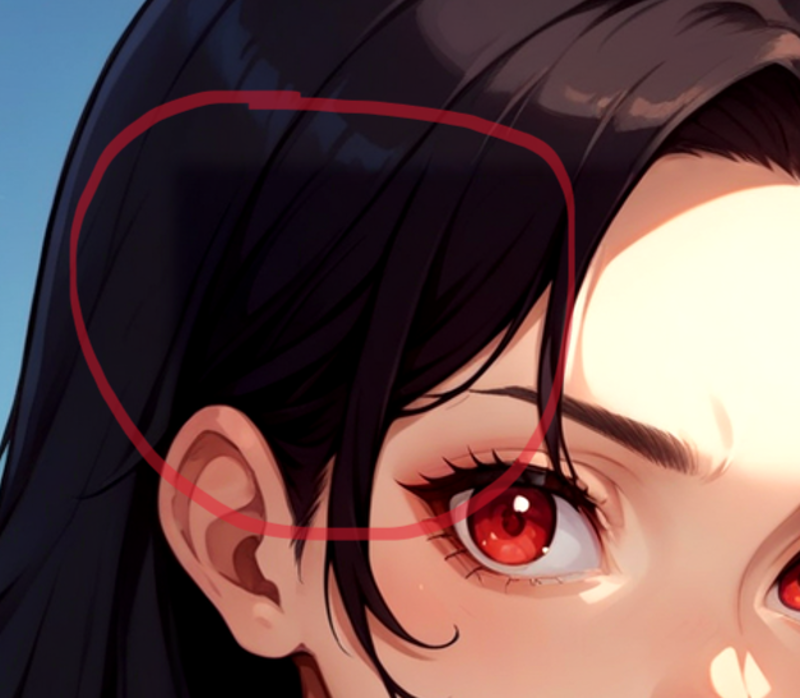
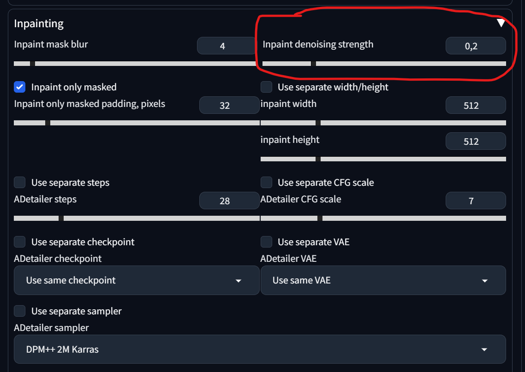
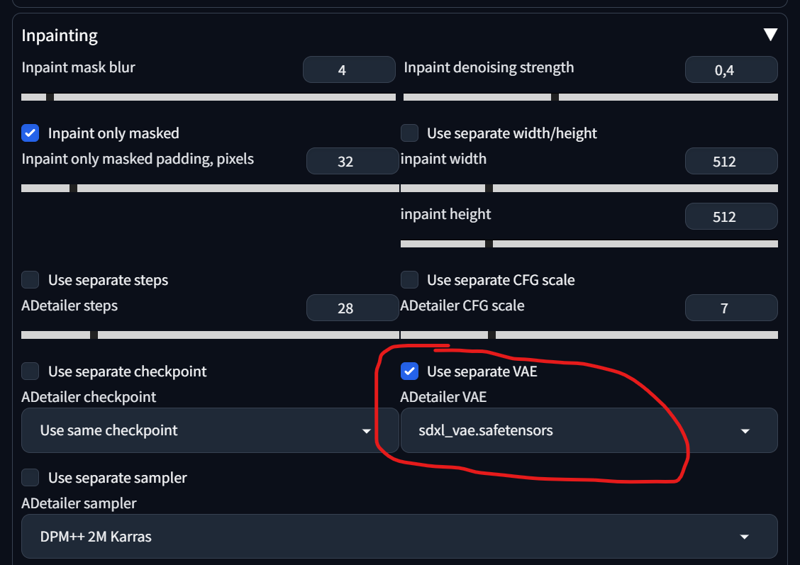
As you can see, it leaves a square, that looks very off. There are 2 ways to fix it.
1) Adetailer -> Inpainting -> Inpaint denois strength from 0.4 to under 0.2
2) Adetailer -> Inpainting -> Use separate VAE -> sdxl_Vae (default) or something more neutral
Both are viable. Here is the Result:

Let's move to the next section.
Adetailer (Img2Img):
If you have an image and you don't want to use Adetailer in txt2img (to save VRAM), then you can move that image to the img2img tab. This way, you have more control over the prompts you want to experiment with, without having to regenerate that image over and over again. Our starting image is this:
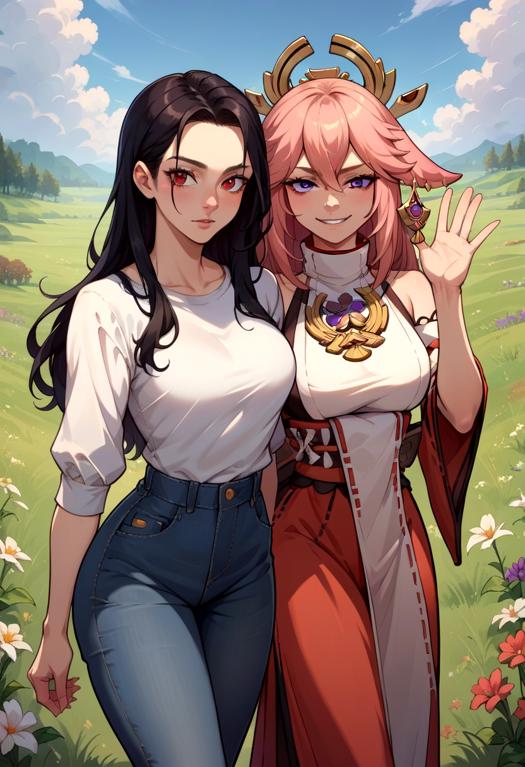
As you can see, the faces are somewhat off. We'll move that image to img2img now and adjust our settings and prompt:


Important here:
set width and height to 1024x1024 (for XL) or 512x512 (for 1.5)
set denois strength to 0.9 (in img2img)
set your prompt in your adetailer
enable "Skip img2img"
The Result:


Okay, this seems to work quite well with 2 faces. But how about multiple faces? That's also quite straightforward. Let's take the initial image from the Regional Prompt:

Setting prompts:

Adetailer detecing:
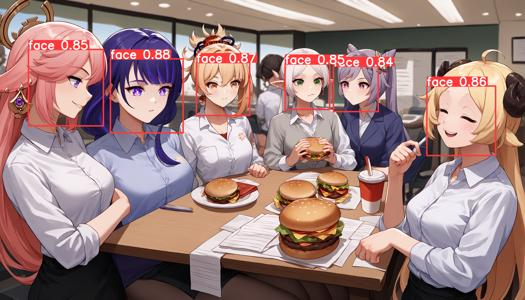
Result:
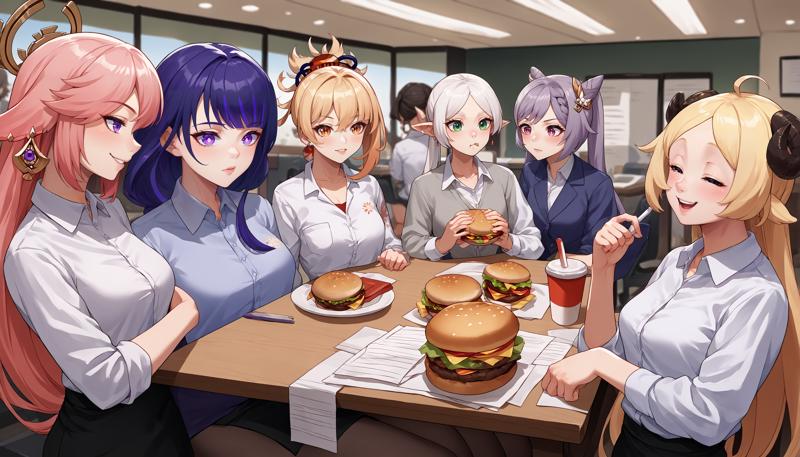
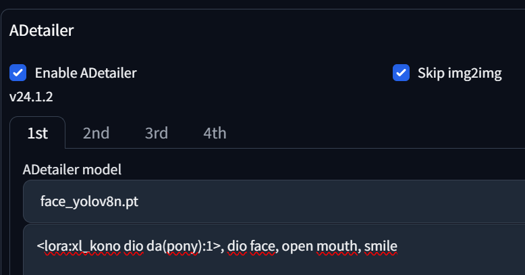
As you can see, Adetailer detected 6 faces. We separated each face with a [SEP] token and adjusted every face accordingly, from left to right. You might wonder what would happen if I just input 2 prompts with one [SEP] token for 6 faces. Well, the first face receives the first prompt, and the other 5 faces receive the second prompt.
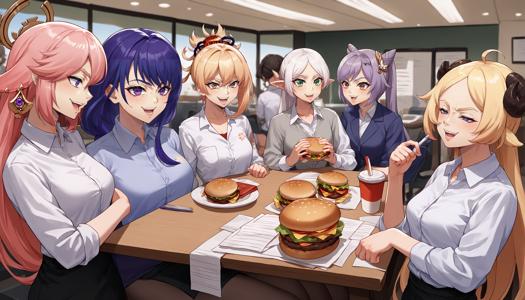
If you use only one prompt, you can also create something funny. Here is the DIO's Face LoRA:
Well, that's everything for this section. The next update will focus more on the Regional Prompt Mask instead of the Matrix.
3. Regional Prompt (Mask)
The mask mode is a very useful tool for directly painting over the region where you want your prompt to apply. It also allows for better control over the regional overlap. @PotatCat is a big fan of the Mask mode, and it's understandable why. Check out his image gallery if you want to try and see what's possible.
Overall Settings and inpainting the Area:
First, let me introduce you to the overall settings for it. It might seem a little complicated at first, but bear with me. Instead of choosing "Matrix" in our Regional Prompt, we are going to choose "Mask" now.
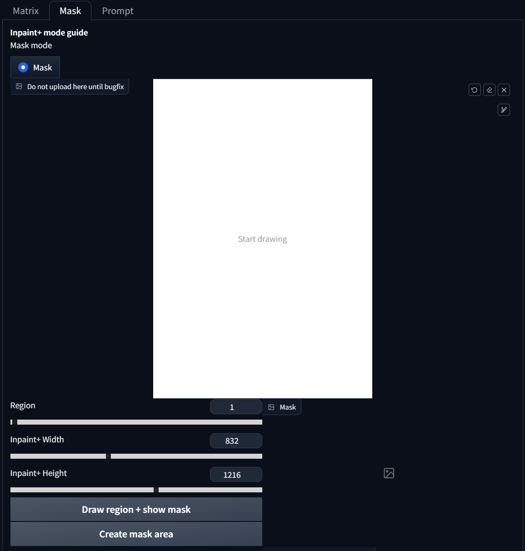 We first want to adjust the width and height to our initial size that we aim to generate. In my case, it's 832x1216. After that, you press "Create mask Area." That's our first step. Now we can start drawing. After drawing our region, we press "Draw region + show mask.
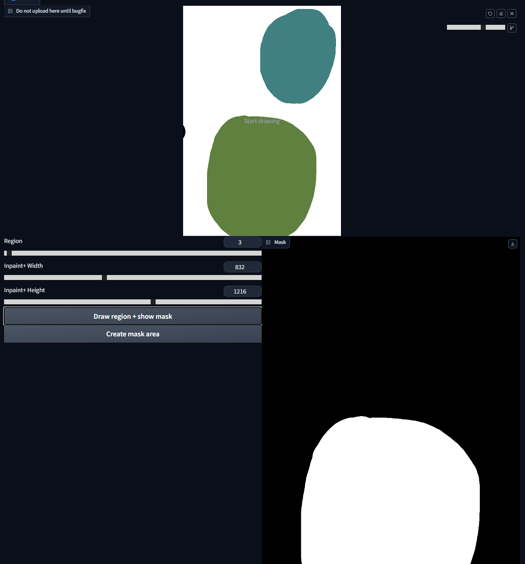
 As you can see, the Region Slider changed from '1' to '2', while also displaying a mask beside it. If you now draw another region and press 'Draw region + show mask' again, it will automatically advance to the next region and update the output mask.
 It's possible to add to existing regions by reselecting the same number and drawing as usual. In this case, we choose Region 1, paint it, and press 'Draw region + show mask' again.
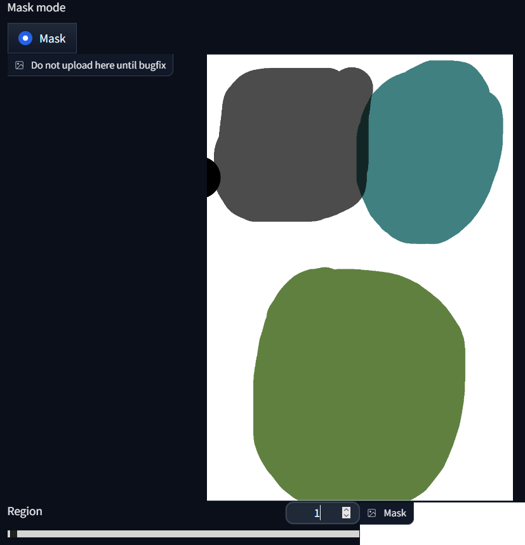
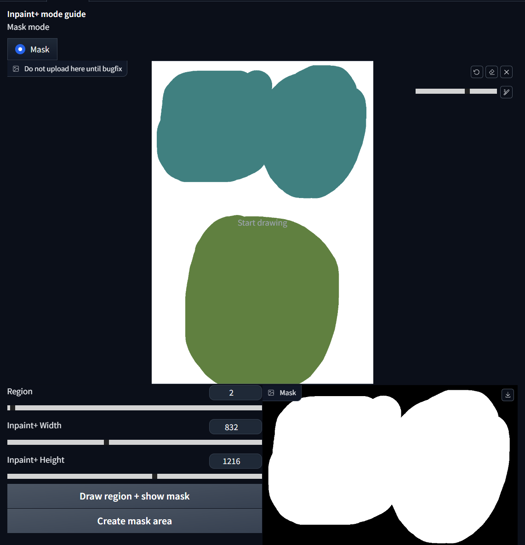 We can also display all the regions in the mask area by selecting -1 on the Region Slider and pressing 'Draw region + show mask'.
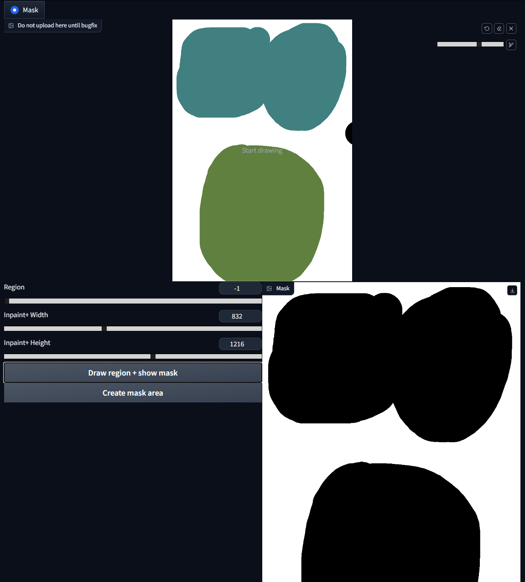
Special Case for Base Prompt:
Now, let's discuss the Base prompt. Using both Base prompt and Common Prompt in mask mode is advantageous because the Base prompt will fill all the non-masked areas.
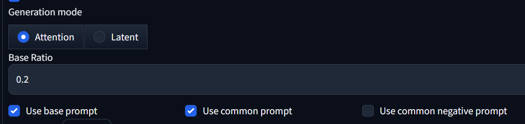 When the base is off, any non-colored regions are added to the first mask (and thus should be filled with the first prompt). When the base is on, any non-colored regions will receive the base prompt in full, while colored regions will receive the usual base weight.
The Base Ratio in this case can be set to 0 if you want to avoid any bleeding between the background and masked area. Alternatively, you can set the weight higher, like a 0.2 ratio. The inpainted area has an impact of a 0.8 ratio in this scenario. I would suggest staying at 0 or 0.2 and not going higher.
Prompting in Mask:
Now that we are using Mask mode with a Base prompt, we need to slightly adjust our prompting approach. Starting small, we activate "base prompt" and "common prompt", mask our area, and prompt:
score_9, score_8_up,score_7_up, source_anime,
BREAK forest, grass,
BREAK yae miko, from behind, sitting, full body, kneeling,
BREAK moon, full moon,
BREAK hill,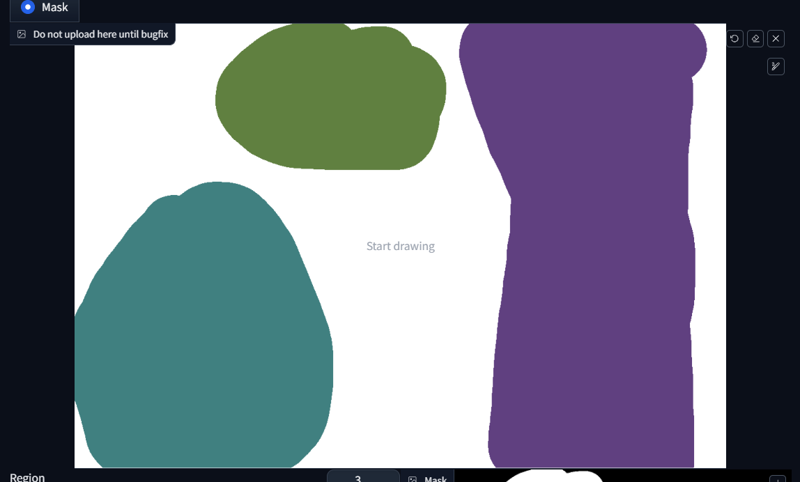
 Okay, what happend?
The first prompt: score_9, score_8_up,score_7_up, source_anime will be applied to all regions because it's our common prompt.
The first BREAK describes our base prompt, in this case BREAK forest, grass,.
Our first region begins with light blue mask and prompt yae miko, from behind, sitting, full body, kneeling.
Our second region is green with the prompt BREAK moon, full moon.
Our last region is pruple with the prompt BREAK hill.
Our three regions receive their respective prompts, and our base prompt fills out everything that is not painted.
Let's try something else, shall we? Now with LoRAs:
score_9, score_8_up,score_7_up, source_anime,

BREAK burning kitchen, messy, flames,

BREAK <lora:Doro_X_PDXL_V1:1>, doro, burning, cooking, creature, :3, chibi, pink hair, purple eyes, hair bun, hair bow, no humans, white skin, four legs, solid circle eyes, no pupils,

BREAK <lora:elie-pdxl-nvwls-v1:1>, zeroElie screaming, horrified, arms up, hands behind head, standing, black hairband, hair ribbon, long hair, ascot, uniform, long red sleeves, white dress, pencil skirt, belt, white hair,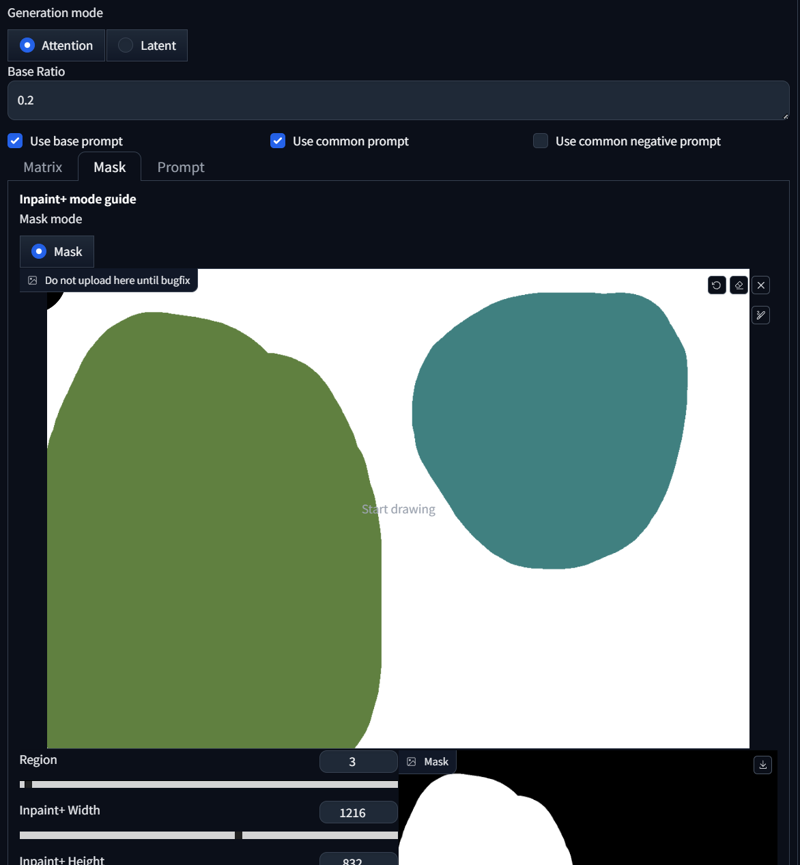
 As you can see, both regions received our dedicated prompt. That was pretty simple. What else can we do? We can create crossover regions. Here's an example:
score_9, score_8_up, score_7_up, source_anime, 2girls, princess carry,

BREAK cherry blossoms, outdoors, day,

BREAK raiden shogun, expressionless, holding person, black shirt, jeans,

BREAK yae miko, happy, black pantyhose, pencil skirt, white shirt, office lady, 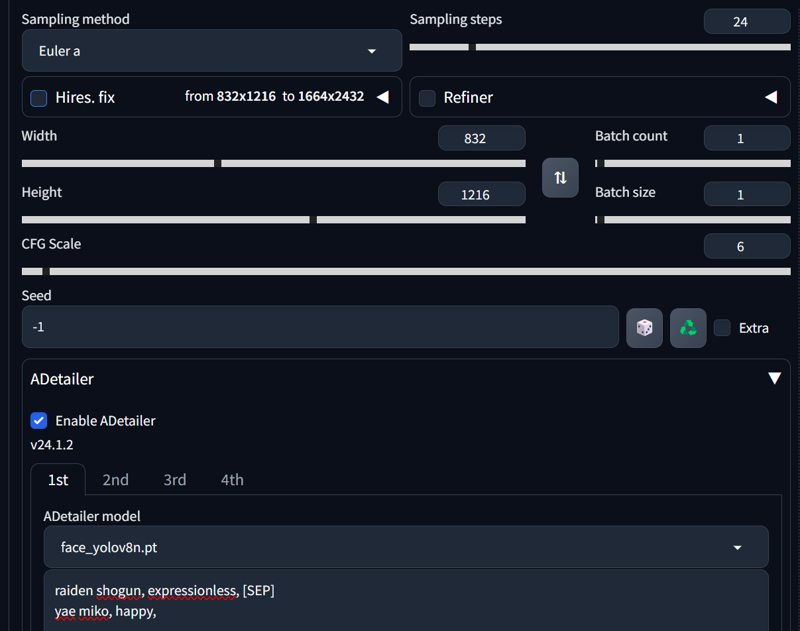

 We also have to adjust Adetailer, as we learned before. As you can see, we can overlap two regions if the interaction extends across a region. Unfortunately, such things don't work in Matrix mode, but Mask mode facilitates this.
It's not only about overlapping; elements can also coexist within a single inner region. Here's another example:
score_9, score_8_up,score_7_up, source_anime,

BREAK cherry blossom,

BREAK 1girl, red eyes, black hair, white shirt, long hair, seductive smile, holding creature, holding pikachu,

BREAK pikachu, pokemon (species), smile, open mouth,

BREAK bird, flying bird
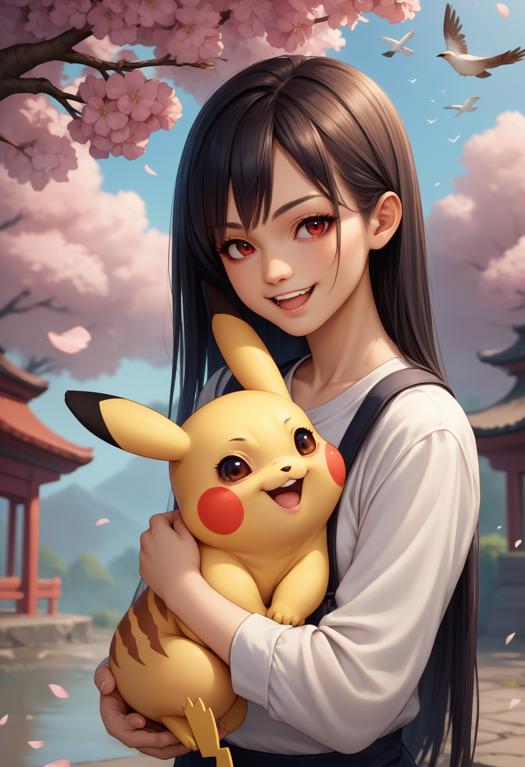 This makes holding animals or objects rather easy. But sometimes, you want to capture the imprint of the object, and SD doesn't quite catch it. You can also accomplish this in Mask mode.
If we prompt without Regional Prompt
score_9, score_8_up, score_7_up, source_anime, 1girl, cherry blossoms, shirt, watermelon, watermelon print, jeans, yae miko, it tends to give us this Result:
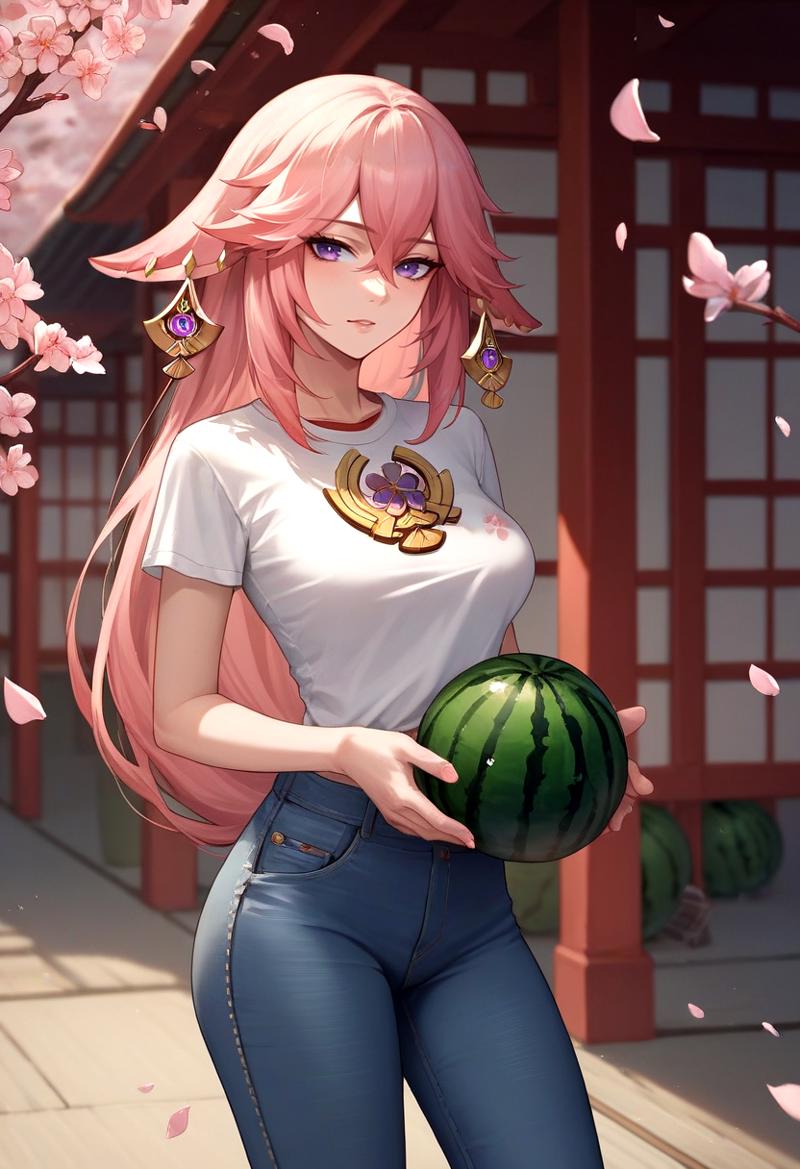 If we prompt without Regional Prompt, it tends to generate the object while holding it, despite prompting for a
 print. If we include Regional Prompt, that changes:
score_9, score_8_up, score_7_up, source_anime, 1girl,
BREAK cherry blossoms,
BREAK shirt, watermelon, watermelon print,
BREAK jeans,
BREAK yae miko, 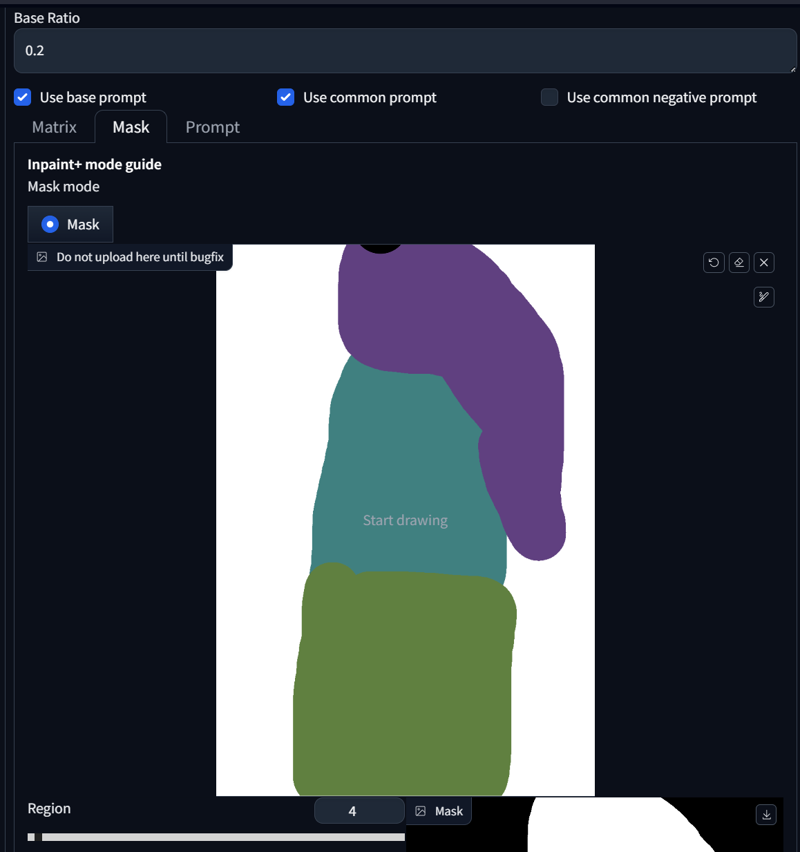
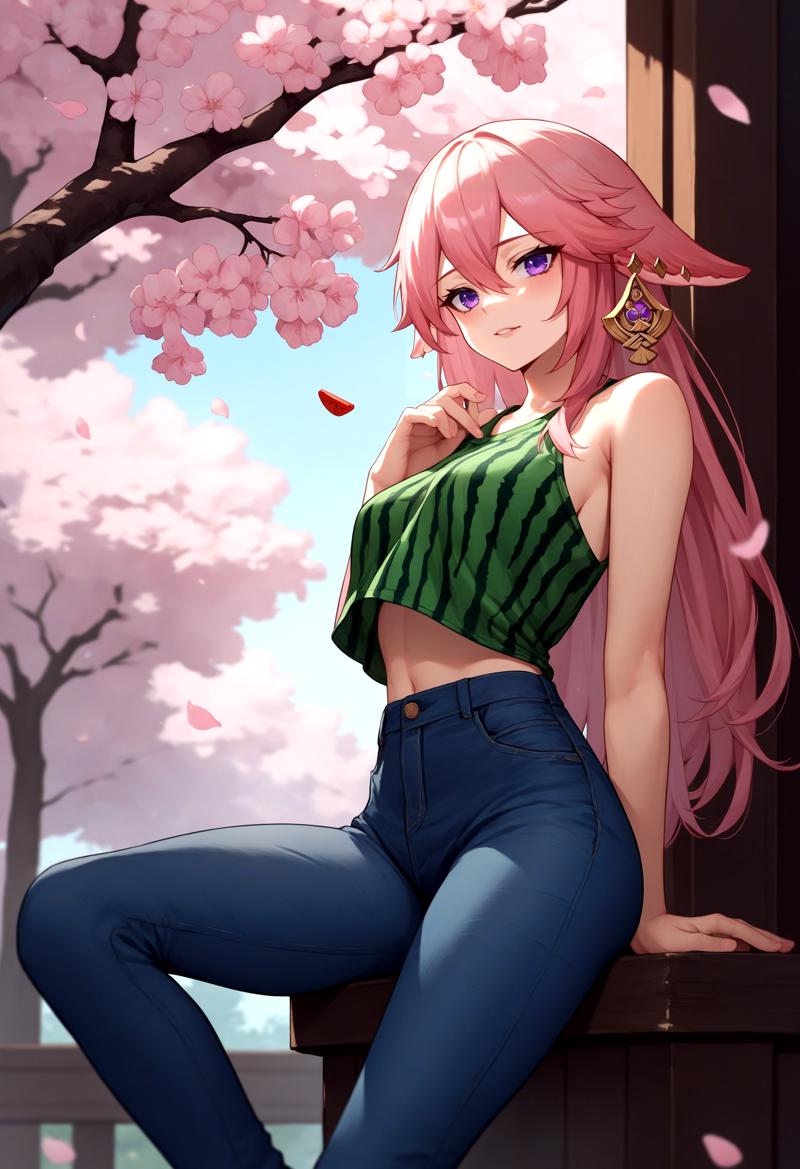 That's it. This part was rather quick because most of it was already explained before. I will be away for 3 weeks now, so the next update might take a while. The next part will include the Inpaint section on how to correct mistakes and reduce blur.
4. Forge Couple - Advanced
(Forge Couple works in ComfyUI. See here: Link1 & Link2)
Overall Settings:
After installing all necessary extensions, you’ll see a “Forge Couple” tab in both your txt2img and img2img interfaces.
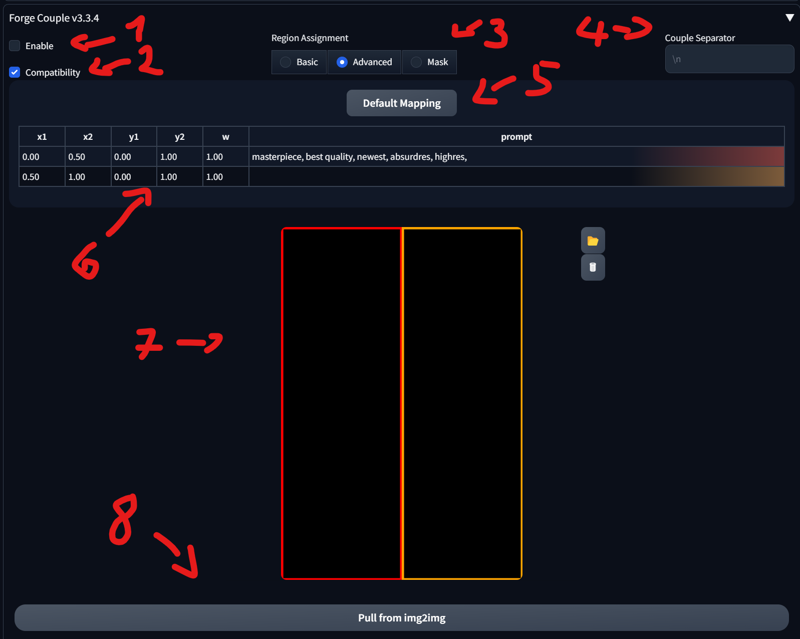
Enable/Disable
When the option is enabled: The extension will not function during the Hires Fix pass, to improve compatibility with other extensions..
Basic, Advanced, and Mask:
Basic: Divides the image into multiple tiles. You can configure the direction on this tab. I don’t use it much, so it won’t be covered here.
Advanced: Lets you specify each region manually.
Mask: Similar to Section 3 of this tutorial, where you can mask specific areas instead of using a matrix.
Couple Separator: When left empty, it defaults to “\n” (i.e., pressing Enter creates a new line). It’s best to leave it as is.
Default Mapping: Resets the current matrix.
Main Splitting: Allows you to change how the template is divided. Changing this updates the template accordingly.
Template: Shows a visual representation of the current splitting and mapping.
Pull image from img2img: Imports the image from img2img.
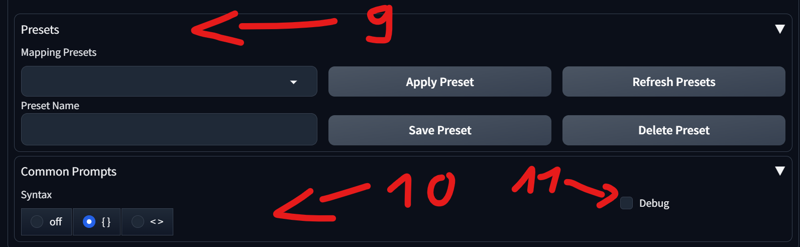
Presets: Lets you select or save your own presets.
Common Prompts: Lets you choose the syntax for common prompts.
Debug: Enables debugging.
SD Forge Couple - Advanced:
The mapping might seem overwhelming at first. Let’s start with the default configuration:
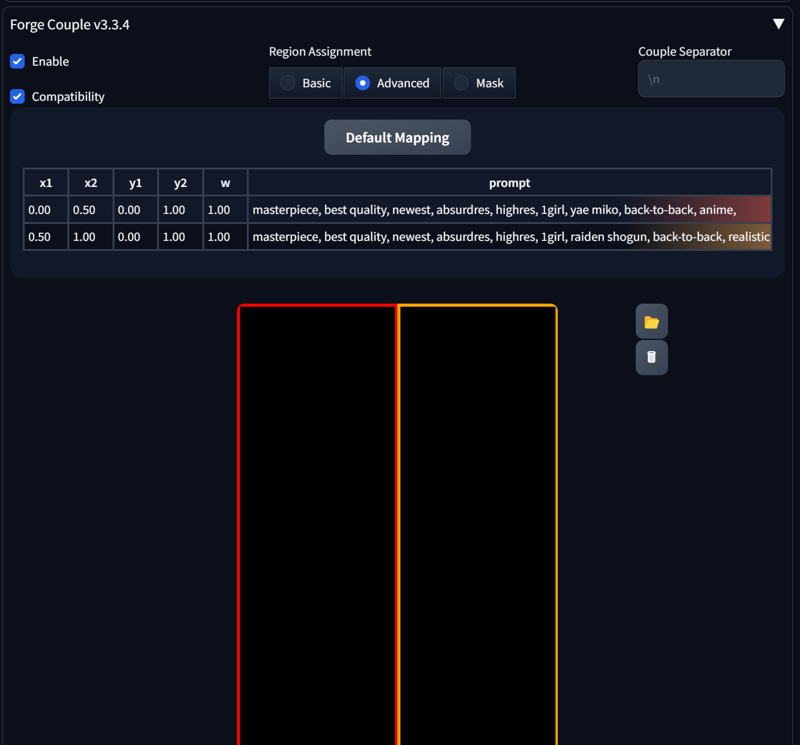
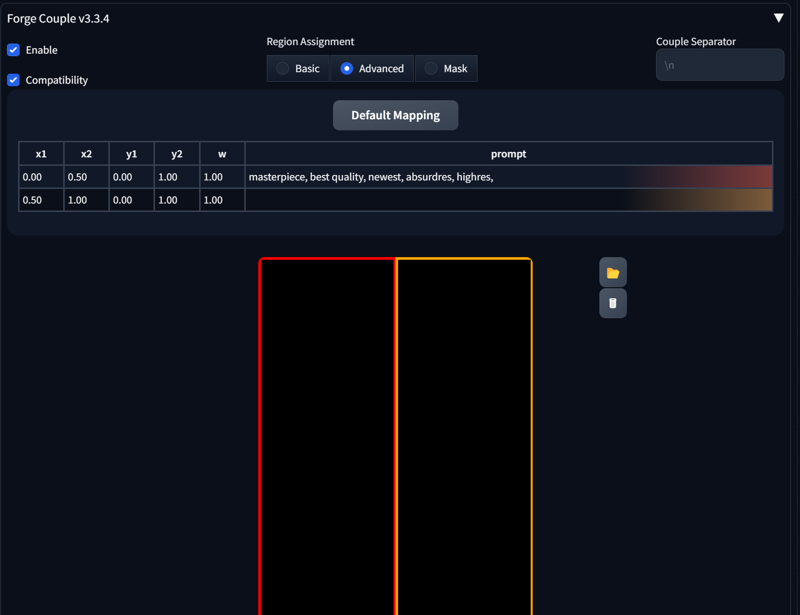 Enable Forge Couple and go to the Advanced section. The first line already contains a prompt; this is the prompt you use in your generation tab:
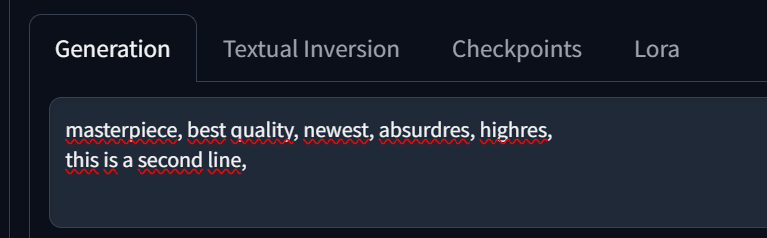
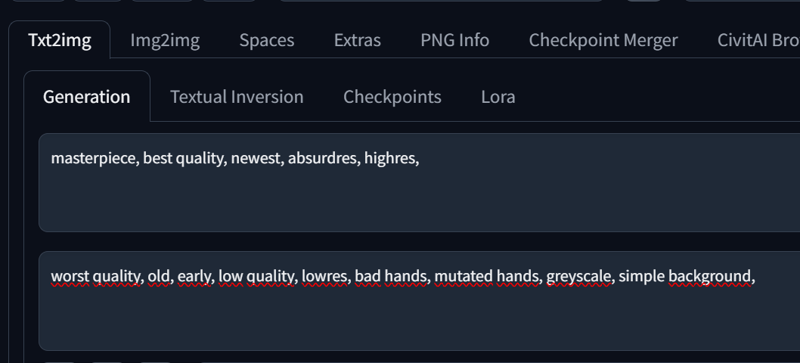 When you add a new line, it appears as the second line. You can also edit the prompt directly in Forge Couple—whichever way you prefer.
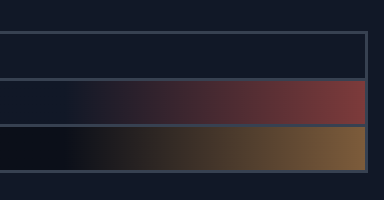
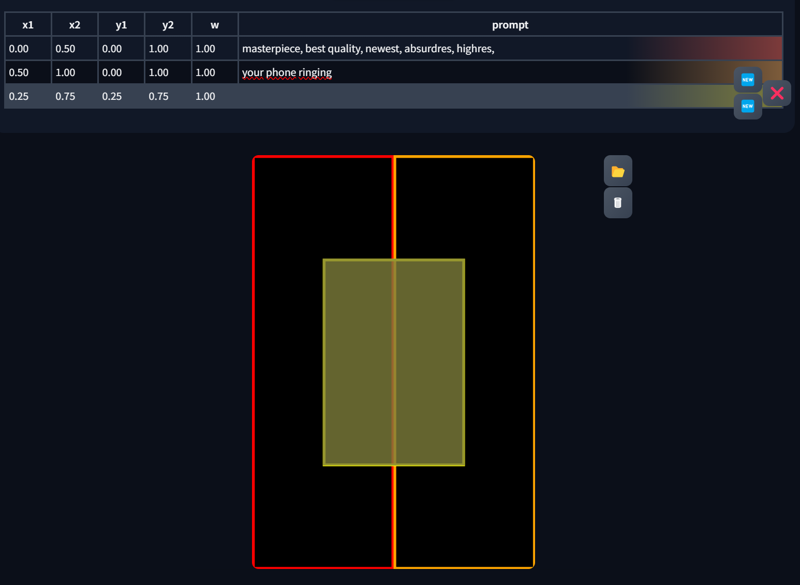
 On the right, you’ll see colors indicating which region each prompt applies to. Clicking on a prompt will highlight the corresponding area in the template.
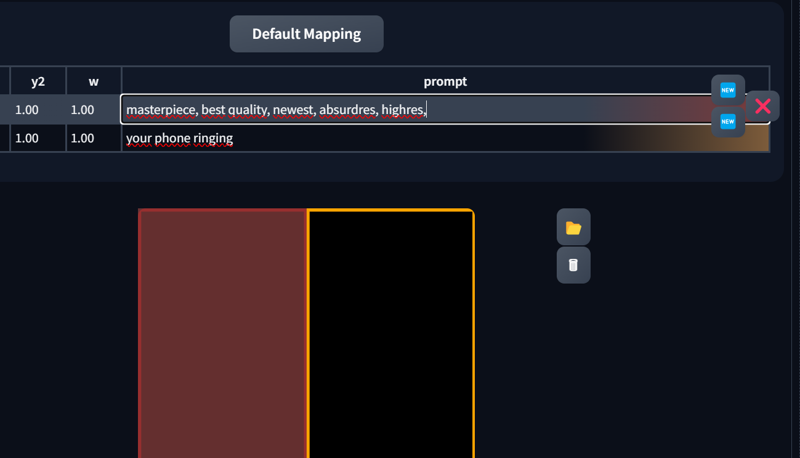
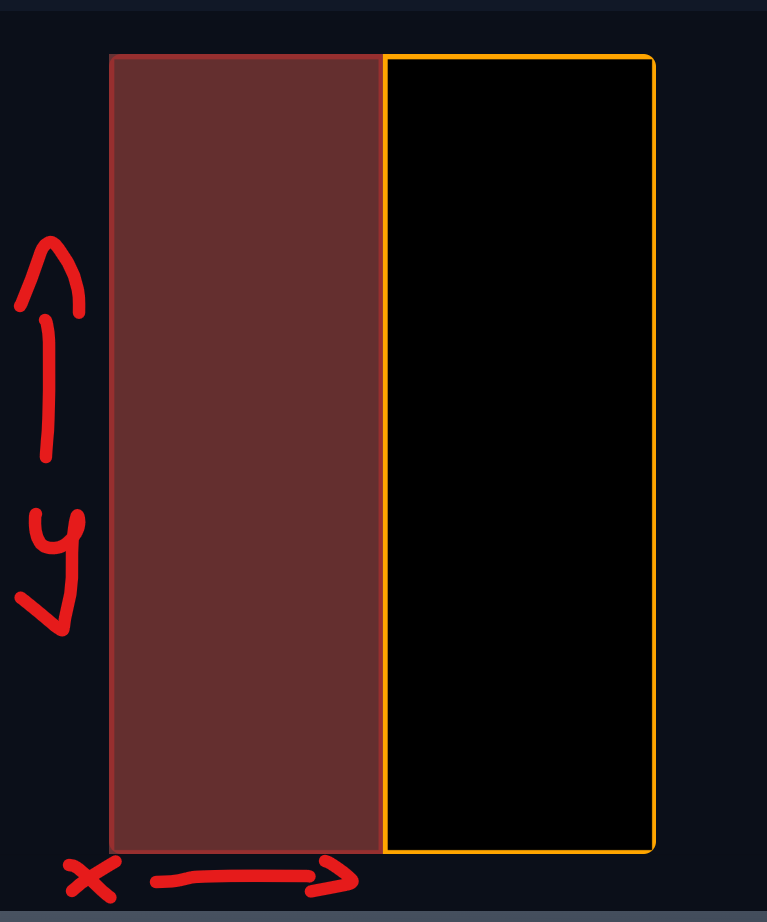
You can change the region size with x1, x2, y1, y2.
“w” sets the weight (leaving this at 1 is perfectly fine).
The horizontal axis is X, and the vertical axis is Y, with values ranging from 0 to 1.
Make sure not to leave gaps, or the generation may fail.
 When you click on a prompt, you’ll see two or three new buttons:
New: Creates another region.
X: Deletes the currently selected region.
 Adjusting the X and Y values will also change the template. Here are some examples: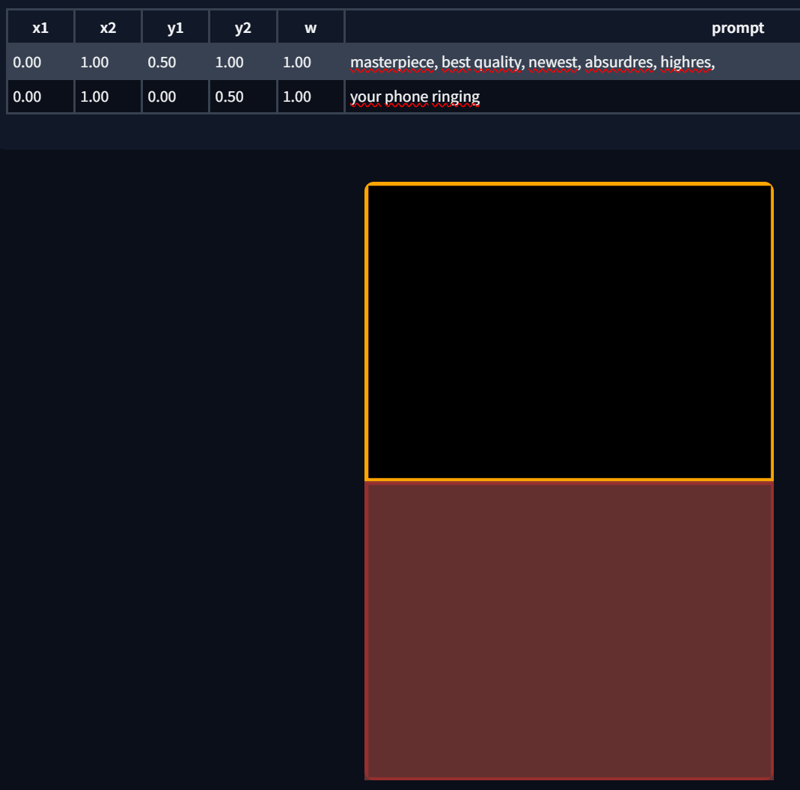
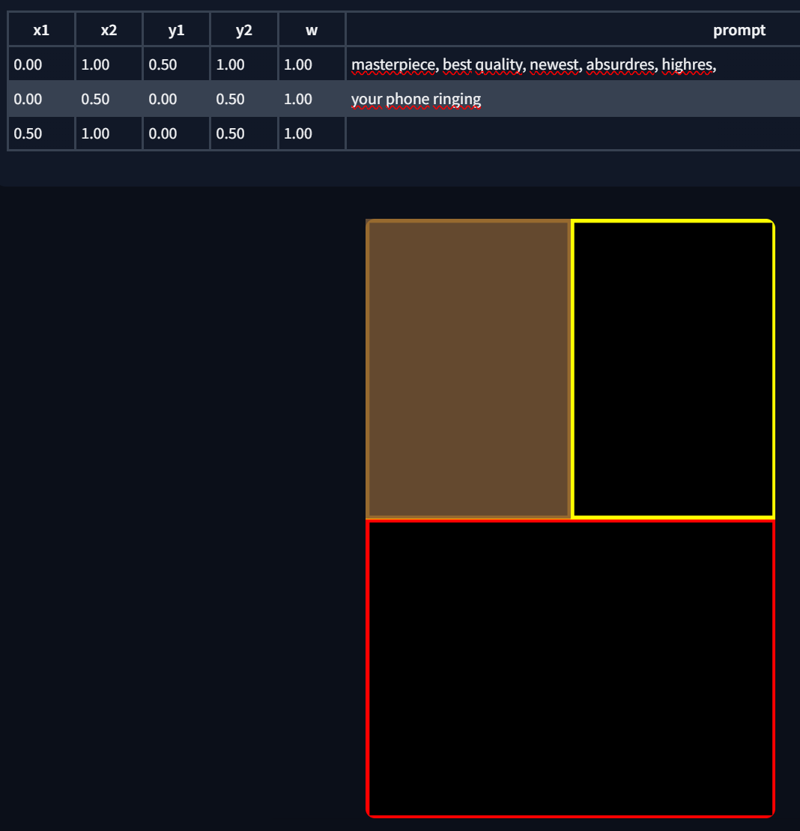
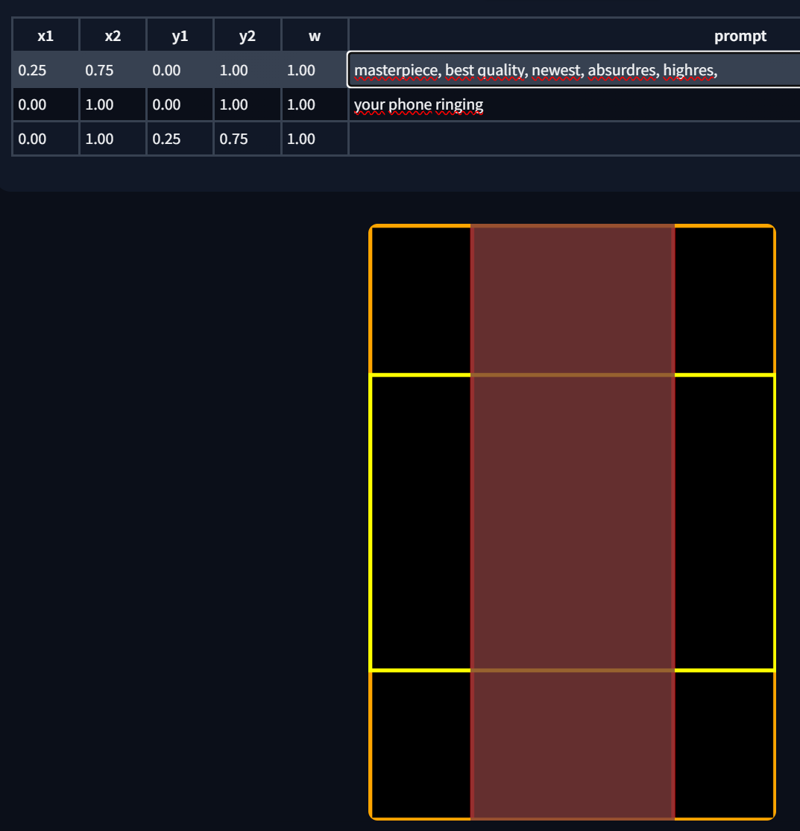 You can also edit the region directly from the template. Just highlight the corresponding region in the prompt list and make your edits. PS. Regions can also overlap.
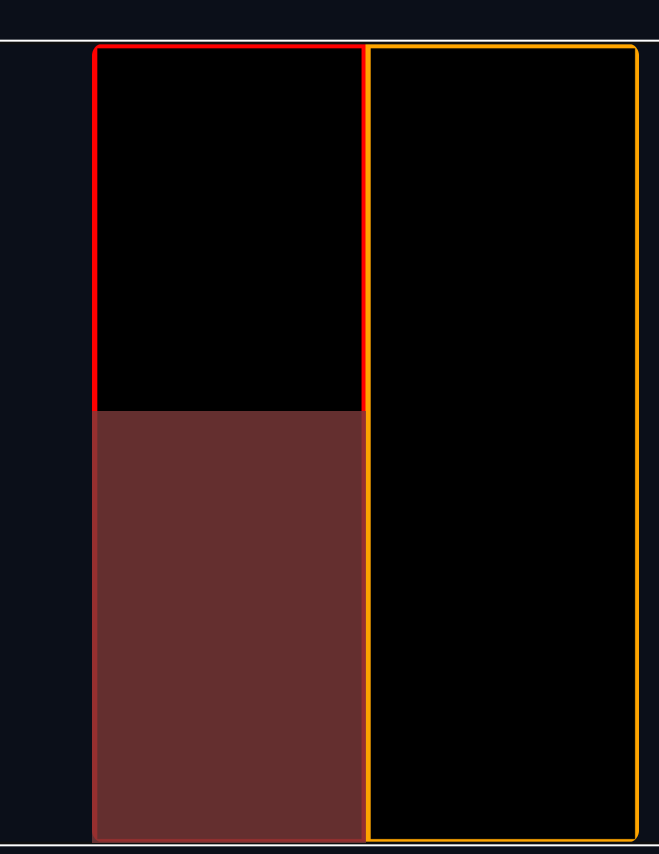
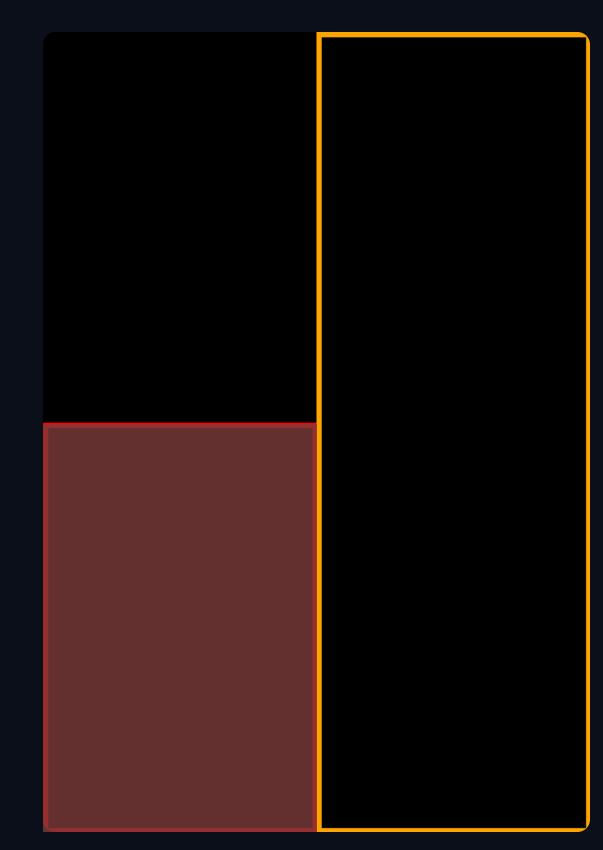
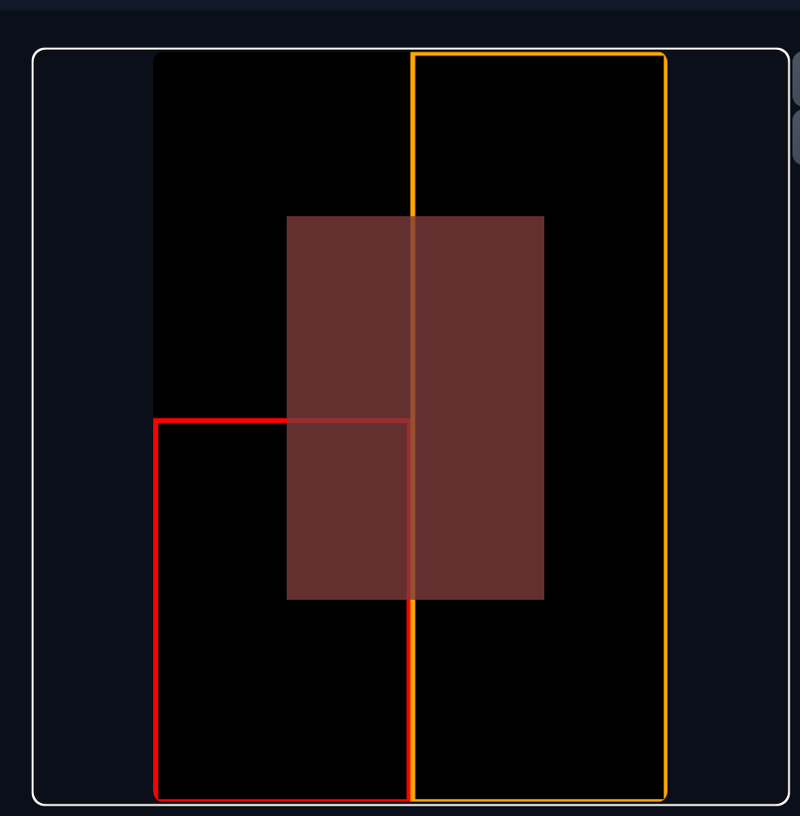
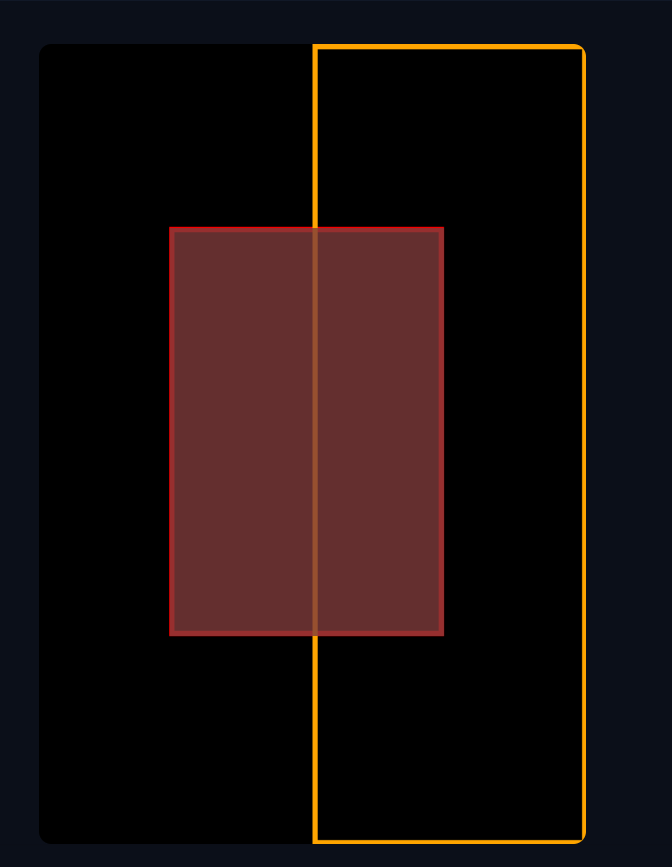
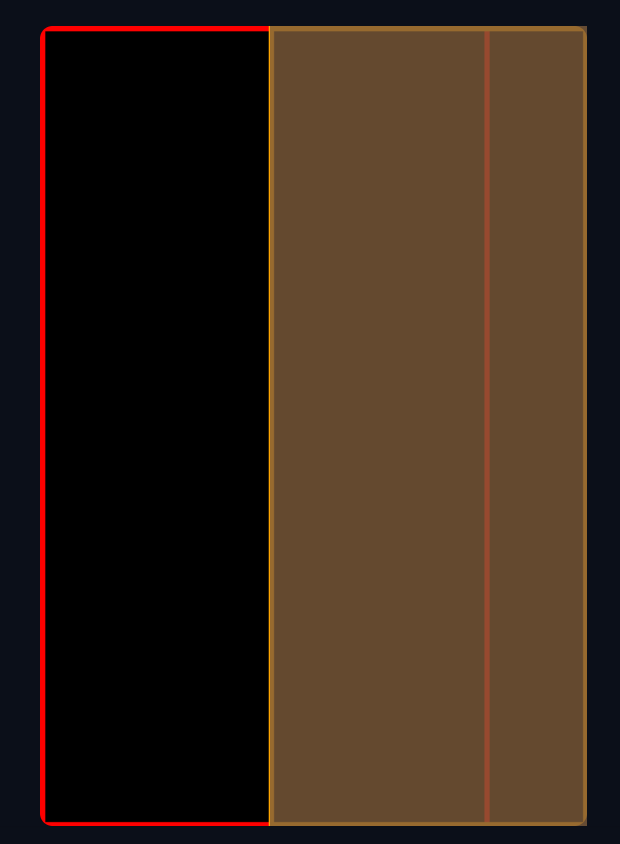 That covers the basics of the “matrix” part. Below are some example images with their corresponding regions and metadata:
masterpiece, best quality, newest, absurdres, highres, 1girl, yae miko, back-to-back, anime,
masterpiece, best quality, newest, absurdres, highres, 1girl, raiden shogun, back-to-back, realistic,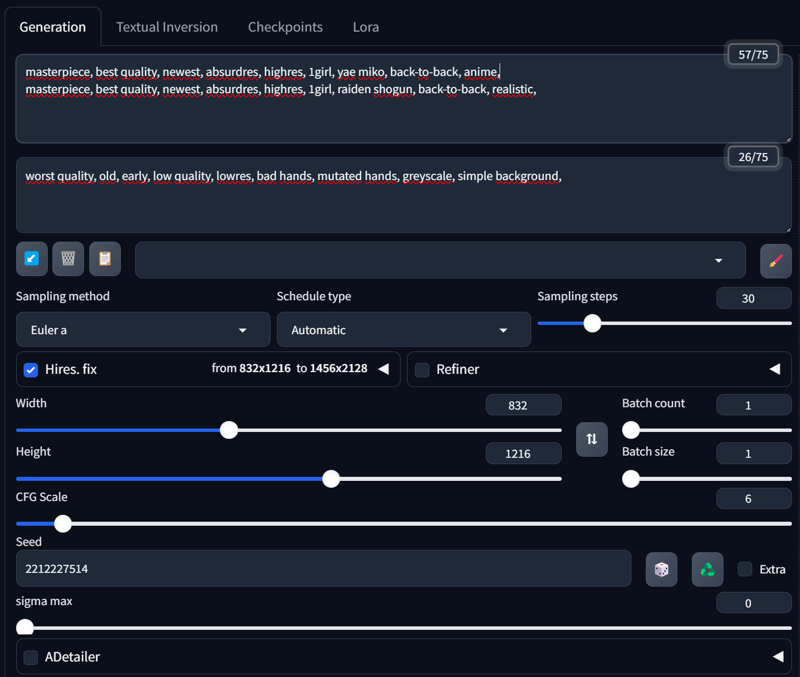
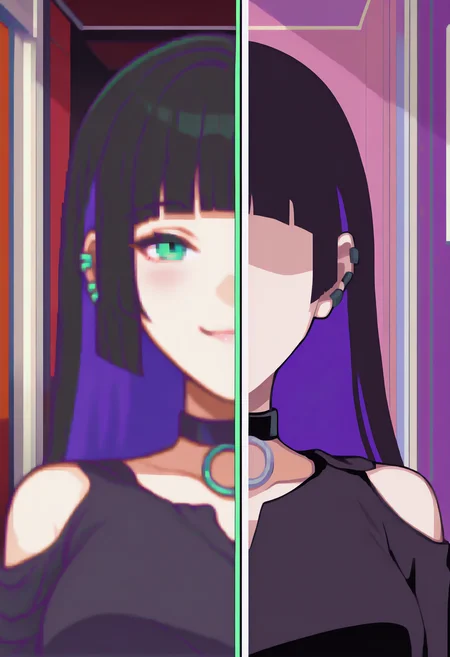
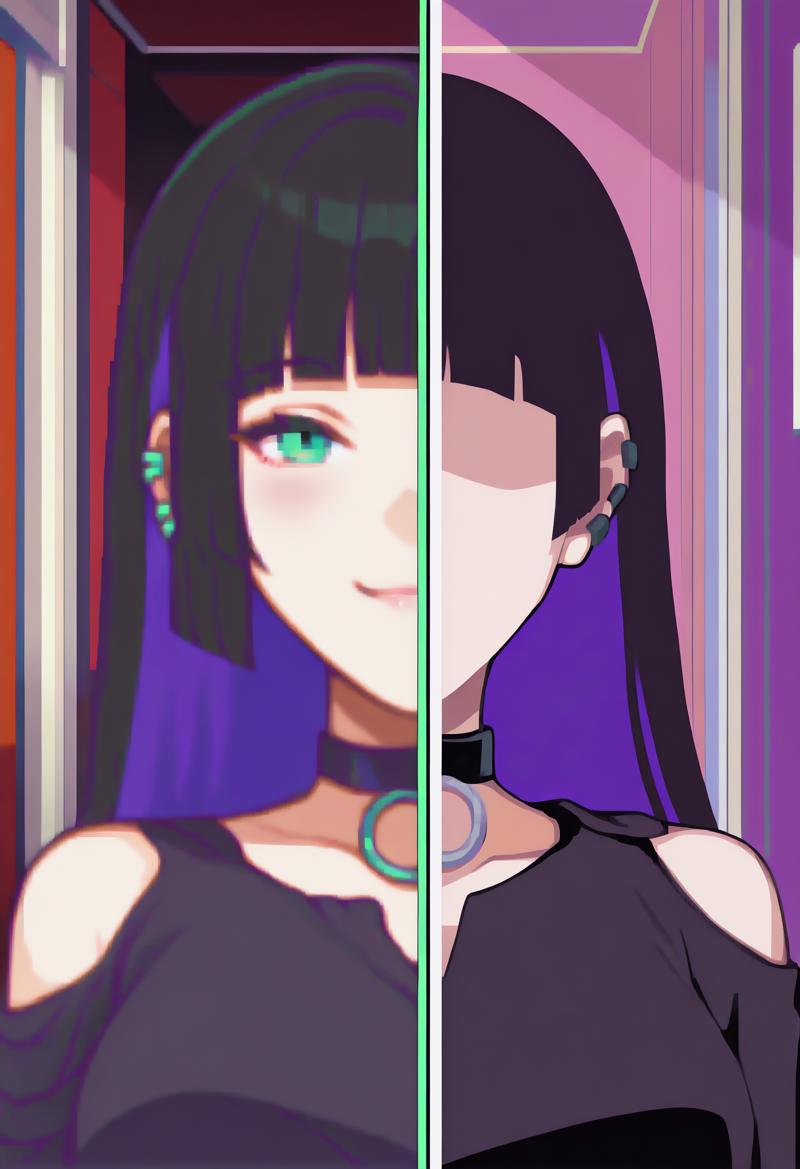
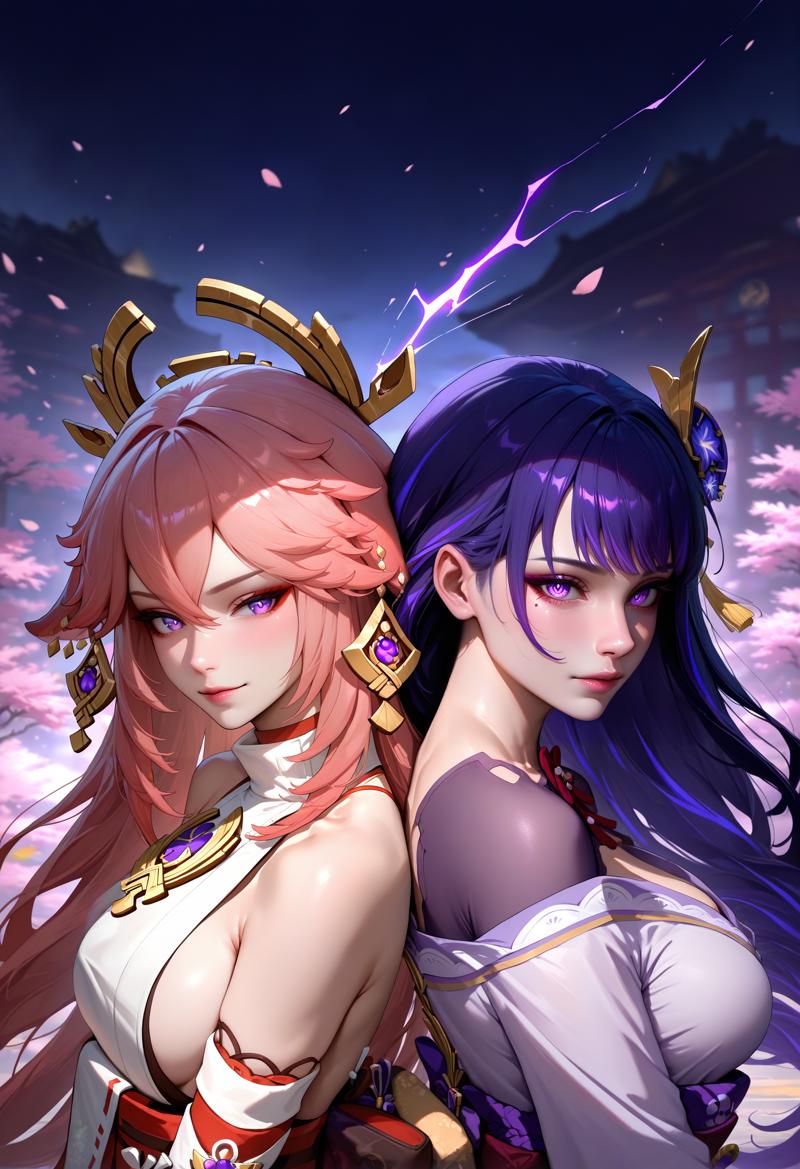 A neat feature in Forge Couple is using LATENT, which allows you to separate styles for each region—something that wasn’t possible with the Regional Prompt Extension. Here’s an example:
masterpiece, best quality, newest, absurdres, highres, indoors, 1girl, SplitScreen, split screen, upper body, <lora:SplitScreen_illusXL_Incrs_v1:1>, pa-san, purple colored inner hair, ear piercing, hime cut, choker, black dress, long dress, shoulder cutout, seductive smile, green eyes, <lora:FEGBA-PortraitsV2-illus_Fp:1> portrait, pixel art,
masterpiece, best quality, newest, absurdres, highres, indoors, 1girl, SplitScreen, split screen, upper body, <lora:SplitScreen_illusXL_Incrs_v1:1>, pa-san, purple colored inner hair, ear piercing, hime cut, choker, black dress, long dress, shoulder cutout, <lora:MinimalismStyle-Illustrious-V2:1> flat color, limited palette, no lineart, no eyes,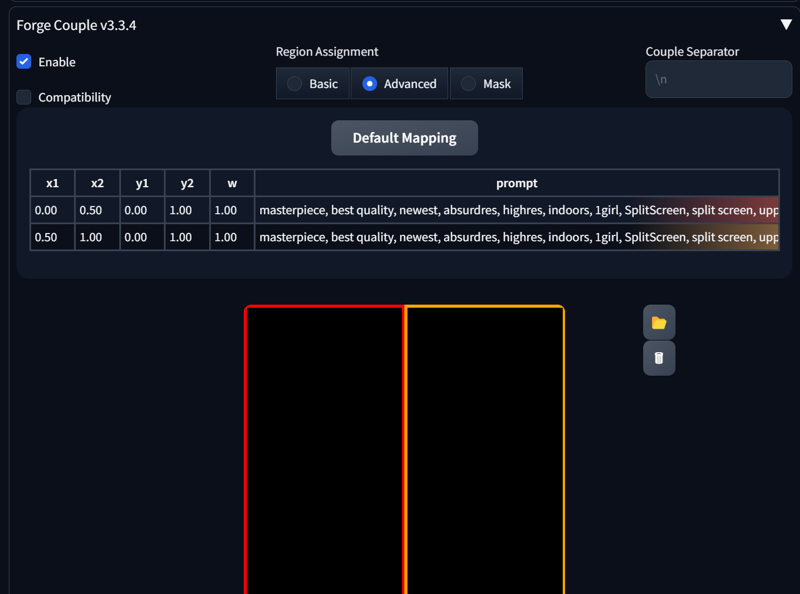
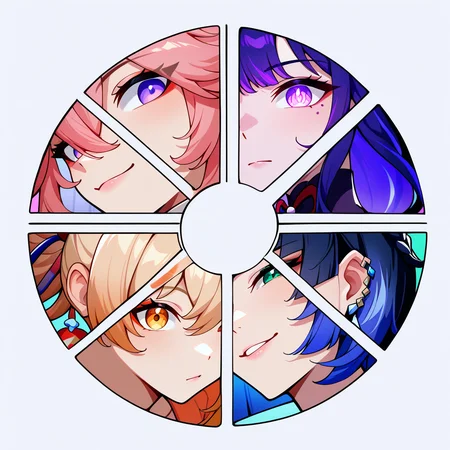
 And here’s a more complex setup:
masterpiece, best quality, newest, absurdres, highres, color wheel challenge, multiple girls, yae miko, close-up,
masterpiece, best quality, newest, absurdres, highres, color wheel challenge, multiple girls, raiden shogun, close-up,
masterpiece, best quality, newest, absurdres, highres, color wheel challenge, multiple girls, yoimiya \(genshin impact\), close-up,
masterpiece, best quality, newest, absurdres, highres, color wheel challenge, multiple girls, yelan \(genshin impact\),  close-up,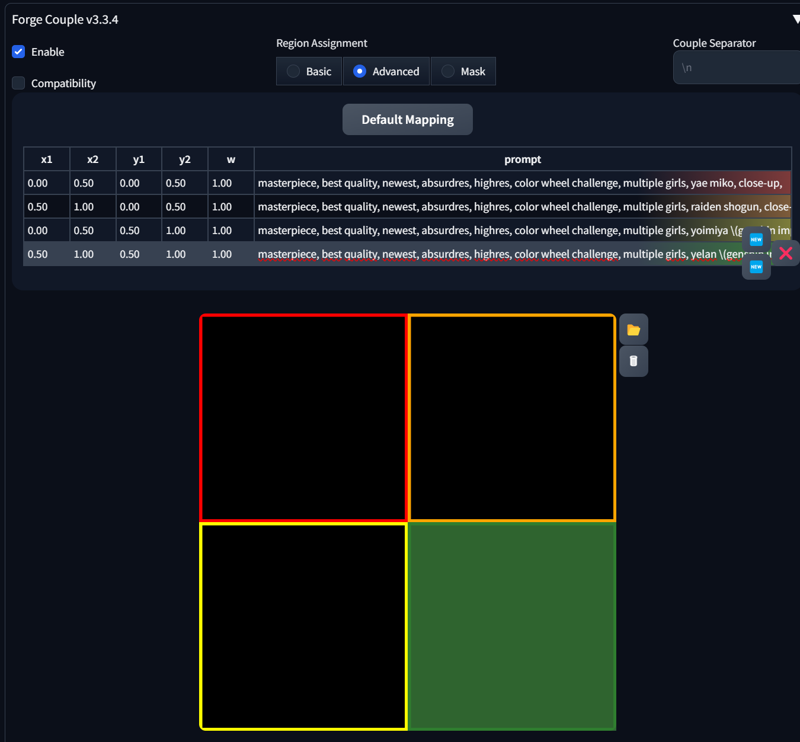
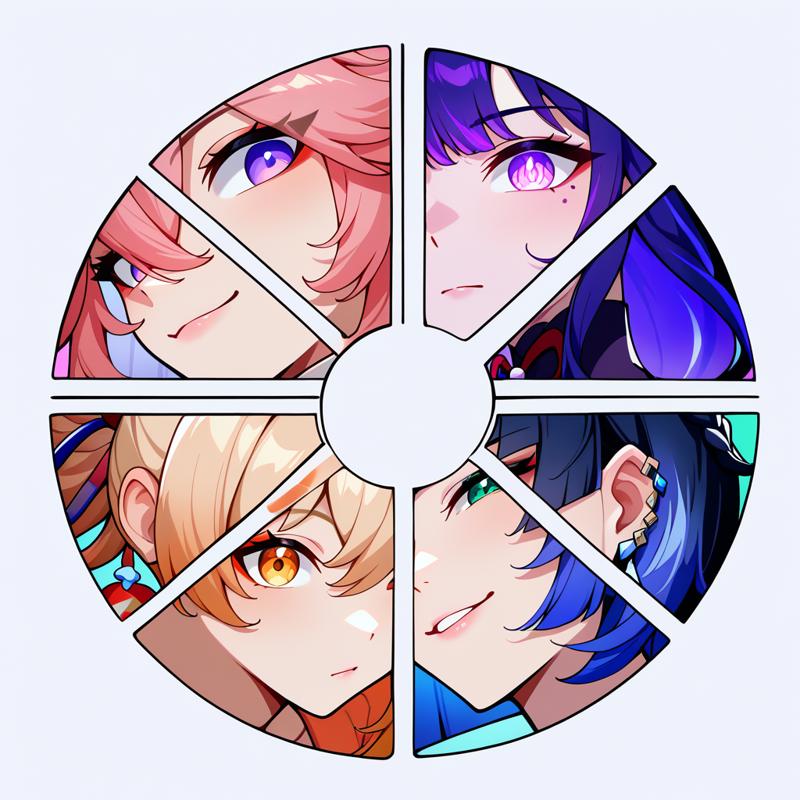 That’s it for now. In the next section, we’ll focus on the Mask part of Forge Couple.
5. Forge Couple - Mask
6. Loopbackscaler
7. Inpaint
Description
FAQ
Comments (104)
bookmarked for reference
Holy sh**, i have Forge Couple installed, but never tried it...
Saved and buzzed...
Great Article...
Can you tell how did you install it. I wasnt able to find in forge extensions tab
@MrZhigga you know how to clone repo's? if so open the forge folder and go to 'extensions' and 'gitclone' the repo inside, after that just start forge and it should be installed
edit
or use FallenIncursio's Tutorial (i overread it too, forgot this existed ^_^):
First, we start our WebUI (in this case, Auto1111 or Forge). It's best to use the latest version of either one. After opening the WebUI, go to the Extensions Tab -> Install from URL.
Then paste this one: https://github.com/Haoming02/sd-forge-couple
@Lianis Thank you i finaly downloaded thanks to you. And im gonna be honest my dumbass still cant see FallenIncursio's download guide here 😭
@MrZhigga Its after the '0. Intro' -> '0.5 Installation'
I never figured out the trick about Adetailer with these tools, THANKS A LOT :D
PS: for Adetailer VAE, i am using "None" as a choice, i works too to remove the box effect as far as i tested :D
Your duo loras may not be the most popular kids in the school because people here mostly like to "click to win" (which is understandable) but i love them so much! Other ones too! 😂
So thanks for deeper inside into the topic. That's gonna be a hell of a good read
Oh my god I had no idea Adetailer had settings to sort the bounding boxes this is gonna make things so much less annoying hahaha
I know ComfyUI is a completely different beast, but ever thought about making a guide for that?
I was hesitating whether to revert to the old version of Forge, and then you updated it. This is just amazing!
I know its a very dumb question but how can I know if my forge is new or old?
@MrZhigga I noticed that in the past few days, the author of regional-prompter updated and fixed Forge compatibility, so just update to the latest version and choose one to use without worrying about old or new versions.
@miyu I tried downloading yesterday but even though it didnt instantly crashed for some weird reason just opening regional prompter section makes my gpu go crazy and make my screen shut down so I erased again
Apparently there is an update in the RP extension for Forge! I just read it and the author commented in various issues regarding to the old problems! Thank you so much for this, is working nice and definetely I am having fun in testing how it works lol
Good to know. I'll check on that. Ty ❤️
Silence! ComfyUI master... the GOAT FalleIncursio is speaking! Many thanks for always showing the way with your tutorials, God bless you, Sir Incursio.
For the 4th tutorial, did it suggest that change from webui to forge?
How would it be for a LoRA with 2 almost similar characters?
the same
I was able to make your region encoder tutorial work after some troubleshooting. I am working on Forge. One big thing was: I have to keep batches to one. even making two images messes it up, also, I needed to add "1girl" again after the break.
just start learning and I got say. This tutorial is really useful.
Question. Is there a good way to keep art style lora's or general eye shapes that exist prior to the adetailer changes? I've noticed detailer has been modifying eyes that are sharp into more normal generic looking eyes. I've tried adding the style lora to the character in the detailer, but I've notice a change as well.
U can add the loras to adetailer as well by just copy pasting it from your normal positive prompt.
@FallenIncursio Thank you for info. I tested that out earlier and it did keep the shape. I guess I just turn off adetailer until I see face issue and remake it I suppose.
Do you mind if I ask two more questions. 1 Minor and 1 more Major.
1. Everywhere I see image its like yours where you have two button confirm prompts, but mine looks like this https://imgur.com/a/hMkx1nn I have to click the mask paint up and down and it does work I'm just curious why tabs arent like everyone elses. I'm using Forge currently.
2. Do you know of any good way or guides to link on advice on how to get rid of the shininess/burn/saturation/brightness? Unsure what to even call it. Using Illustrious XL, so I know I generally should play around 1.5-6 CFG and 30 steps. I know there is an issue at high CFG that it starts to over saturate, so I've been playing around with latentModifier as its integrated into Forge. I've read github and its kinda been confusing. I've been setting my rescale CFG Phi to 0.7 to lower the accuracy of model so I can get more CFG and then spectral mod Multiplier to 2 lower burn/over saturation and making reinhard tonemap % to 60 isntead 100 to lower possible extreme shades of color. Are there just simpler ways to go about this. I've read that sd-dynamic-thresholding is something that could work, but not really seeing very good info even on youtube about how great it is.
@sonsu
1. its prob an updated UI.
2. well, it looks like, that u are using Vpred. If thats the case, i cant help u much in that regard, because I dont use Vpred myself. If its eps, then I would use a ckpt with a bit lower contrast.
@FallenIncursio Sorry little new to this, couple days new. Thank you for answering earlier. How exactly do you think/know I'm using Vpred, assuming this is velocity prediction slang? I wanted to ask because I'm not even sure if I'm describing the right way to explain my issue. I'm using the https://civitai.com/models/140272/hassaku-xl-illustrious style a since it was just top on list honestly for illustrious currently. I'm looking at the terms online, but not exactly clicking currently. I'm just using latent modifier extension built into forge.
Also have some notes related to the actual guide. Imgur of what I've tested and stuff https://imgur.com/a/RVdmI2O
Seperately
I've noticed generally that forge couple has issues with art style kinda. If I put a tag for artist from danbooru using an illustriou XL checkpoint, I can generally get the artstyle down. When I try with two character on advance forge couple, I've noticed the first character gets the art style down, but even if second character has the same tag for art style they kinda of disregard it for some reason. This is without adetailer or to modify faces. I've tried on same seed with batch size 4 and two different checkpoints using x,y,z with various ways to try get art style like common prompt {style:artstyle}, one character with the tag and another character without, visa versa, or both with tag and seems that only 1 character is generally allowed to get the art style tag that changes the art style. So it be like if your Yae Miko and Raiden with anime and realistic tag for each of them only did anime if anime was first. I am putting tag first at start of each \n to also note importance for each of two sides for 50 50 split.
Do you perhaps have any insight, if you need images of all tests I can take screenshots put in another imgur.
So awesome 🤩
Very nice guide, thank you.
How the heck do you use Latent with Forge Couple? I don't see any kind of toggle.
It alrdy acts as Latent.
I'm trying to use Forge Couple and I have 2 characters each having their own lora. When generating the prompt it turns out okay but the quality is low. When I try to hires fix it, some clothing either goes on the other character or the skin color blends with the other character. Anyone have any tips I can try? I'm also not sure if it matter if I'm using reforge over forge.
Doh, I think I answer my own question. I want to use Latent upscaler instead of the other ones I have.
@MonkeyDFeels so use multiple character loras does not work with upscaler right?
@lwander yeah It doesn't really work too well.
@MonkeyDFeels For me, if different row use different character lora, it cannot work, the output is totally mess,
Very well written guide. However, I am wondering for Latent Couple, how do you use negative prompts? are they handled the same way as positive each with their own line?
I didn't see anything over on the github repository that mentioned negative prompts per region.
Any help would be appreciated!~ Thank you!
You can use the negpip extension, as it works better than negative prompts.
@miyu I have that and use that, but they way Latent Couple works with line breaks, it gets messy in the main prompt box. It's a bit frustrating to use compared to Region Prompter.
@LindezaBlue The line break issue is indeed frustrating. Even if you change the default separator to something other than \n, it still ends up merging the prompts into a single line.
I've been having problems with the regional Prompter lately, so I decided to use Forge Couple, and I really like the results. The only downside I see is that the clothes, as well as the hair color, tend to swap sometimes. If this problem is solved, it will be a better option to have multiple characters in one image.
Can't get it to work; it's installed and I follow instructions step by step, except for some reason I don't have the 'active' button, just the blue check on the drop-down.. Using Forge. Any ideas?
me too, i have no "active" button
how to do that in comfyui?
isn't comfy supposed to be better than a111, yet i find for multiple character generation it's so lacking
i cant seem to get regional prompter working even after following tutorial it seems to usually merge two chars into one if im doing something wrong please let me know.
Are you using LoRAs? I've noticed that some models tend to bleed over, despite the regional prompting.
@Immersturm no loras for characters but i have style ones can they do it too
@MrCloneBirb Yeah I’ll be honest, after playing around some more with both regional prompter and Forge Couple, I’m noticing the same thing. Even when I’m copying the metadata, characters are often fused together or just aren’t even close to matching the sample images from the tutorial. We’re doing something wrong, and I’m not quite sure what.
@Immersturm i tried a bit more and managed to make near similar pics (slight differences due to ckpt and some settings) and i saw style lora messes with coloring sometimes maybe prompts needs to be really specific for each BREAK region
Same here, but i'm using loras, and honestly i'll just pass from this, hopefully they add a addon like this but for "dummies"
My experience with it is that it just very unstable. Always start off VERY simple with your prompts are work your way up, because you might find one single word might break the whole thing, causing the prompt line for your first region to bleed into every other section.
Goblintide This.
Start with just 2girls, 1girl, hair, eyes, expression. And see if you get the two different chars. Then slowly add to it.
comfy has node for it too!
Do One version for ComfyUI :necomfy:
what do is it?
when i use forge couple advanced mode and mask mode, there is just colorful noise, no charas, what can I do
I find out, in advanced mode and mask mode, the region should cover whole canva. if there is some space undefined, will case error. overlap of region is ok, undefined space will cause error.
you probably have one empty row. Happend to me too, if it happends check the console. If it says "Number of Couples and Masks mismatched" you probably have an empty row.
1015 I will check it, thanks for your hint.
but multiple loras still cannot work, which will affect each other,
the LORAS merge i can't get it Forge Couple
I wish this thing would work when I use it, I'll figure it out eventually but until I do that or see addenda for this tutorial I shall stick to prompting only single characters.
How to get different facial expression when using Forge Couple + Adetailer? Will using [SEP] command works?
Using forge coupler, do you have any idea why it ignores height commands for characters? It generally tends to make them the same height, or ever makes the smaller character the taller of the two. Tried all sorts of prompting, negatives, different models (XL, Pony, Illustrious), different loras, and nothing seems to help resolve the issue.
Huge thanks for the guide!
In Forge Couple two chars interact almost perfectly! Even with chars LoRas + style LoRas. But I have a question. I want to generate three characters (their interaction isn’t necessary). However, when I add a third region and write a detailed prompt for the third character in the line, all of them start to merge. Sometimes a shadow appears on the background (2chars remaining still merged). Tried to play with reso and aspect ratio - didn't help at all.
With two regions everything is perfect. Adding a third one just causes merging over and over again.
What could be done to fix this problem? I think I do something wrong, but why with 2 regions everything is going well?
Still can't get it to work in Forge ai, still combine both different LORAS.
Ohh interesting, I didn't know regional prompter cant separate styles. Tempted go try out forge couple but I dont think it supports the models I like very well still
ComfyUI has regional workflows, and it supports anything. It's very modular, if you don't mind the slight learning curve.
For some reason, if I do this with opposite genders, it works just fine, but if I try 2 boys or 2 girls, it just merges into one character.
Although I have yet to try this tutorial out, I have noticed this is a common issue with my own attempts at making 2 male or 2 female characters in the image generation. Whether you do this for NSFW or SFW, it is undeniable that AI Image gen is, mostly, for the former. So considering the majority of any general population of people is going to be heterosexual, I think there is some clear bias towards the majority group. Even then, if I try to make a more feminine male (solo), then it'll run into the same issue of basically making a female. Which, again, is likely due to majority bias.
Through my attempts, the following method works well:
First, use a regional prompt to generate an image of one man and one woman, then use ControlNet(depth) to change the man into a woman.
I got zero idea how you were able to generate 6 charatcers like that. Anything beyond 3 and my regional prompt extension ceases to function or adds dozens of clones in the background.
I installed it and works, mostly, but for the mask section, I am missing the "Draw mas + show mask" and "create mask area" buttons and only have something calle "Save mask" which does not apparently function. Did I misread something or did it not properly install?
i wish someone could help me on discord or something with this.... Nothing i do, despite following the same steps, works like its shown here...
it works with 2 characters but it craps itself when you write a third one
With two characters it's still simple but once I try generating with three or more characters, I can't add any detail or I'll suddenly have unwanted details, mixed up character traits, prompts don't get used or there are less or more characters then prompted. I am using illustrious if that makes any difference.
I got one image with two characters over 100 images later and i still have yet to get a second image with two character :(
Haven't gone that far myself, but zero luck here. Just mixes the two prompts together.
Excuse me, is there a tool like this for Comfyui workflow?
comfyui couple , https://github.com/Danand/ComfyUI-ComfyCouple/tree/main
using a1111, somehow gives WORSE results compared to when its disabled as it fuses the characters together. if it doesnt do that it fuses the faces, adds extra background characters and more
In mask mode, when I use both base prompt and use common prompt, I get an "Index out of range" error. Anyone knows how to fix this issue please?
I use 1344x768 image size.
I've been having the same problem recently and I have no idea. Maybe the extension itself is broken? It was working fine for me before so that's just my assumption.
I had that as well, its a problem with the "BREAK" you use. Play a bit around and add 1 more BREAK at the very end, without any prompts after that. Then it should work. If you get that error it mostly means your number of regions do not align with the number of BREAKS you use :)
@whity00 Yeah it still doesn't work, even after trying that. I am making 2 regions, I have tried using adding a BREAK, I have tried removing a BREAK, I have tried adding 19 BREAKs. Nothing seems to make it work
@Sfdwackys Can you post me your prompts real quick? So i can try it out myself. Maybe its just a very little mistake.
非常详细,感谢教学。我以前一直用chatgpt教我,现在看一下感觉懂了不少。
Literally cannot get anything to work with Regional Prompter nor Forge Coupler. I am using the most up-to-date forge UI version. I have no idea what is wrong. Followed this to the T, yet images are generated as if the extensions weren't enabled at all.
Nice article, just skimmed through it, but still nice effort, and thank you for putting the time to share your knowledge.
Mask not working for reforge.
I tired copying the tutorial copying the prompt and mask but I am still not getting results even close. I know the characters in the prompt is recognize in the checkpoint. I have snippets of my output image, prompting, mask, and what the console displays. In the console is it suppose to show 3 tokens even though its two regions I am trying to do?
https://imgur.com/a/wLyThVl
Forgeui不是也能用这个Regional Prompt吗。哪个好
shit too hard
Thanks for the regional prompter info! Defn helps with some ideas I have been wanting to do.
thanks for these images, they're absolutely endearing
not work for me :(
anything like this for comfyui?
Awesome guide, we are waiting for the continuation
is this a workflow? im confused, it seems like a guide...
I cant wait for part 5 🙏🔥
This is a good guide. Thank you for the time you put into this.
forge neo update?
Great work, great guide, wanted to add second character and indeed magic is in prompt structure.
Thank You!