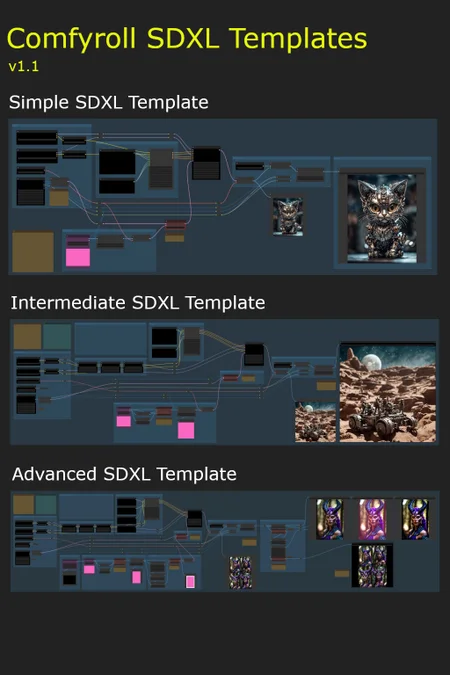


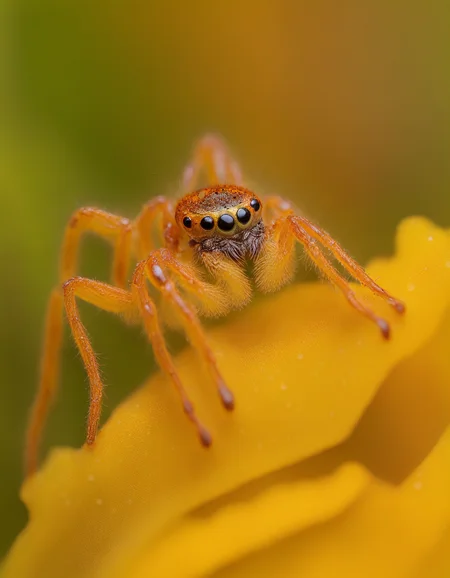
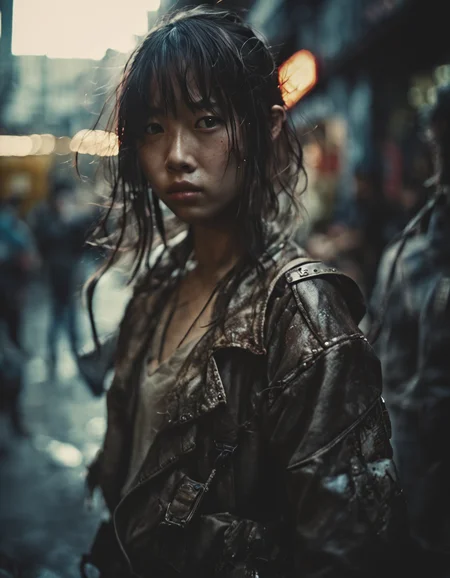
These workflow templates are intended as multi-purpose templates for use on a wide variety of projects. They can be used with any SDXL checkpoint model.
They are intended for use by people that are new to SDXL and ComfyUI.
List of Templates
Simple SDXL Template
Intermediate SDXL Template
ControlNet (Zoe depth)
Advanced SDXL Template
ControlNet (4 options)
A and B versions (see below for more details)
Additional Simple and Intermediate templates are included, with no Styler node, for users who may be having problems installing the Mile High Styler.
Prerequisites
ComfyUI installation
at least 8GB VRAM is recommended
Installation
download the Comfyroll SDXL Template Workflows
download the SDXL models
download the SDXL VAE encoder
update ComyUI
install or update the following custom nodes
SDXL Style Mile (use latest Ali1234Comfy Extravaganza version)
ControlNet Preprocessors by Fannovel16
needed for preprocessors on the Advanced template
ensure you have at least one upscale model installed
it is recommended to use ComfyUI Manager for installing and updating custom nodes, for downloading upscale models, and for updating ComfyUI
the MileHighStyler node is only currently only available via CivitAI
you may get errors if you have old versions of custom nodes or if ComfyUI is on an old version
if you have problems installing the preprocessors you can still use the template by removing the preprocessor nodes or replacing with other preprocessor nodes
Important: Please run updates on the custom nodes before loading new template versions. This will ensure the template picks up new node versions and not the older versions.
Optional downloads (recommended)
LoRAs
ControlNet
download diffusion_pytorch_model.fp16.safetensors
i suggest renaming to canny-xl1.0.safetensors or something similar
download depth-zoe-xl-v1.0-controlnet.safetensors
download OpenPoseXL2.safetensors
SDXL 1.0 ControlNet softedge-dexined
download controlnet-sd-xl-1.0-softedge-dexined.safetensors
upscale models
Troubleshooting
Please see the new CivitAI article
Installation and Setup
Please see our new CivitAI article
On first use
select the XL models and VAE (do not use SD 1.5 models)
select an upscale model
add a default image in each of the Load Image nodes (purple nodes)
add a default image batch in the Load Image Batch node (on Intermediate and Advanced templates)
e.g. E:\Comfy Projects\default batch
it should contain one png image, e.g. image.png
add default LoRAs or set each LoRA to Off and None (on Intermediate and Advanced templates)
add an XL ControlNet model (on Intermediate and Advanced templates)
set the batch-size parameter in XL Aspect Ratio (e.g. 1, 2, 4)
set the filename_prefix in Save Image to your preferred sub-folder
set control_after_generate in the sampler to randomize
do a test run
save a copy to use as your template
You can use any SDXL checkpoint model for the Base and Refiner models. Please don't use SD 1.5 models unless you are an advanced user.
Things to try (for beginners)
try different XL models in the Base model
try -1 or -2 in CLIP Set Last Layer
try different styles on the prompt
try different sampling methods and schedulers in the Sampler
try different numbers of steps in the Sampler (e.g. 20, 30, 40)
try different cfg values in the Sampler
try different base_ratios in the Sampler (e.g. 075, 0.8, 1.0)
try using Img2Img
A and B Template Versions
A-templates
these templates are the easiest to use and are recommended for new users of SDXL and ComfyUI
they are also recommended for users coming from Auto1111
the templates produce good results quite easily
they will also be more stable with changes deployed less often
B-templates
these templates are 'open beta' WIP templates and will change more often as we try out new ideas
they are a bit more advanced and so are not recommended for beginners
they include new SDXL nodes that are being tested out before being deployed to the A-templates
the default presets are preset 1 and preset A
Simple SDXL Template Features
Txt2Img or Img2Img
batch size on Txt2Img and Img2Img
SDXL apect ratio selection
base and refiner models
separate prompts for positive and negative styles
SDXL mix sampler
Hires Fix
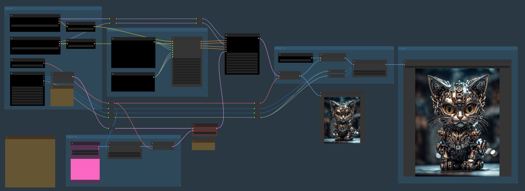
Intermediate SDXL Template Features
Txt2Img or Img2Img
batch size on Txt2Img and Img2Img
SDXL apect ratio selection
base and refiner models
separate prompts for potive and negative styles
SDXL mix sampler
Hires Fix
ControlNet zoe depth
6 LoRA slots (can be toggled On/Off)
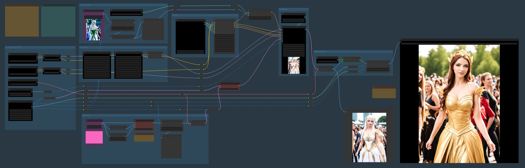
Advanced SDXL Template Features
Txt2Img or Img2Img
Img2Img batch
batch size on Txt2Img and Img2Img
image padding on Img2Img
SDXL apect ratio selection
base and refiner models
separate prompts for positive and negative styles
SDXL mix sampler
Hires Fix
4 ControlNet options
canny
open pose
zoe depth
softedge dexined
6 LoRA slots (can be toggled On/Off)
post processing options
Template A
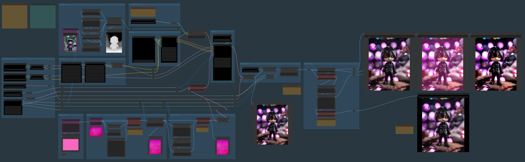
Template B

Tips
each optional component can be bypassed using logic switches (red nodes)
the default setting on all switches is Off (1)
it is not recommended to use SD1.5 models in the SDXL templates
some models don't need a refiner so you can set the base_ratio in the sampler to 1 for these
set Preview method: Auto in ComfyUI Manager to see previews on the samplers
Resources
https://upscale.wiki/wiki/Model_Database
https://github.com/RockOfFire/ComfyUI_Comfyroll_CustomNodes
https://github.com/SeargeDP/SeargeSDXL
Change History
1.1
Advanced Template added
A and B versions
new nodes
CR Aspect Ratio SDXL
CR SDXL Prompt Mixer
CR SDXL Style Text
CR SDXL Base Prompt Encoder
CR Img2Img Process Switch
CR Hires Fix Process Switch
CR LoRA Stack
CR Apply LoRA Stack
CR Latent Batch Size
CR Halftone Grid
2.0
Fix for missing Seed node
new nodes
CR Seed
CR Batch Process Switch
CR SDXL Prompt Mix Presets
CR SDXL Prompt Mix Presets replaces CR SDXL Prompt Mixer in Advanced Template B
2.1
Updated SDXL sampler
Updated Mile High Styler
new nodes
CR Upscale Image
Advanced stuff starts here - Ignore if you are a beginner
These are used on SDXL Advanced SDXL Template B only
SDXL Prompt Presets
the prompt presets influence the conditioning applied in the sampler
there are currently 5 presets
it is planned to add more presets in future versions
the detailed preset mappings are provided in the Legacy Mappings section of the article: https://civarchive.com/articles/1835
SDXL Conditioning Presets
the conditioning presets also influence the conditioning applied in the sampler
there are currently 3 experimental presets
the default is preset A
Credits
The prompts used for testing the templates were borrowed from pictures shared on the awesome AI Revolution discord sever.
There is a thriving ComfyUI community on AI Revolution.
The templates owe a lot to the great work done by Searge on developing new SDXL nodes and advanced workflows.
Description
FAQ
Comments (7)
The intermediate ones keep saying
"When loading the graph, the following node types were not found:
Seed"
Even when all other nodes are installed. Nothing is found in the manager
I'm getting CR Aspect Ratio missing, Manager can't find it. Also, some stuff about characters missing.
I am currently working with the basic template A, and it is working well, except when I attempt to use either dpm fast or dpm adaptive sampler. If I use either I get an error:
Error occurred when executing SeargeSDXLSampler: sigma_min and sigma_max must not be 0
As far as the manager can tell me I have downloaded and installed all the proper nodes. Appreciate any help you can offer
Does the style box actually do anything better than simply having it in the prompt box like normal? I keeps seeing people say that it really doesn't do that much of a difference.
For me, it seems to make things more complicated than they need to be.
Hi, the advanced workflows stopped working after the latest update of the Searge custom nodes. the "SDXL Mix Sampler" node is missing a connection to "scheduler". Any help would be appreciated as this is one of my favorite workflows.
Hi, im getting theses errors...
Do you know whats happening?
THX
Prompt outputs failed validation LoadImage: - Custom validation failed for node: image - Invalid image file: image.png SeargeSDXLSampler: - Return type mismatch between linked nodes: sampler_name, SAMPLER_NAME != ['euler', 'euler_ancestral', 'heun', 'dpm_2', 'dpm_2_ancestral', 'lms', 'dpm_fast', 'dpm_adaptive', 'dpmpp_2s_ancestral', 'dpmpp_sde', 'dpmpp_sde_gpu', 'dpmpp_2m', 'dpmpp_2m_sde', 'dpmpp_2m_sde_gpu', 'ddim', 'uni_pc', 'uni_pc_bh2'] - Return type mismatch between linked nodes: scheduler, SCHEDULER_NAME != ['normal', 'karras', 'exponential', 'simple', 'ddim_uniform']
You certainly did a great job, you did a great job! But your samples are impossible to use! Lots of errors!
install or update the following custom nodes
WAS Node Suite
Comfyroll Custom Nodes
Searge SDXL Nodes
These are not all the nodes you need to install to make your templates work. At least 2 I installed extra, some templates worked! But some still don't work - examples of errors
Error occurred when executing PreviewImage:
'NoneType' object is not subscriptable
File "F:\ComfyUI_windows_portable_nvidia_cu118_or_cpu\ComfyUI_windows_portable\ComfyUI\execution.py", line 151, in recursive_execute
output_data, output_ui = get_output_data(obj, input_data_all)
File "F:\ComfyUI_windows_portable_nvidia_cu118_or_cpu\ComfyUI_windows_portable\ComfyUI\execution.py", line 81, in get_output_data
return_values = map_node_over_list(obj, input_data_all, obj.FUNCTION, allow_interrupt=True)
File "F:\ComfyUI_windows_portable_nvidia_cu118_or_cpu\ComfyUI_windows_portable\ComfyUI\execution.py", line 74, in map_node_over_list
results.append(getattr(obj, func)(**slice_dict(input_data_all, i))))
File "F:\ComfyUI_windows_portable_nvidia_cu118_or_cpu\ComfyUI_windows_portable\ComfyUI\nodes.py", line 1265, in save_images
full_output_folder, filename, counter, subfolder, filename_prefix = folder_paths.get_save_image_path(filename_prefix, self.output_dir, images[0].shape[1], images[0].shape[0])
You should realise that people who use your product are not experts in programming! Everything should be clear and without errors. Test your templates on clean systems. Make video guides!
For me it is not clear how IMGtoIMG works - by changing the value to 2 - generation is not based on the uploaded image, but on the promt text.