



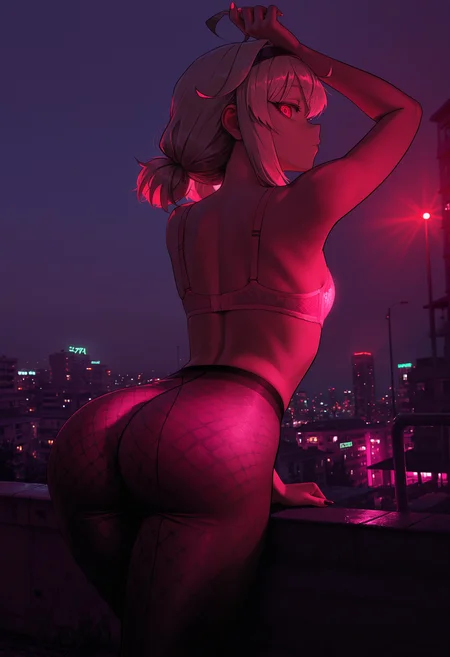

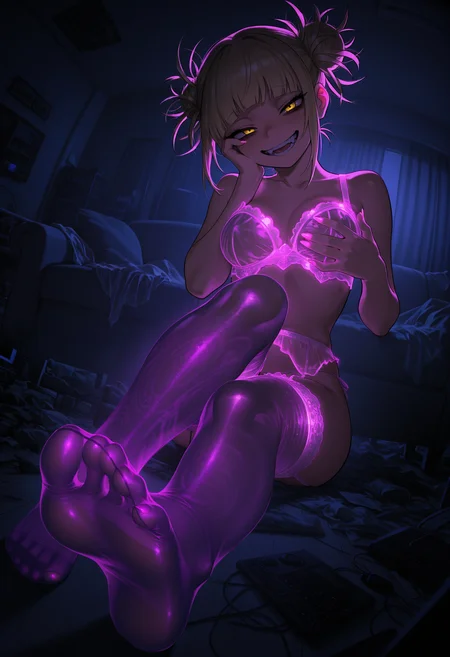

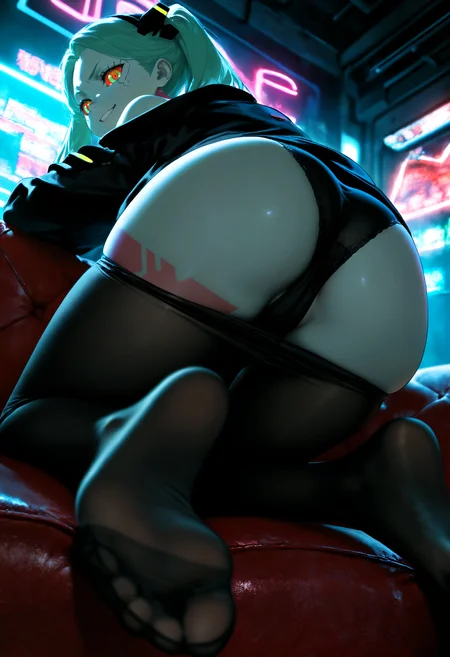

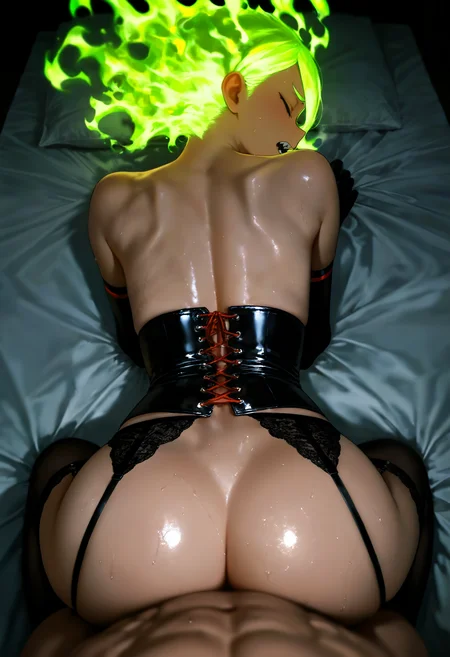









🛠️ Purpose & Design Philosophy
This workflow is a high-fidelity environment built for Illustrious. It prioritizes stability and professional texture over generation speed. It follows an "all-in-one" philosophy: configure your prompts, hit queue, and let the workflow handle the multi-stage refinement from start to finish.
Not for Speed: This is a heavy-duty refinement tool. If you want 2-second previews, use a basic workflow.
Personal Use: Built for my specific production needs. It is shared as-is for those who want a "set-and-forget" pipeline for Illustrious. Adjust the settings and models to fit your needs. The defaults on v19+ will be what I used for the sample images.
All-in-One Logic: The workflow handles generation, detailing, and upscaling in one continuous pass.
If you're needing something with more features: Try checking out Silly All-in-one, Multiple Characters With Regional Loras which is on civitai. I have no plans to implement additional features.
⚠️ Disclaimer & Compatibility
Install at Your Own Risk: Custom nodes can break your environment. I am not responsible for troubleshooting your specific installation.
ComfyUI: Built and tested on the non-app version. Desktop app users may face additional hurdles.
The "Your Version" Factor: Your node versions and environment are 99.9% likely to differ from mine.
Nodes 2.0: I do not recommend using Nodes 2.0. It creates unpredictable UI behavior; I will not provide support for issues involving this feature.
🤝 Support & Boundaries
I have not and never will monetize my workflow. CivitAI is the only platform I am maintaining this workflow on. If you find a version of my workflow posted and/or monetized anywhere and use it, then whoever posted it is responsible for providing you any support. This is the main reason why I don't monetize this: I don't want to be or feel obligated to provide support.
No DMs: DMs are disabled due to repeat spam. Please check the Discussions tab below; most questions have already been answered.
Modifications: You are free to hack this workflow apart. However, you are responsible for fixing it if it breaks.
Custom Requests: I do not make private workflows. If you need a custom solution, post a Bounty on CivitAI. There are many talented creators ready to help you for a fee.
Description
FAQ
Comments (4)
its long time after comfort using v15c/d i forgot.. there different result between normal and Laplace? in my experience its often got result like darker room or night, (i dont know its effecting or not but that on my experience, even i not prompting the Background)
As mentioned in the older notes under "about this version":
"The Laplace Scheduler is not recommended for people new to ComfyUI and/or are not comfortable with figuring out settings on your own."
Based on my own experience: I can tell you that the mu and beta settings are what can affect the lighting with Laplace, but also that Laplace does not work the same with every model. Laplace is also sensitive to prompts or the lack of prompts as well.
I'd say stick to the non-Laplace schedulers if you don't want to explore or mess with settings on Laplace Scheduler. I like the results I get while using Laplace, but it's not something everyone needs or wants to use.
@Gladas im read the about this version but its not telling specificly that why im ask XD
well i can explore the setting but i dont know what that setting affecting to.. even read the plugin info still make me like idiot.. well btw thx for the info XD
@saytolol12 the info on the Laplace Scheduler is basically non-existing AFAIK so there is not much I can tell you. That's why the note says "The Laplace Scheduler is not recommended for people new to ComfyUI and/or are not comfortable with figuring out settings on your own."
I had to use Gemini while testing the Laplace Scheduler myself to figure out what settings work for me.
When I use it, the only setting I really adjust is the "mu" setting between -0.6 to -0.4.
Different models behave differently with different samplers/schedulers. Even schedulers that aren't Laplace.
If I were to give a direct answer to the question "..different result between normal and Laplace?"
-Yes, the results will usually be different compared to using "normal" schedulers.
As far as I am concerned I answered the question(?) about the results giving dark backgrounds:
- "Based on my own experience: I can tell you that the mu and beta settings are what can affect the lighting with Laplace, but also that Laplace does not work the same with every model. Laplace is also sensitive to prompts or the lack of prompts as well."
- As an additional response I would say either just avoid using Laplace Scheduler or try using ChatGPT, Gemini, or whatever to help you with the settings if you want to keep trying to use it.